The Share Now feature in Bit Social lets you instantly share post across your connected social media platforms.
*Note* To use this feature, you must connect your social accounts with Bit Social. Follow this documentation to connect your accounts.
Check out our easy-to-follow tutorial!
Setup Share Now
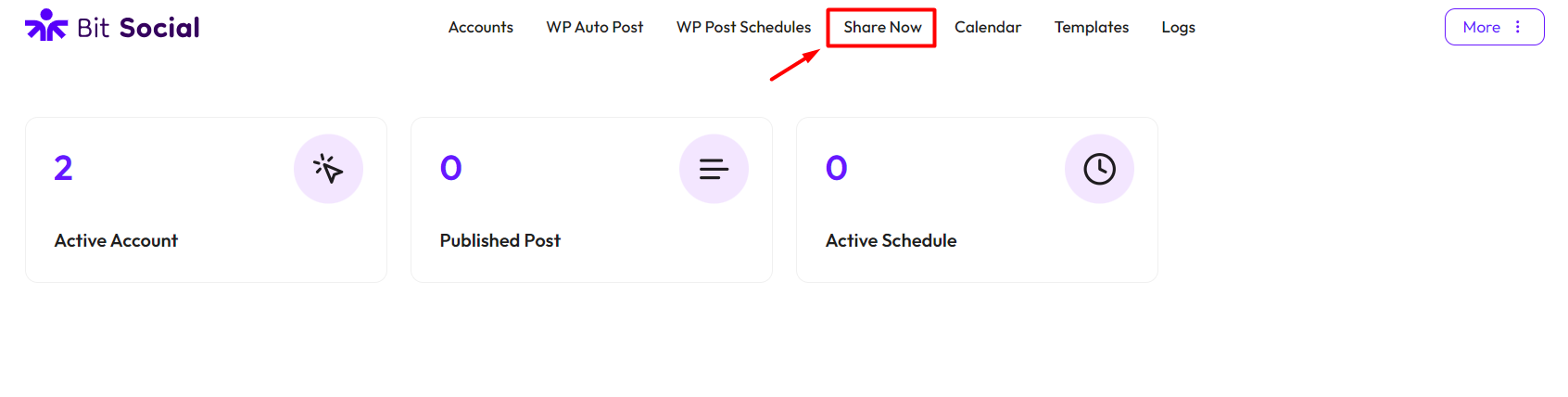
To set up the Share Now feature in Bit Social, go to Bit Social and click on “Share Now” from the top menu.
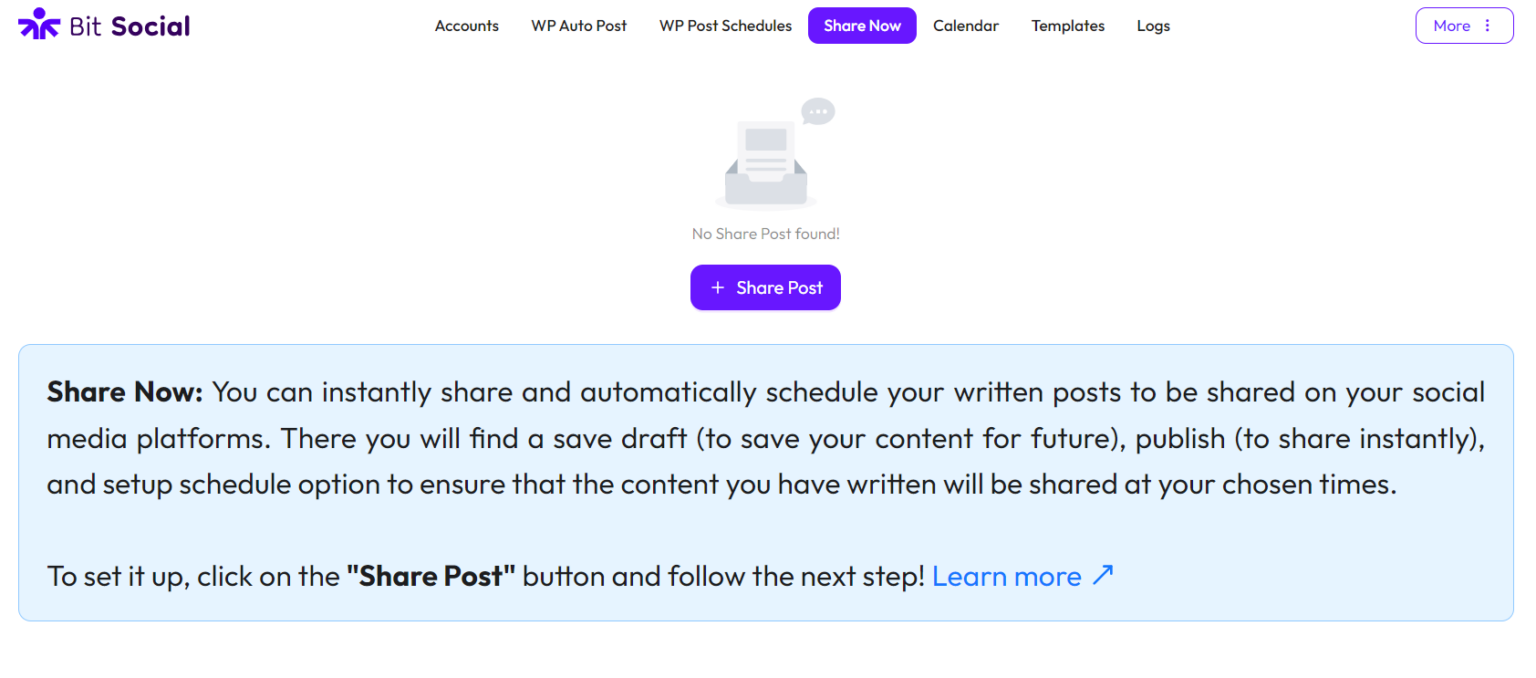
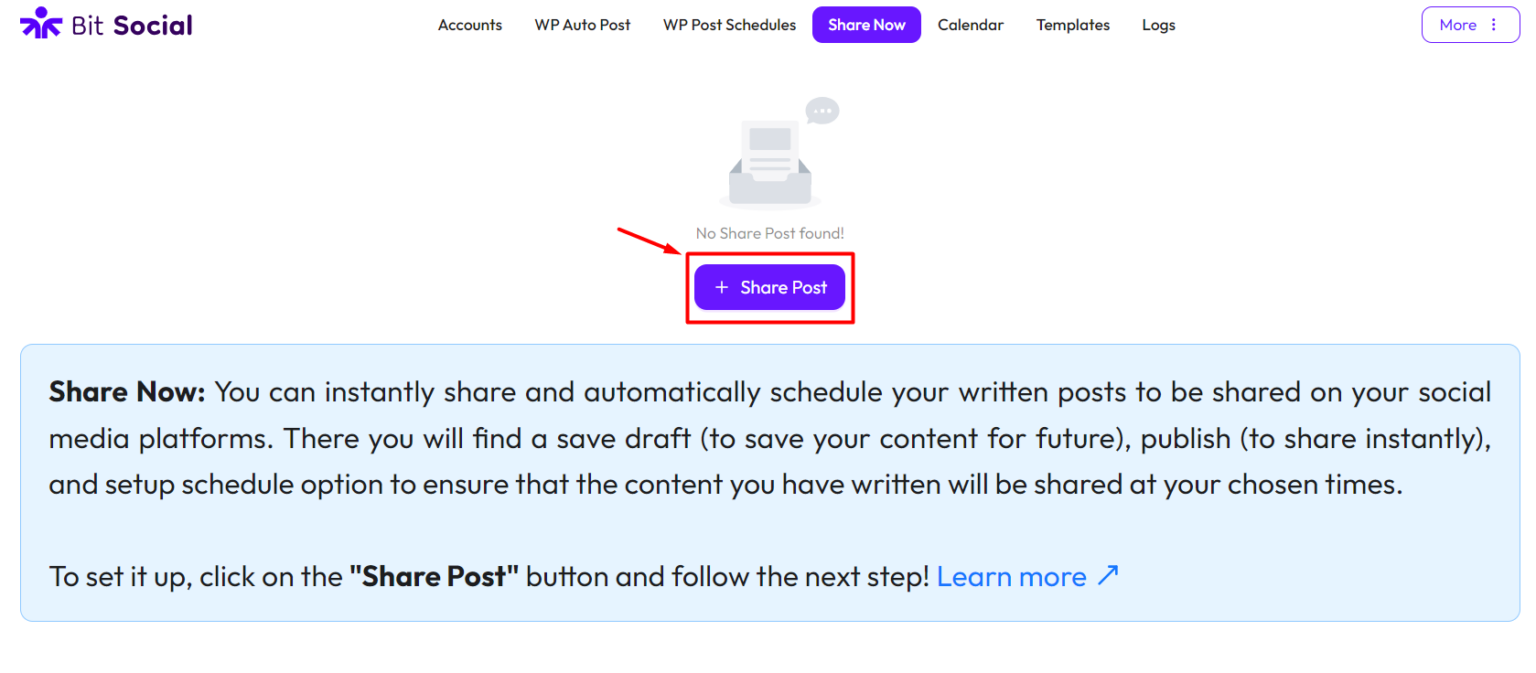
Now, click on the “Share Post” button.
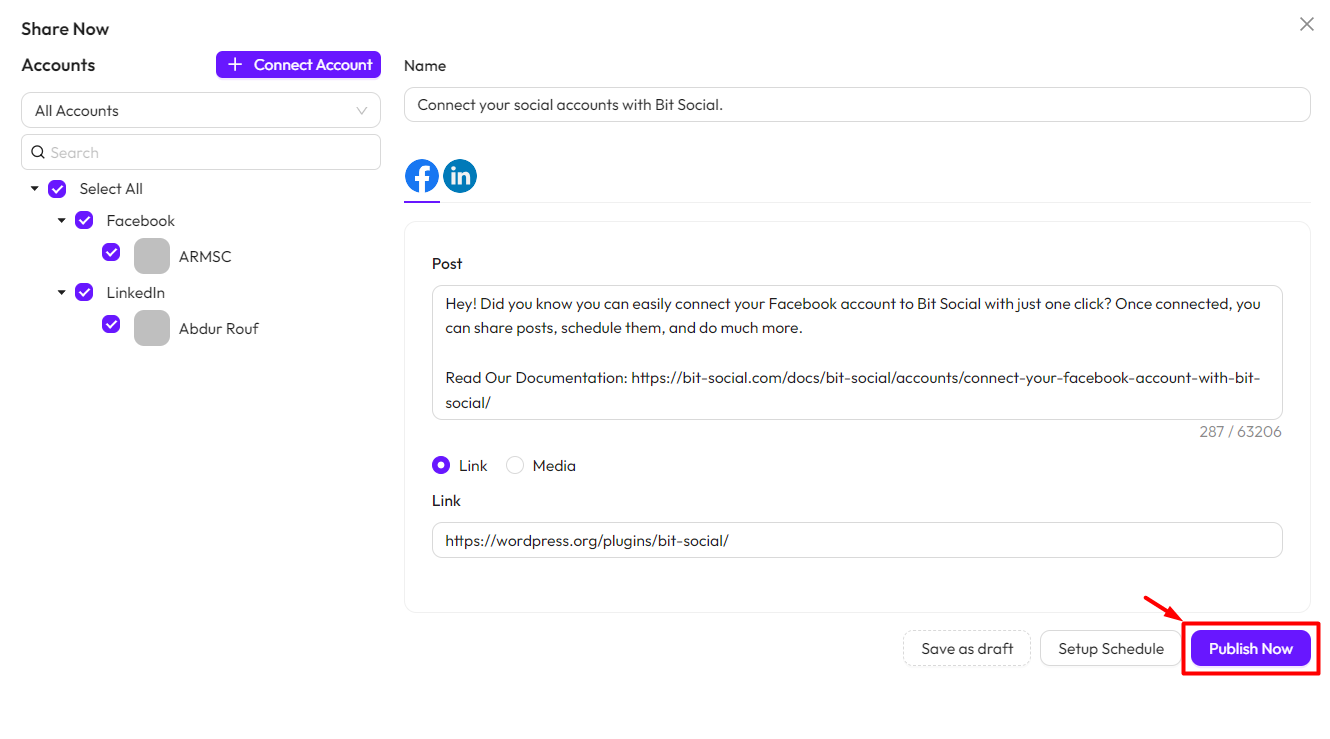
Select the accounts from the left-side menu where you want to share your posts. You can search for your accounts and filter them by platform. To connect a new social account, click the Connect Account button.
Name: You need to set a name for your post. This name won’t be shared on your social platforms.
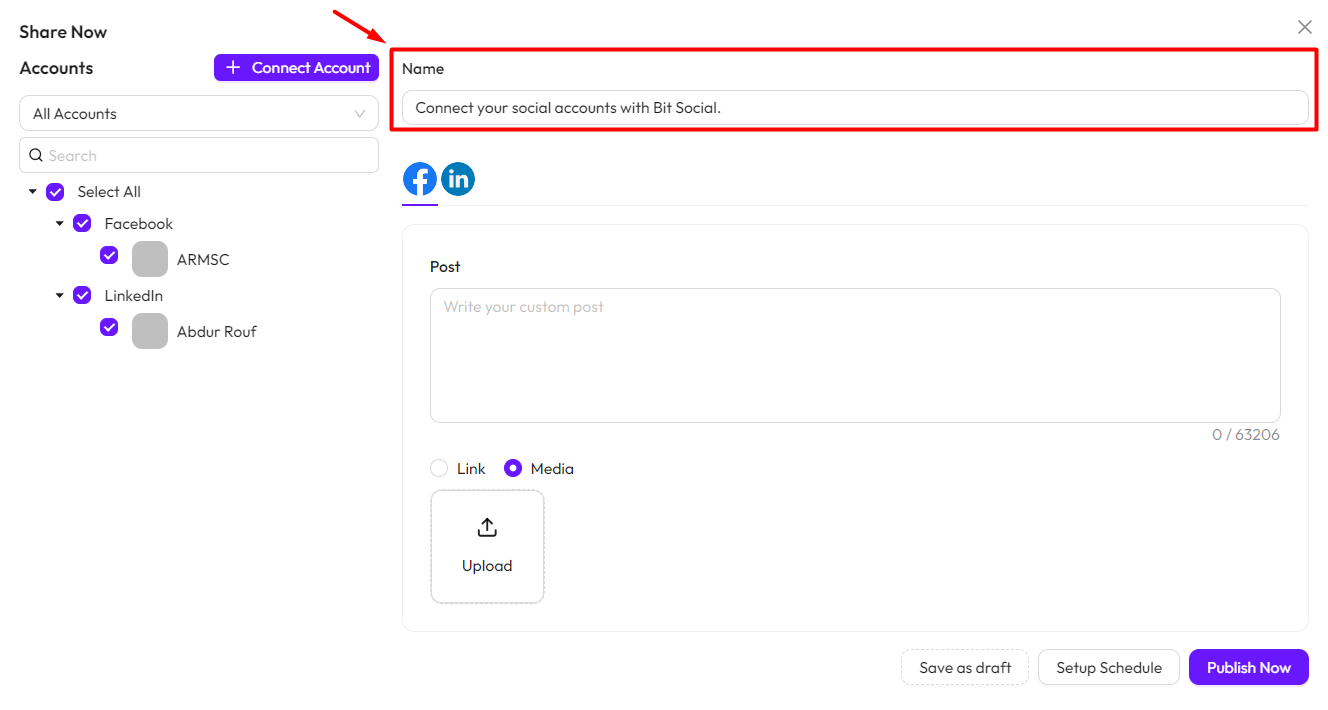
You need to write your post separately for each social platform. Remember, each platform has a character limit for how much you can write in a post.
Now, you’ll need to write a separate post for each platform.
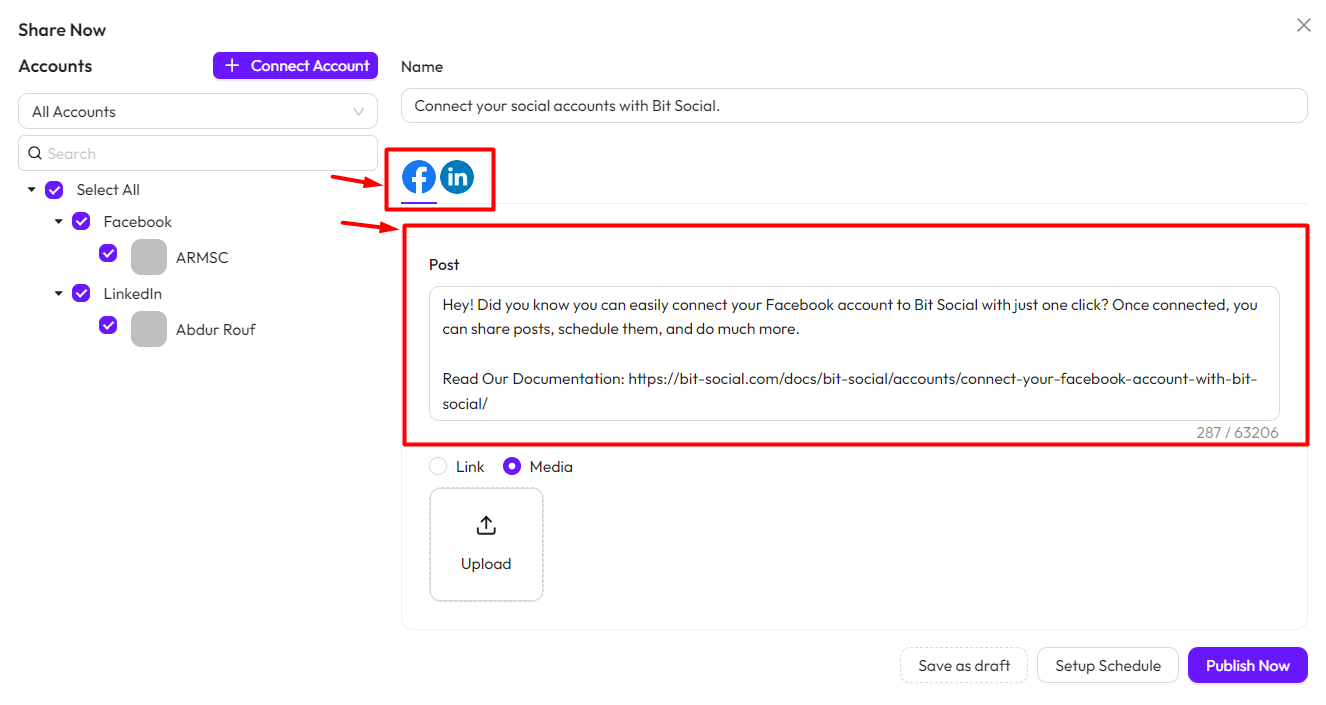
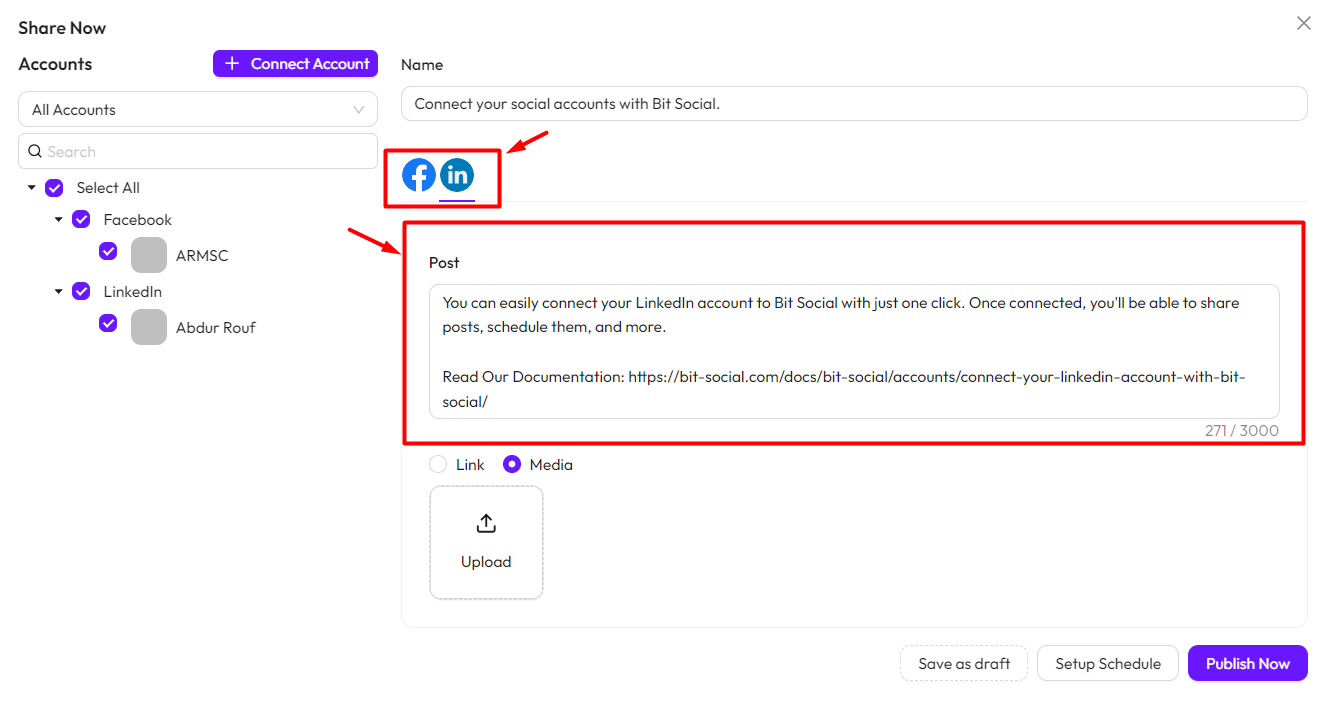
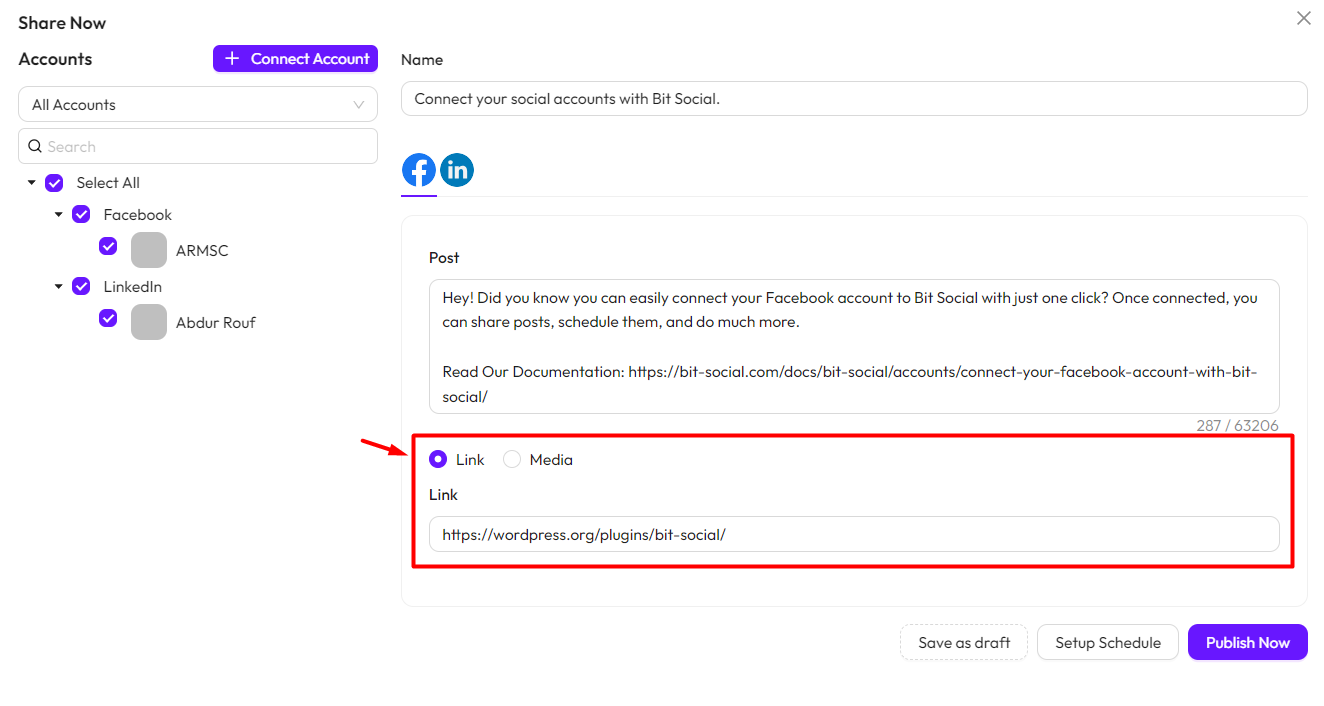
You can also share links and upload media when posting. You’ll need to upload media and add links separately for each social platform.
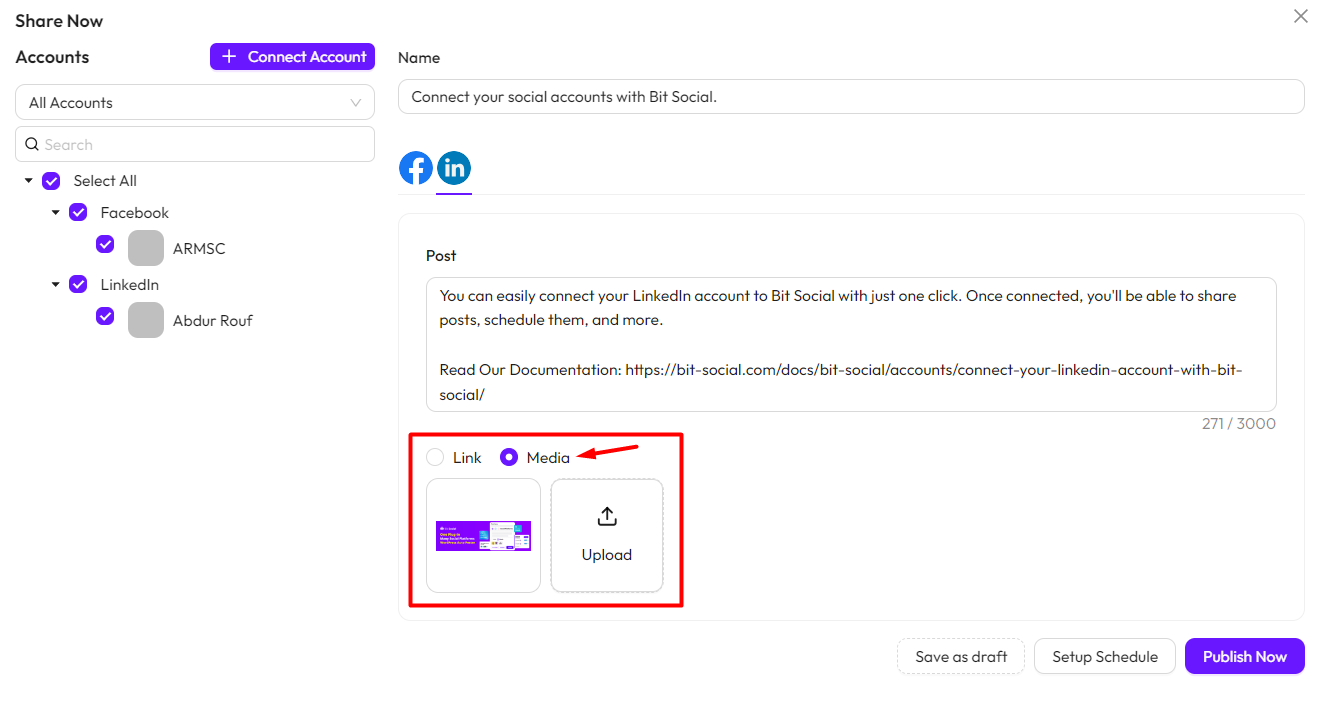
You’ll need to upload media and add links separately for each social platform. To remove uploaded media, hover over it to see a delete icon (to delete) and an eye icon (to preview).
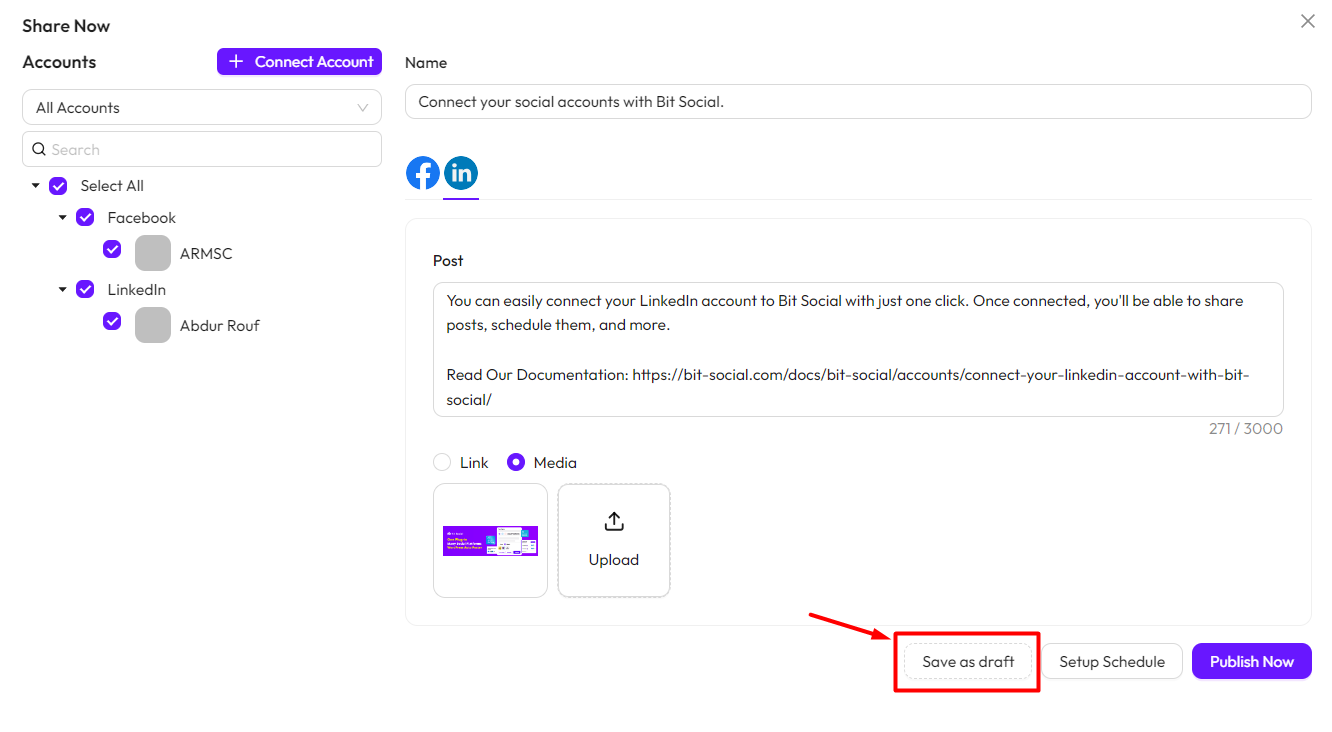
Save as draft
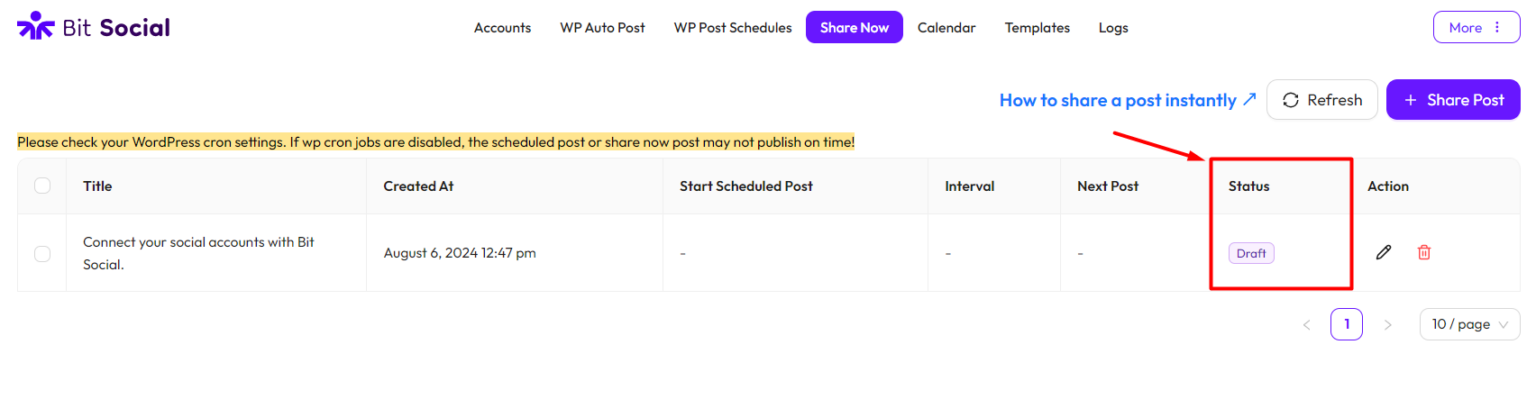
If you click the “Save as draft” button, your post will be saved as a draft, and you can publish it later.
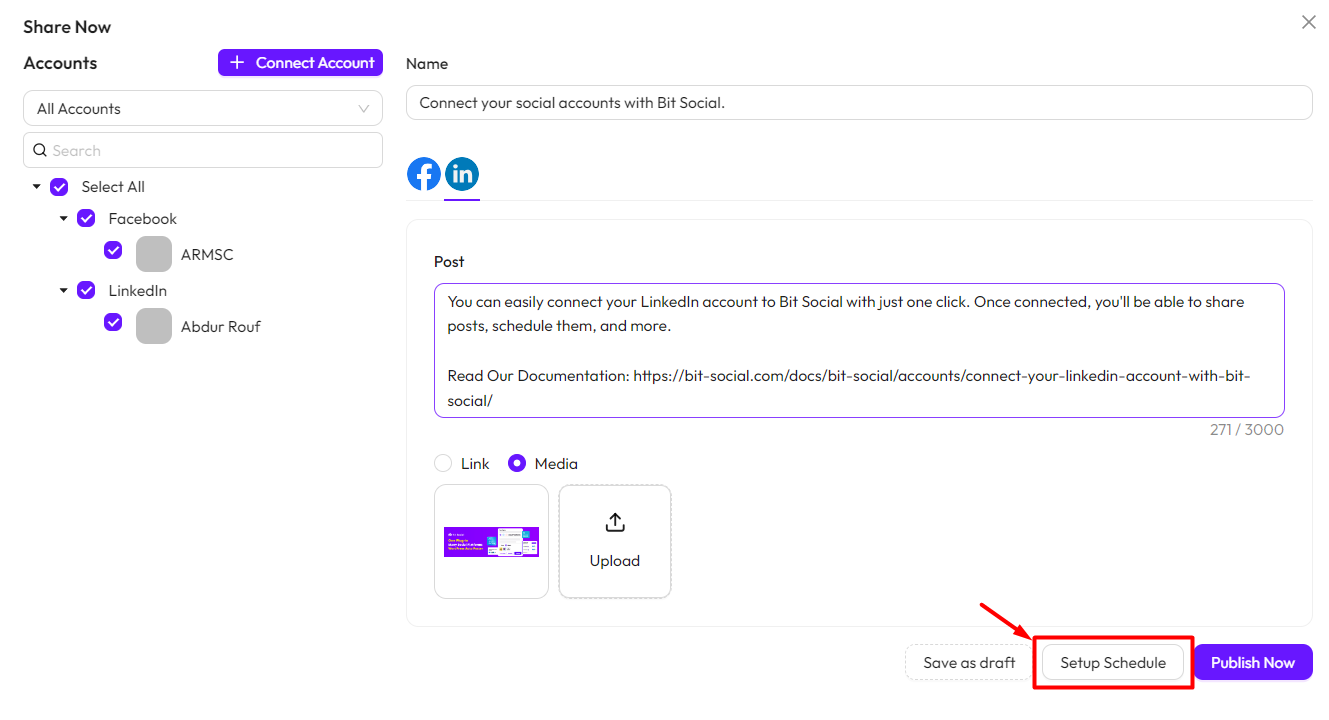
Setup Schedule
If you click the “Setup Schedule” button, a popup will appear. Set your schedule date and time in the popup, and your post will be published at the scheduled date and time.
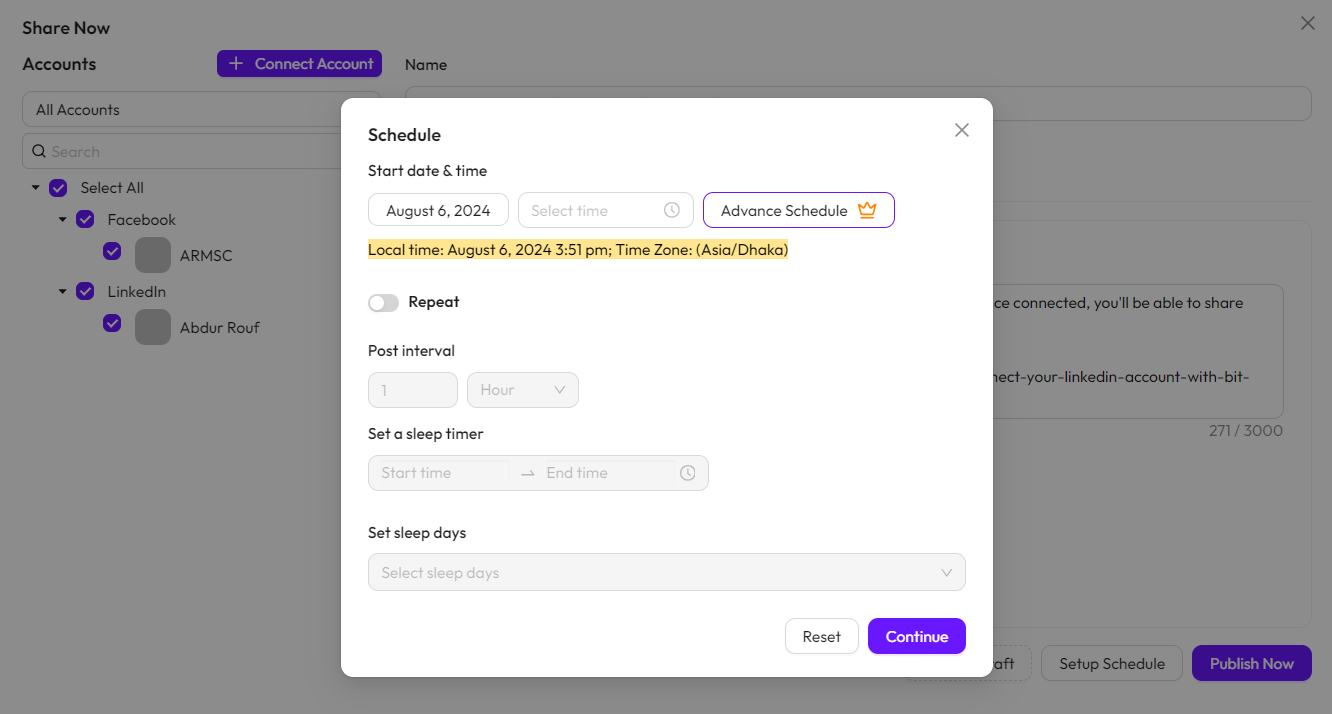
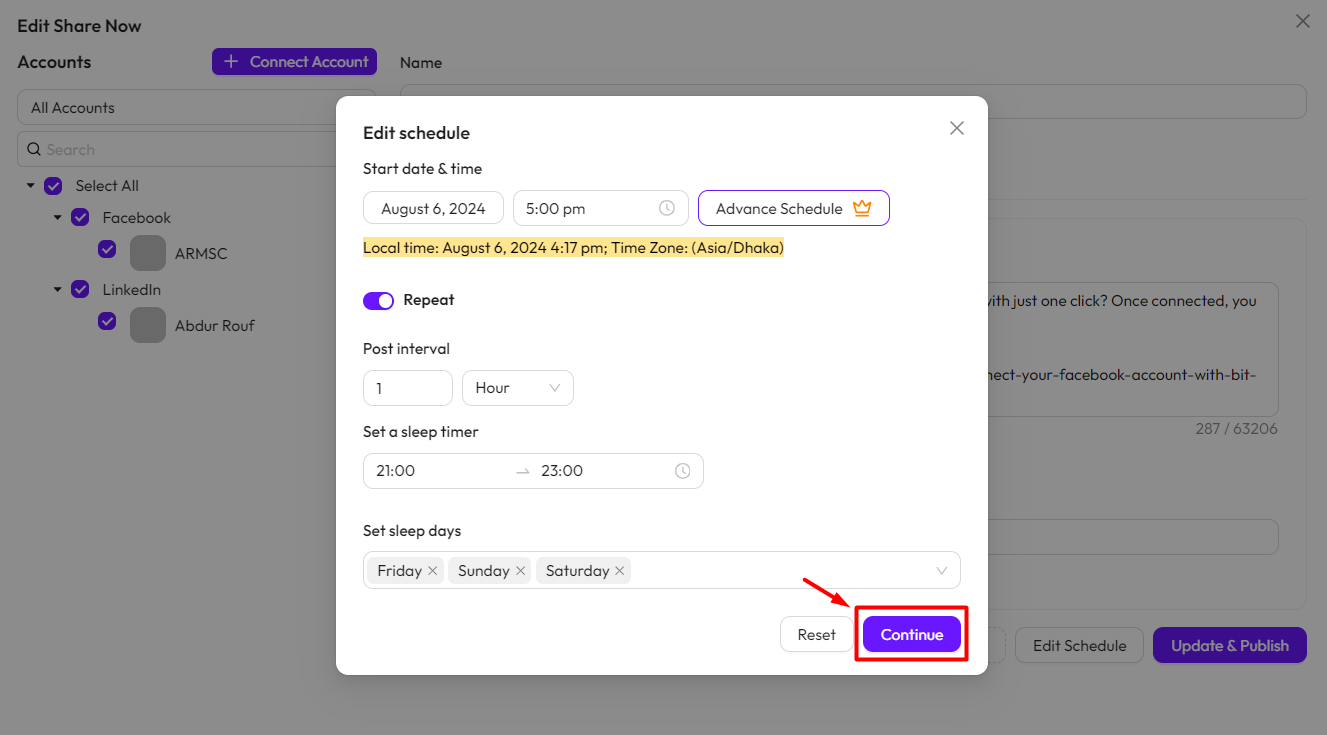
Start date & time: Set your start date and time for sharing. Your post will automatically be shared to your connected platforms at the specified date and time. You can also view the local time.
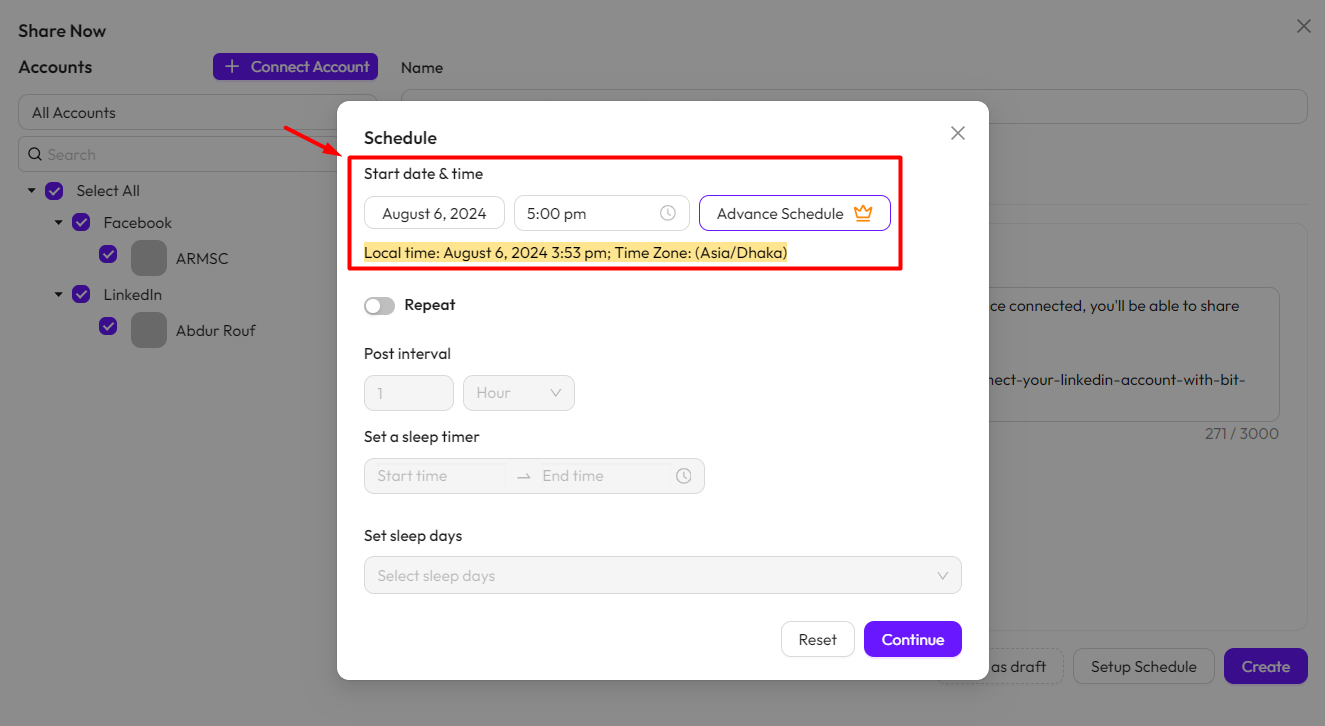
Repeat: Enable Repeat to set the post interval, sleep timer, and sleep days.
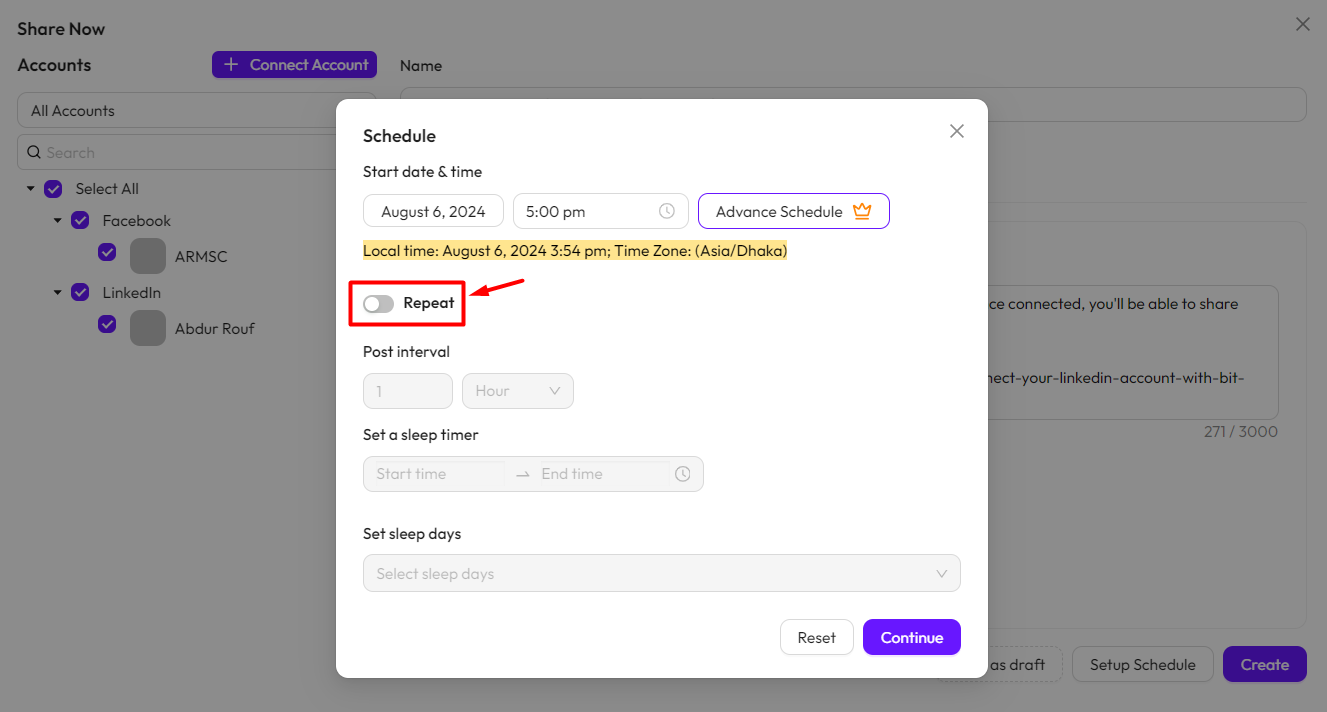
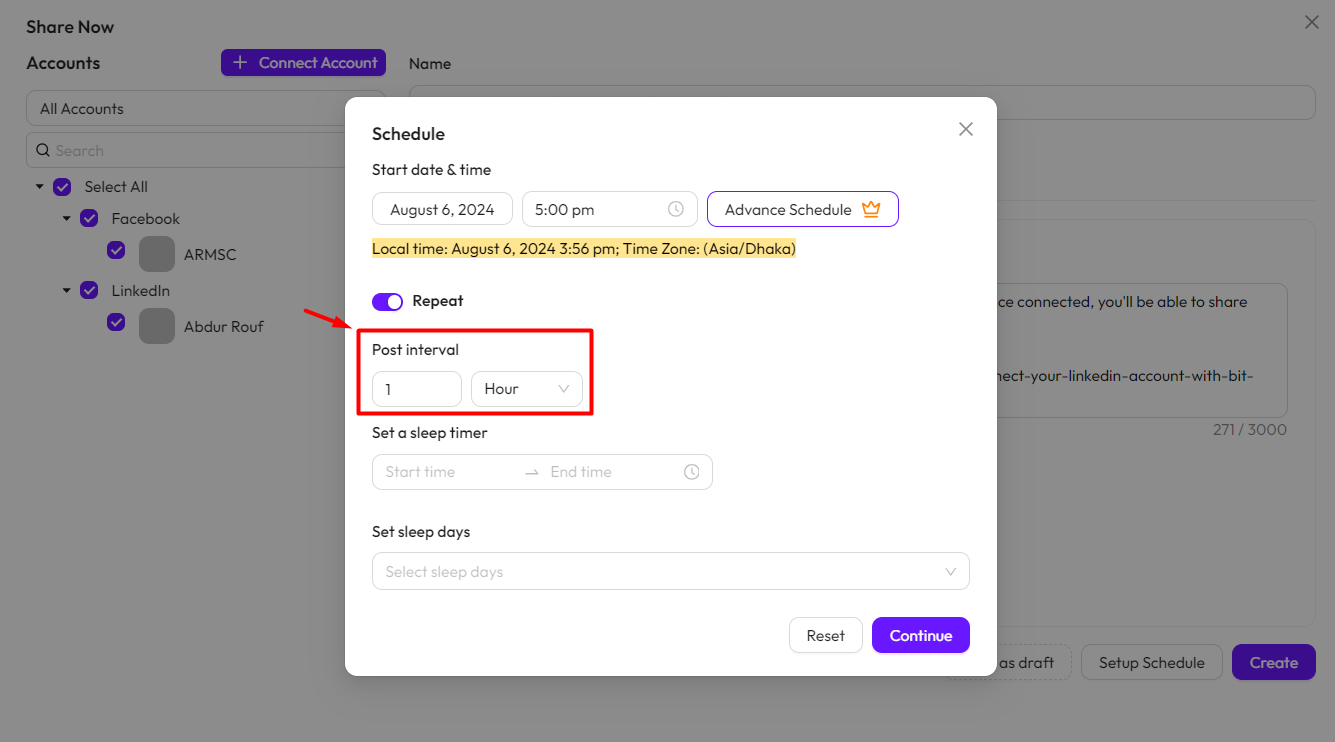
Post interval: The post interval feature lets you set the time between each automatic posting of the same post.
*Note* What if you update your post interval?
Let’s break down how your next post time works, especially when you change the interval:
- Let’s say You have a post scheduled to go live at 5:00 PM. You have set the interval for posts to every 1 hour.
- So start time is 5:00 PM and the first post time will publish at 5:00 PM. Next post will publish at 6:00 PM.
- If you decide to change this interval before 5:00 PM, nothing will change for the first post. Your post will still publish at 5:00 PM.
- Now, let’s say the current time is 5:30 PM and one of your post already published at 5:00 PM, and you realize you want to change the interval.
- So, if you change the interval at 5:30 PM from 1 hour to 2 hours, the new post time will be 7:30 PM (current time of 5:30 PM + updated 2-hours interval).
Key Takeaways:
- Before the Start Time: Changing the interval does not affect the next post time.
- After the Start Time: The new interval is added to the current time to determine the next post time.
This way, you can ensure your posts are always scheduled as you prefer, even if you decide to adjust the intervals after the start time has passed.
Set a sleep timer: This feature allows you to schedule a specific time duration for the plugin to pause its activity. It’s like setting a timer for the plugin to take a break from its tasks for a while.
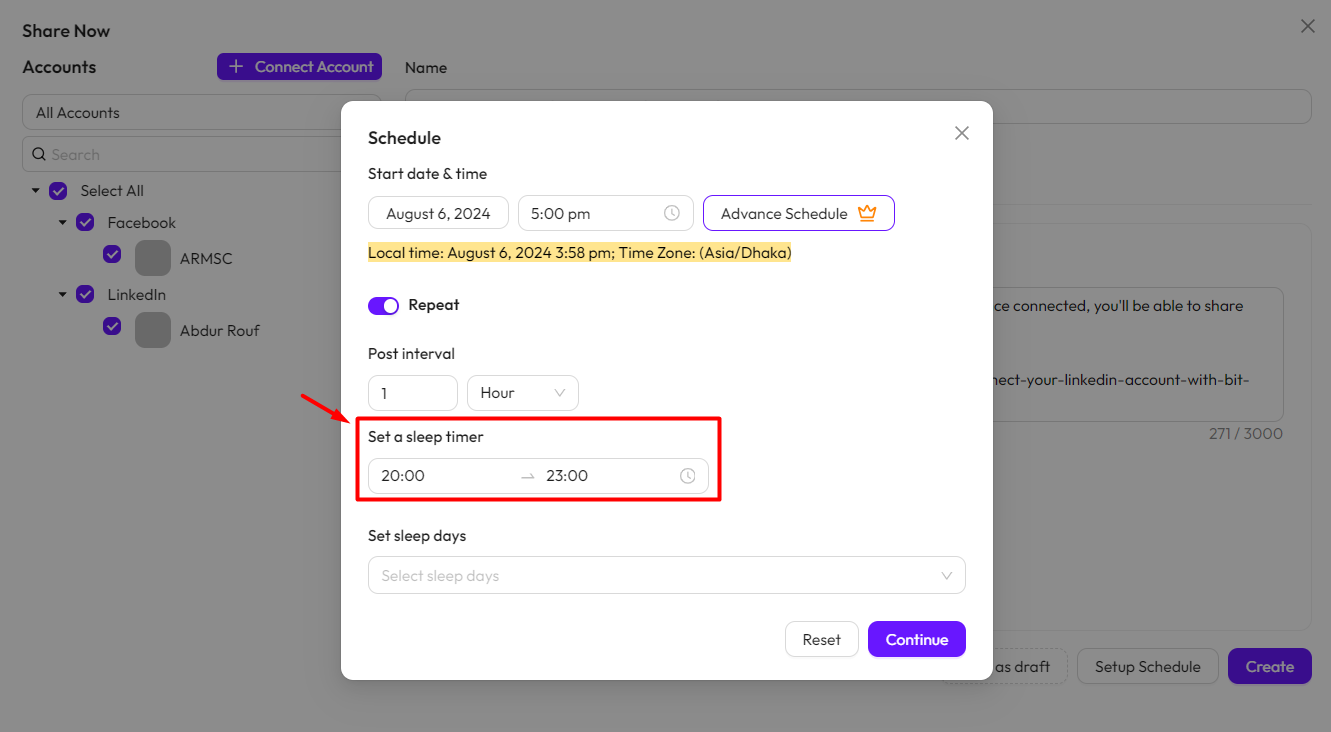
Set sleep days: This feature lets you choose specific days when the plugin won’t share your posts. It’s like giving the plugin scheduled days off, ensuring it takes a break on those selected days.
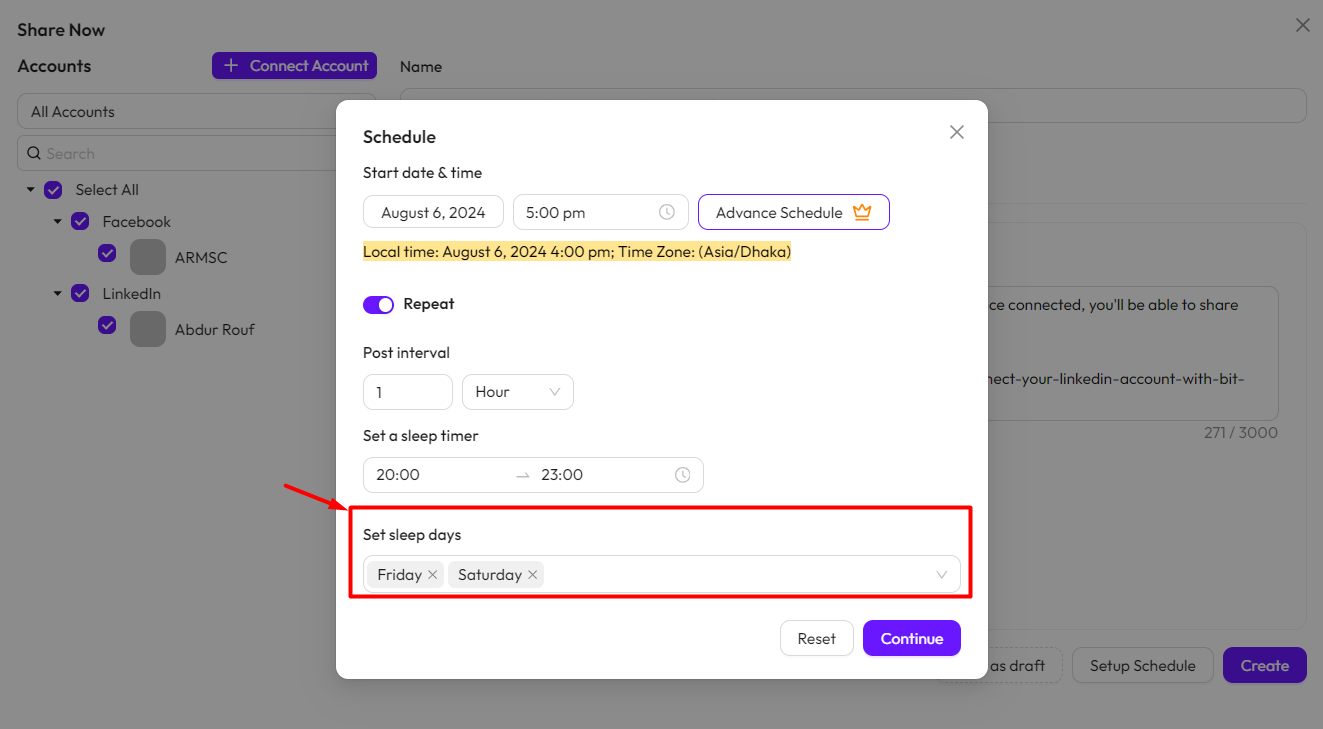
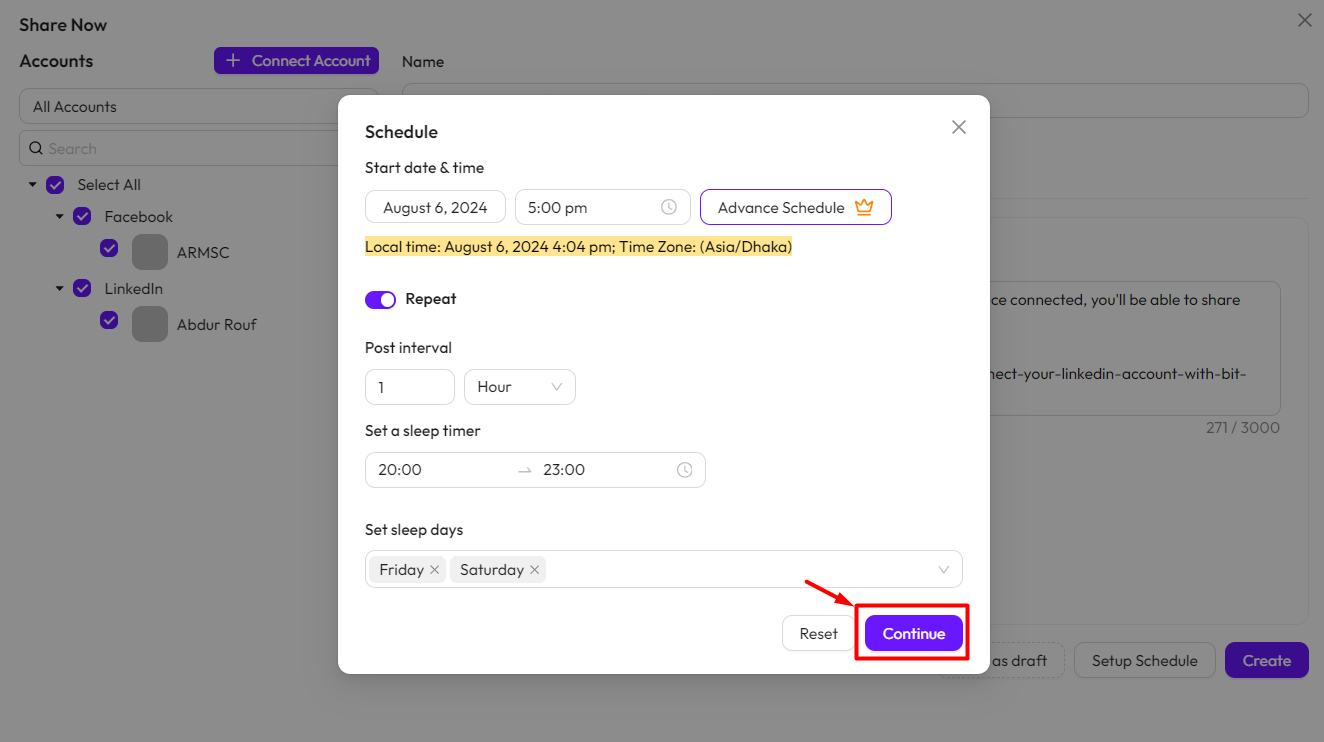
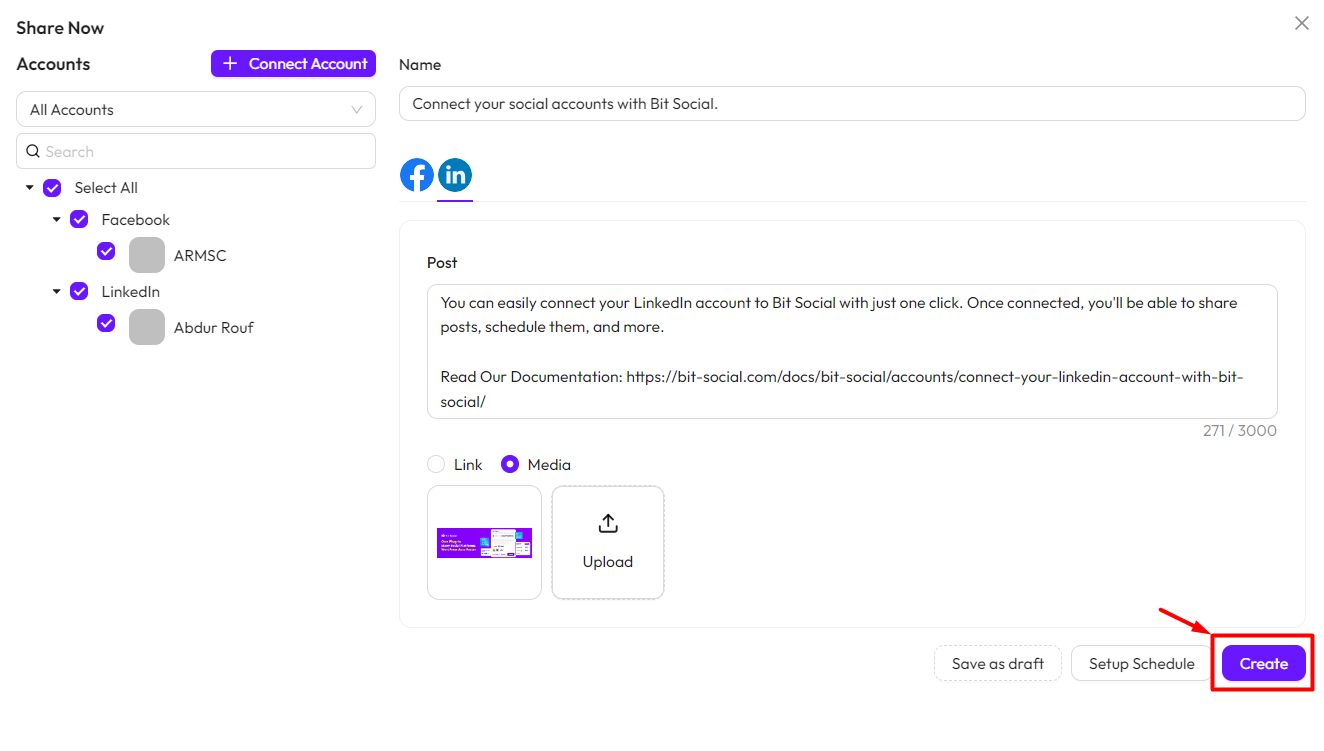
After setting up the schedule, click the Continue button. You can also reset the schedule by clicking the Reset button. Then, click the Create button.
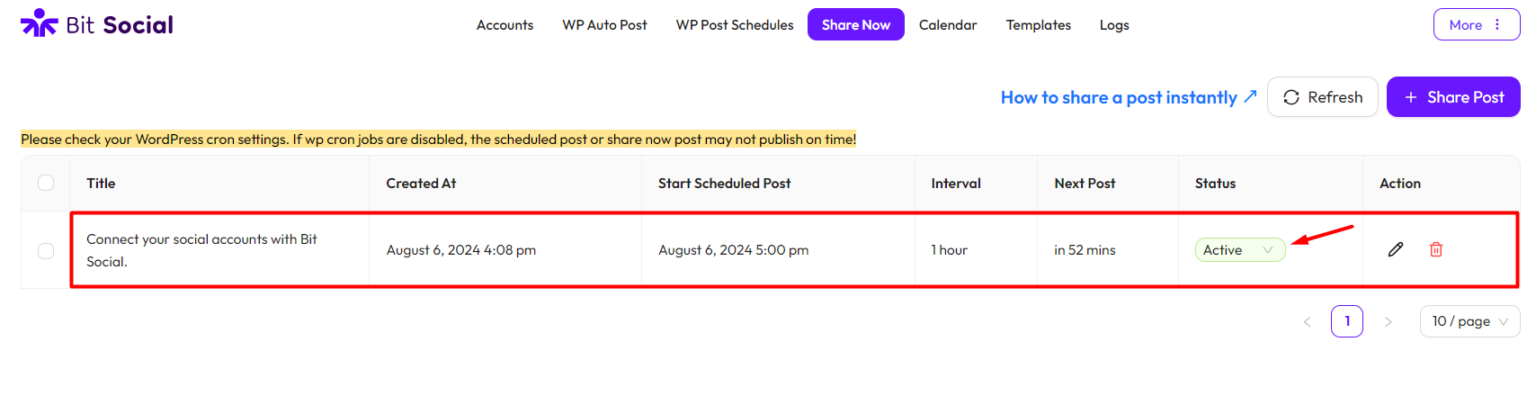
You can also edit your post and schedule by clicking the pen icon under Action. To edit your schedule, click on Edit Schedule button.
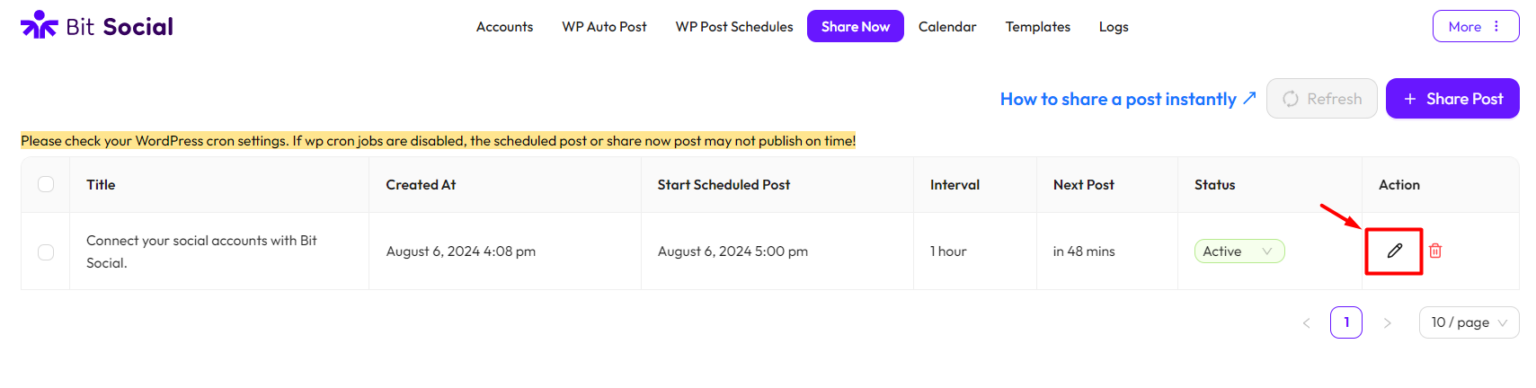
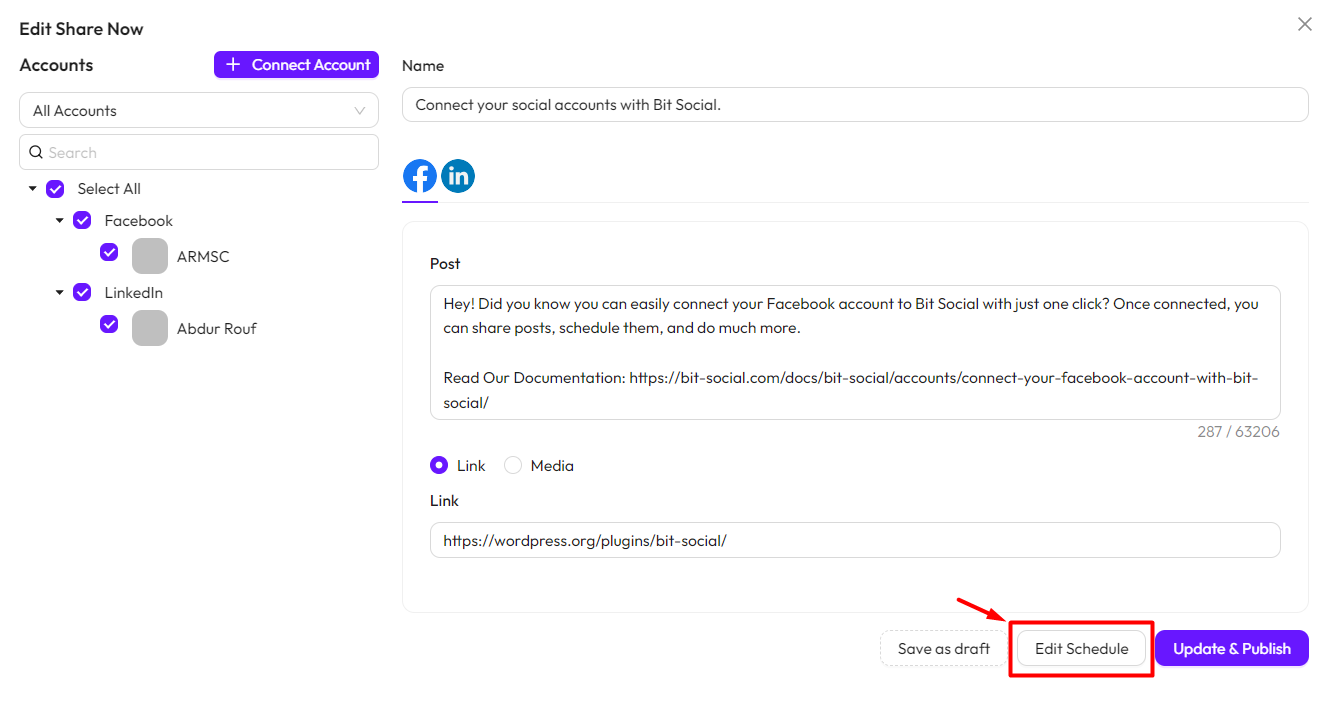
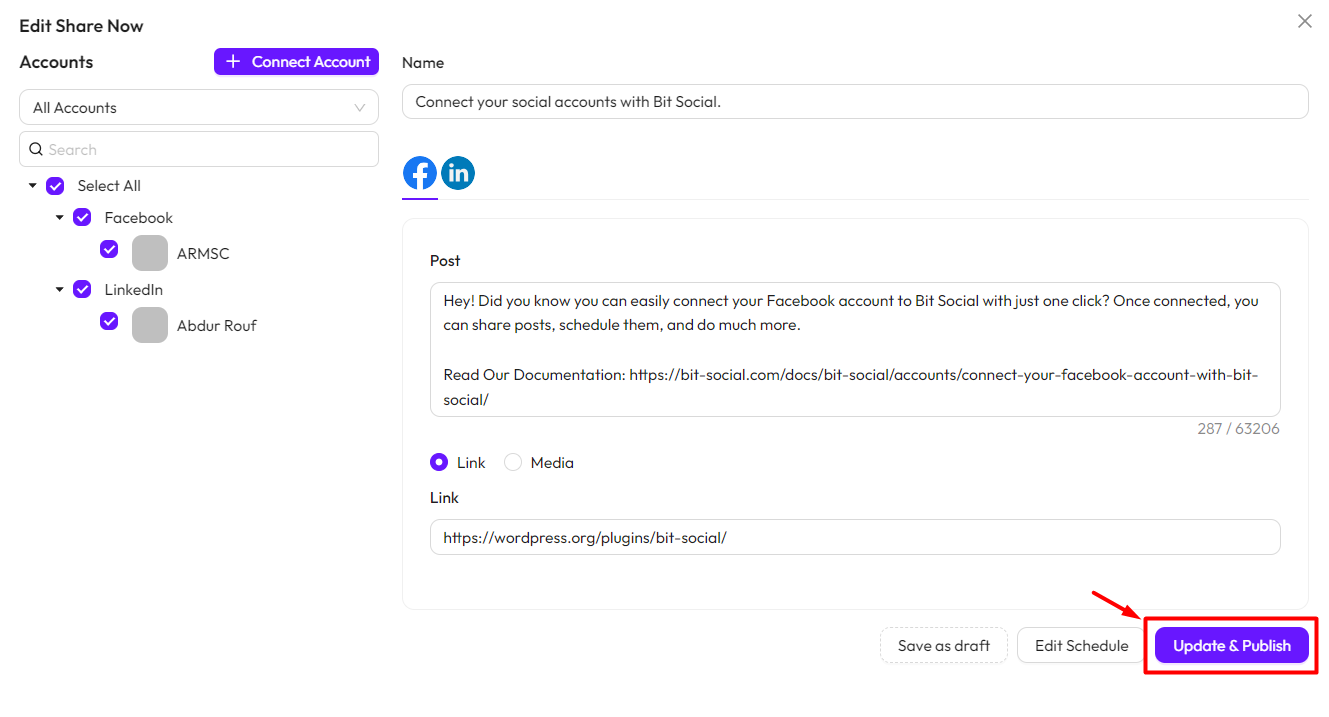
Now, edit your schedule. After making your changes, click the Continue button, then click Update and Publish.
Publish
If you click the “Publish” button, your post will be shared immediately.
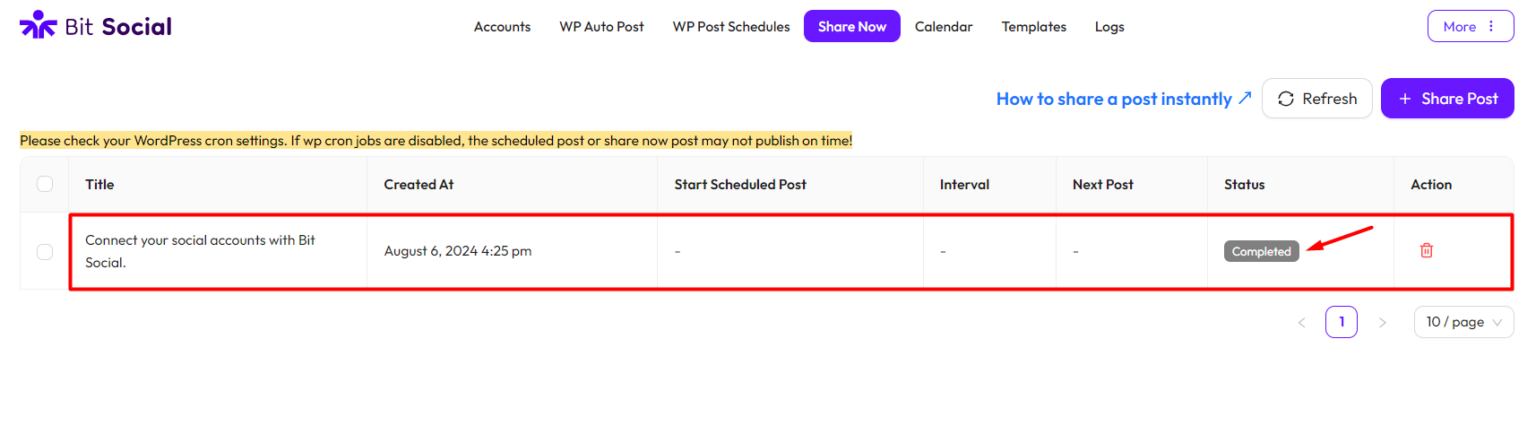
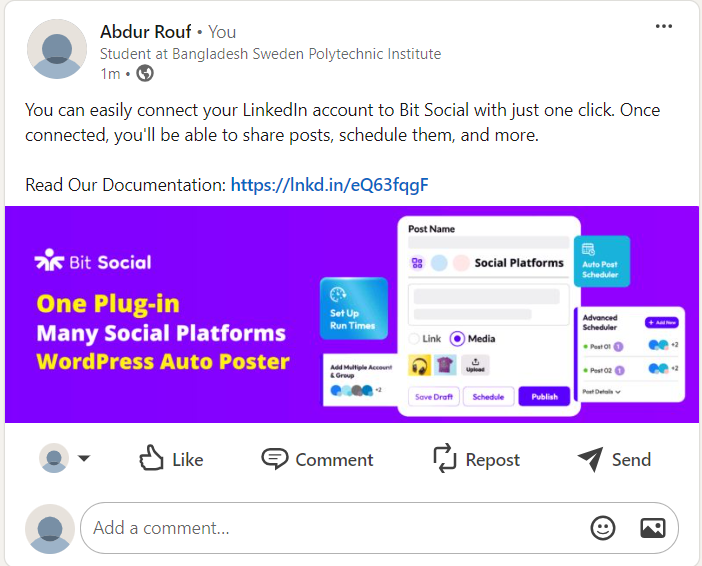
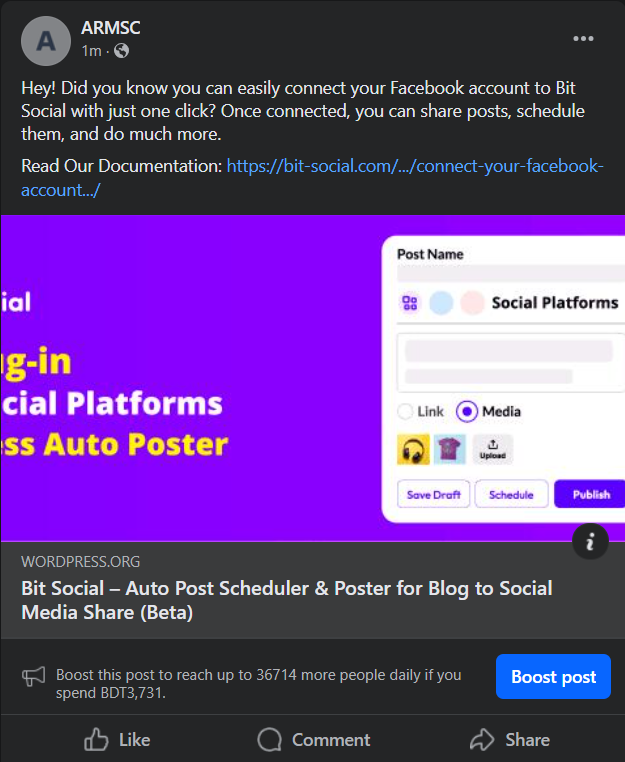
When you share your posts on social media, they will appear like this:
Was this article helpful?
That’s Great!
Thank you for your feedback
Sorry! We couldn't be helpful
Thank you for your feedback
Feedback sent
We appreciate your effort and will try to fix the article