In Bit Social, templates can be used for different posting types like Only Custom Message, Link Card, and Featured Image. You can also use templates to trim messages or create custom messages, making it simpler to keep your social media updates consistent and efficient.
Check out Bit Social's easy-to-follow tutorial!
Setup Templates
To set up the Templates feature in Bit Social, go to Bit Social and click on “Templates” from the top menu.
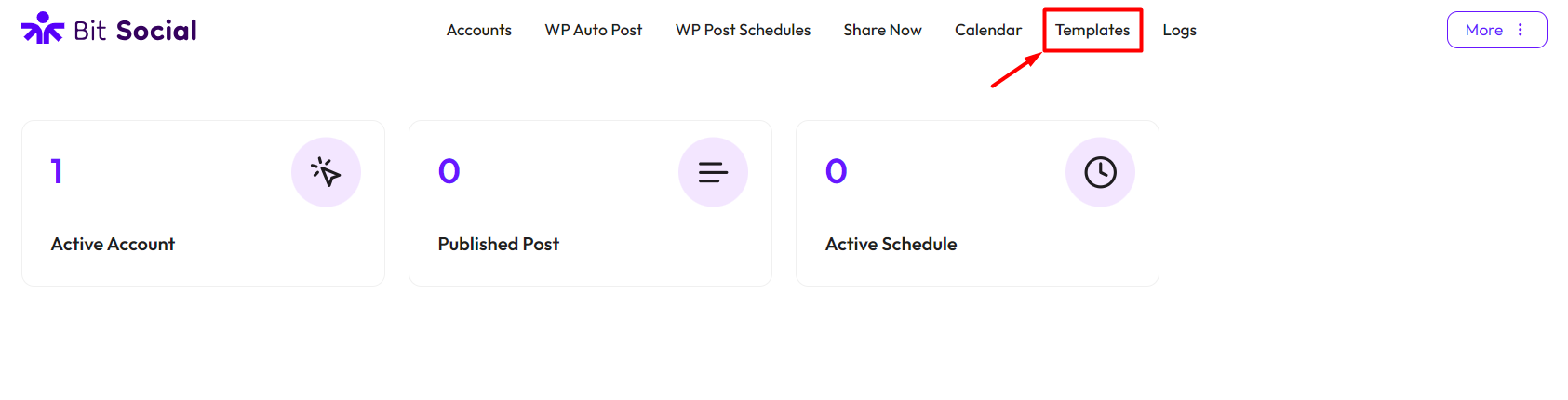
On the left side, you’ll see various social platforms. Each one needs to be customized separately.
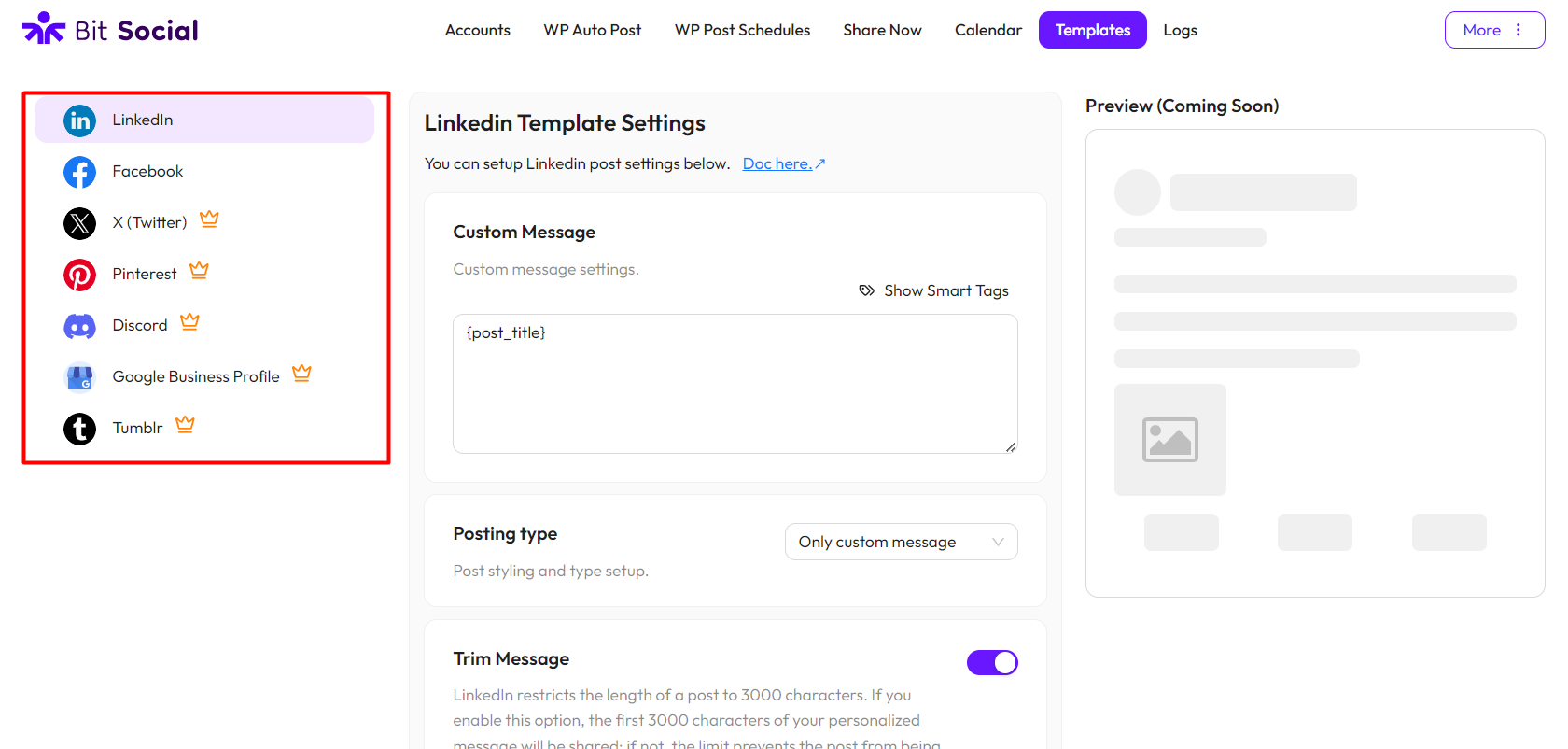
*Note* Here, we’re setting up the template for Facebook. If you need to customize templates for other social platforms, click on each social platform separately to customize them individually.
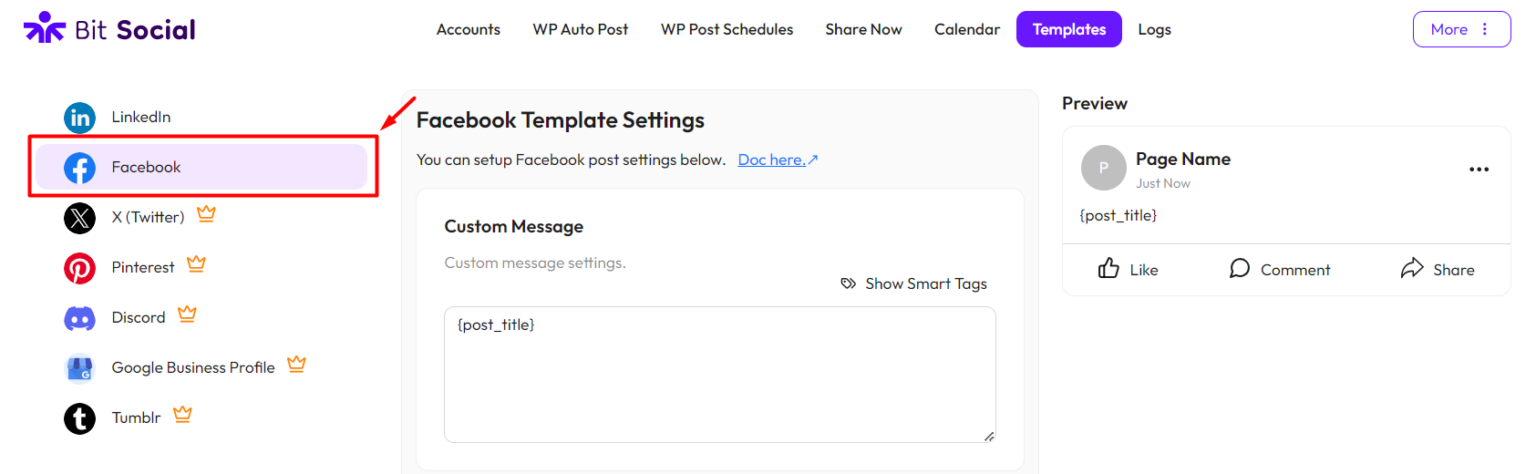
Custom Message: With the custom message feature, you have the freedom to personalize your posts. You can also utilize smart tags to add extra customization.
You can also use Custom Field smart tags when setting up templates in Bit Social.
Smart Tags Available in Bit Social
Smart tags in Bit Social are placeholders or shortcodes that automatically pull specific data from your WordPress posts or pages. They allow you to customize your social media posts by dynamically inserting information such as post titles, URLs, author names, or featured images. This helps in creating more personalized and relevant content when sharing posts on social media platforms.
Post ID
{post_id}
Post Author Name
{post_author}
Post Title
{post_title}
Post Tags
{post_tags}
Post Terms
{post_terms}
Unique ID
{uniq_id}
Custom Field
{custom_field_[your_key_name]}
Featured Image URL
{featured_image_url}
Post Full Content
{post_content_full}
Post Content Short 40
{post_content_short_40}
Post Excerpt
{post_excerpt}
Post Categories
{post_categories}
Post Link
{post_link}
Product Name
{product_name}
Product Description
{product_description}
Product Short Description
{product_short_description}
Product Regular Price
{product_regular_price}
Product Sale Price
{product_sale_price}
Product Stock Quantity
{product_stock_quantity}
Product Weight
{product_weight}
Product Length
{product_length}
Product Width
{product_width}
Product height
{product_height}
Product Dimensions
{product_dimensions}
Product image url
{product_image_url}
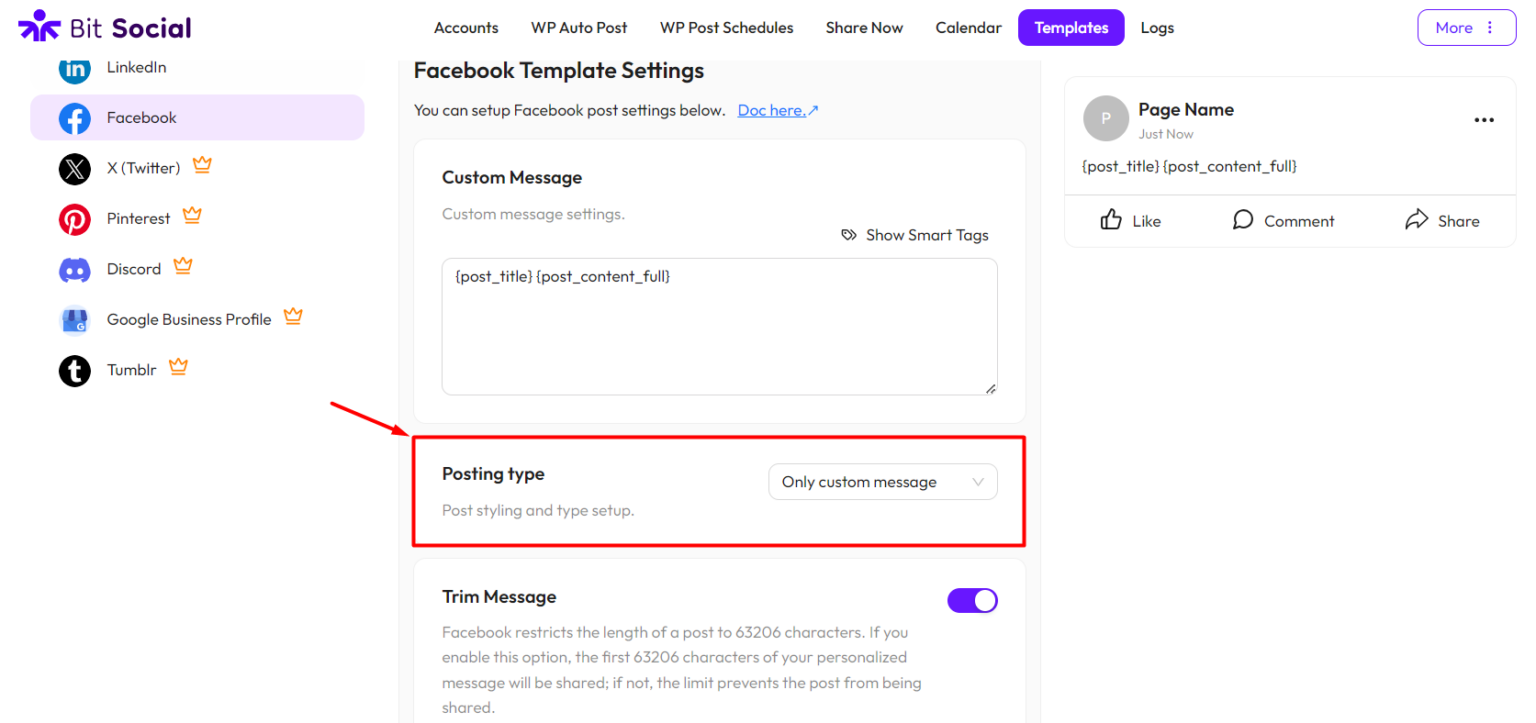
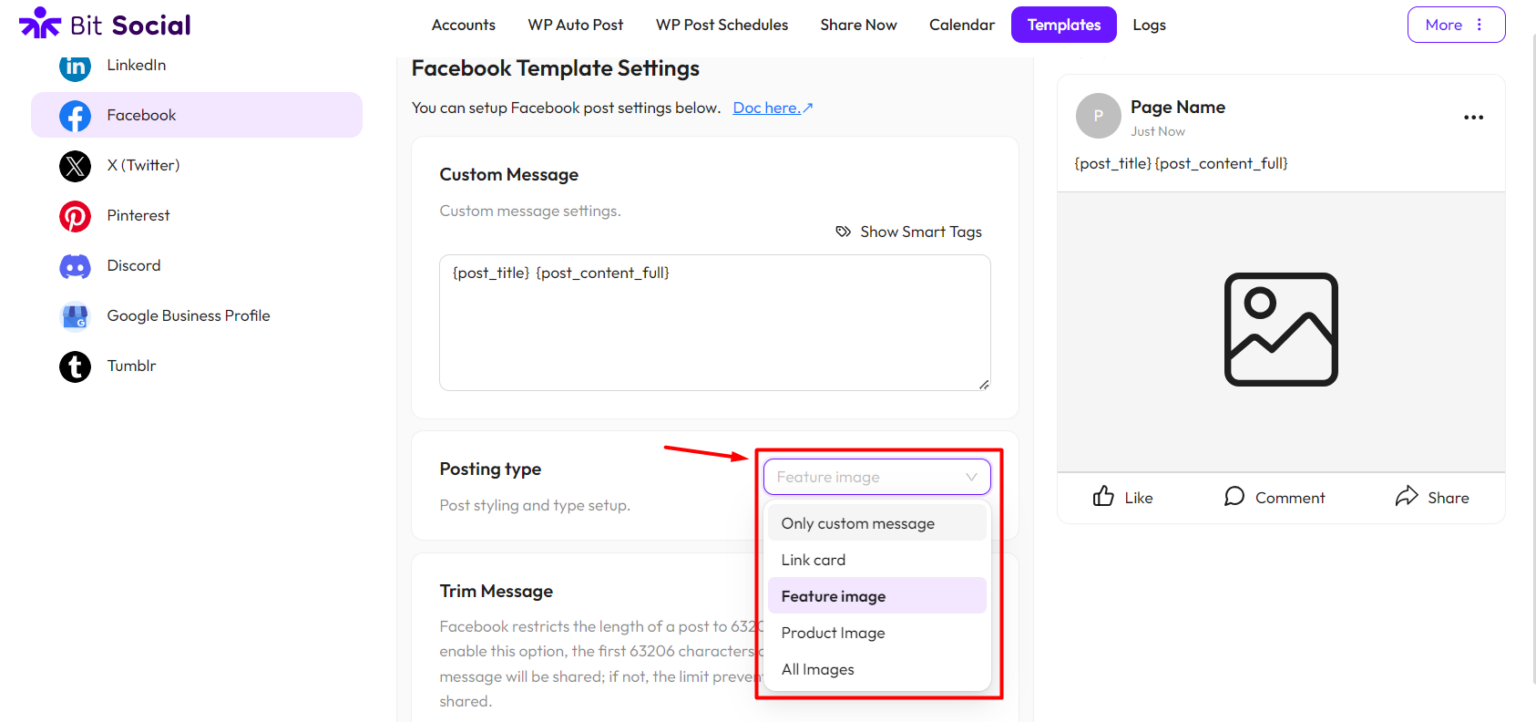
Posting type: When you’re using Bit Social, you can choose from different ways to make posts. You can choose only custom message, use a link card to preview a webpage, or include a featured image to make your posts more visually appealing. These options give you flexibility in how you share content on social media, helping you connect with your audience in the best way possible.
- Only Custom Message: If you choose “Only Custom Message,” the smart tags you selected in the custom message option will be shared to your social platforms.
- Link Card: With the “Link Card” post type, you can create posts that include a link along with a preview card. This preview card shows a title, description, and image from the linked page.
- Feature Image: If you select “Feature Image” as the post type, your WordPress post and its featured image will be shared on your social media platforms.
- Product Image: If you select “Product Image” as the post type, your WooCommerce product and its product image will be shared on your social media platforms.
- All Images: If you select “All Images” as the post type, all images from your WordPress post or WooCommerce product will be shared on your social media platforms.
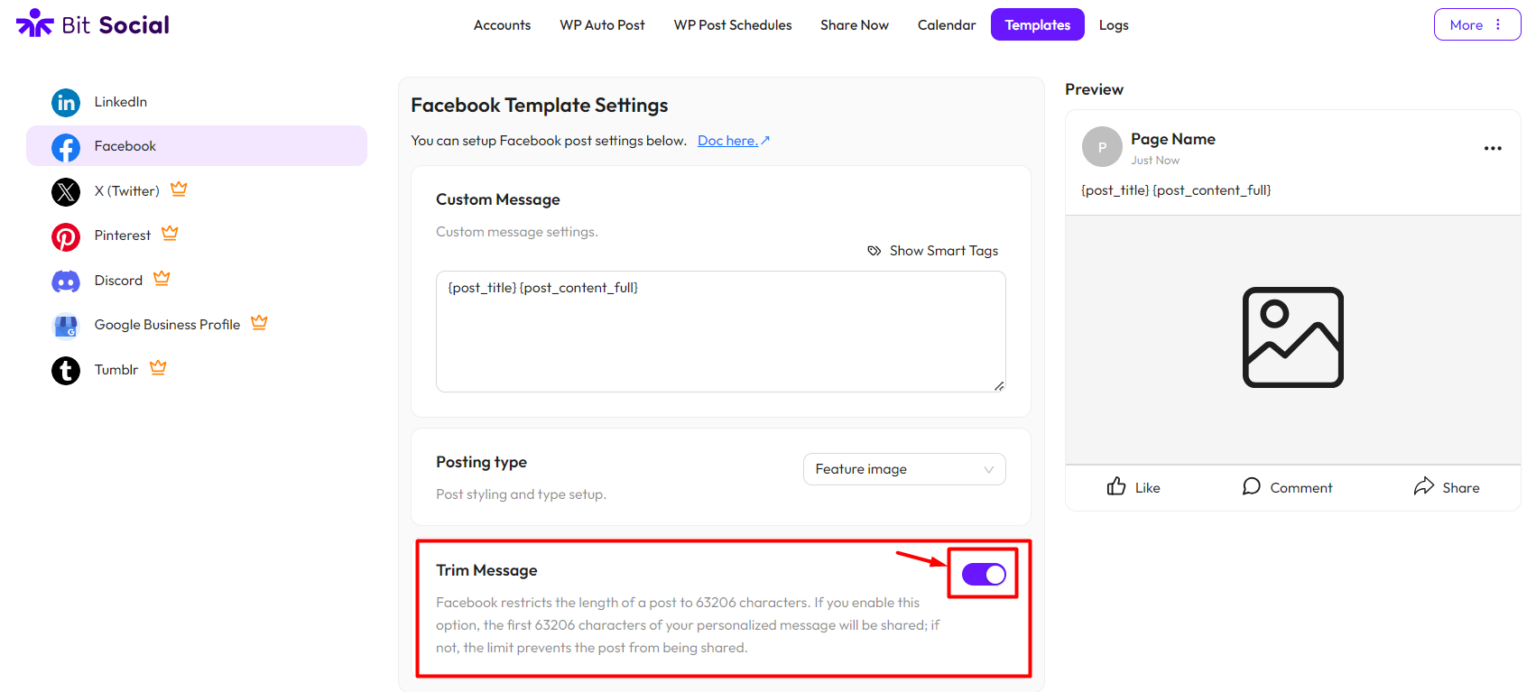
Trim Message: With the “Trim Message” feature, you can shorten your post message. This is handy because different social platforms have character limits, so trimming ensures your message fits within those limits while still getting your point across.
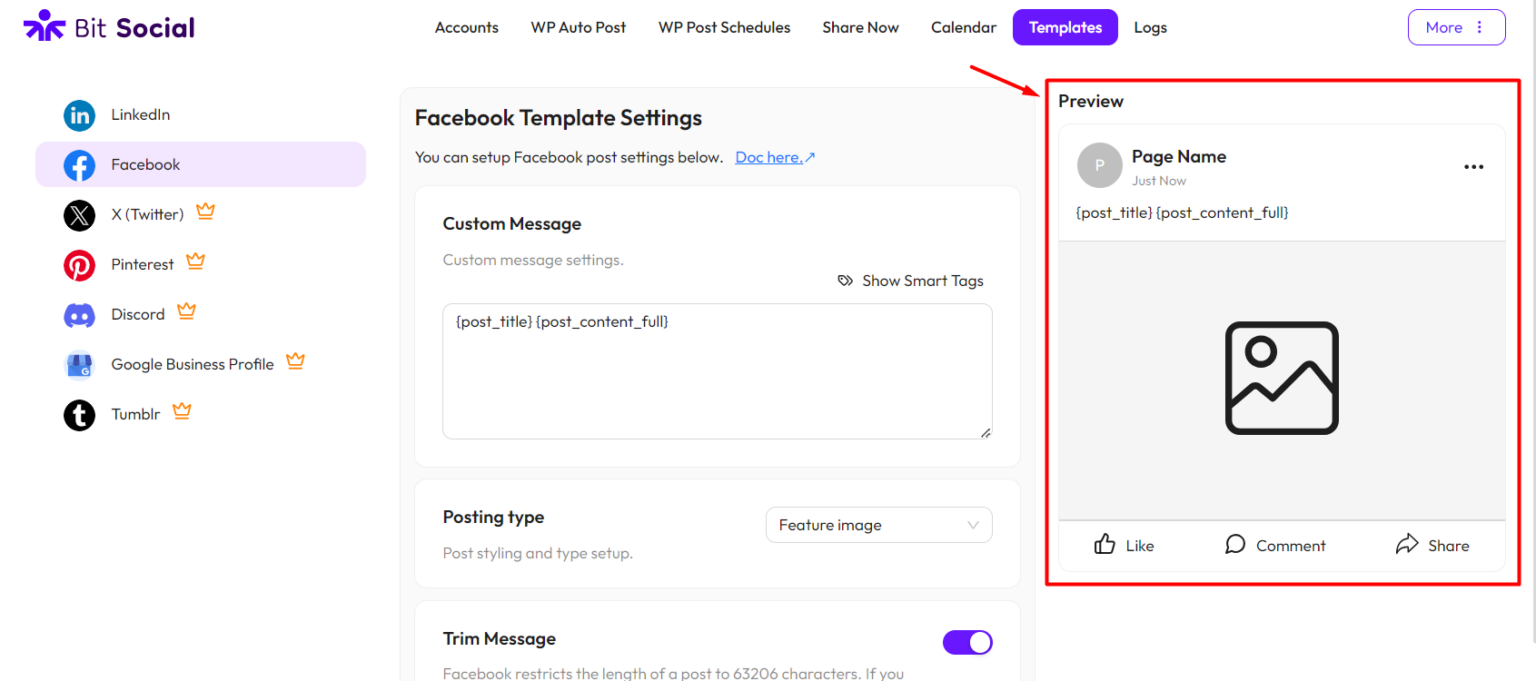
Preview: Once you’ve set up the templates, you can preview them on the right side. This preview shows you how your posts will appear on social media platforms once they’re shared.
How To Use Only Custom Message
First, enable Auto Post. Then, go to Template and choose Only Custom Message as the Posting Type. In the Custom Message section above, you can personalize your message using both smart tags and your own text.
How To Use Link Card
First, enable Auto Post. Then, go to Template and choose Link Card as the Posting Type. Now, whenever you publish a post on your WordPress site, Bit Social will share your Smart Tags from the Custom Message with a link card. If you used a featured image in your WordPress post, that image will be displayed in the link card.
How To Use Feature Image
First, enable Auto Post. Then, go to Template and choose Feature Image as the Posting Type. Now, whenever you publish a post on your WordPress site, Bit Social will share your Smart Tags from the Custom Message and the featured image you set in your WordPress post.
How to Use Custom Post Types (CPT) and Custom Fields
First, go to WP Auto Post and select your accounts. Enable “Share Automatically” and choose the post type you want to share. In this example, I’ve selected a Custom Post Type (CPT) called “Bit Apps CPT.”
Next, go to Templates and customize your message under “Custom Message.” For this example, I’ve used the Post Title, Post Content, and two custom fields. To add custom fields, use the “Custom Field” option from smart tags. Copy your custom field name and paste it inside square braces. For example, for a custom field name, use: {custom_field_[meta_field_name]}.
After setting up your message, create the Custom Post Type and check your log to ensure everything is working.
Was this article helpful?
That’s Great!
Thank you for your feedback
Sorry! We couldn't be helpful
Thank you for your feedback
Feedback sent
We appreciate your effort and will try to fix the article