With the WP Post Schedules feature in Bit Social, you can automatically schedule your all WordPress posts to be shared on your social media platforms. This feature allows you to filter your posts, ensuring that only the content you want gets shared at the optimal times.
Check out our easy-to-follow tutorial!
Setup WP Post Schedules
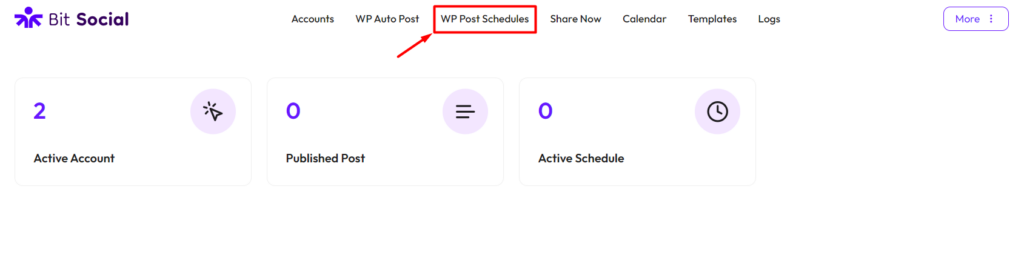
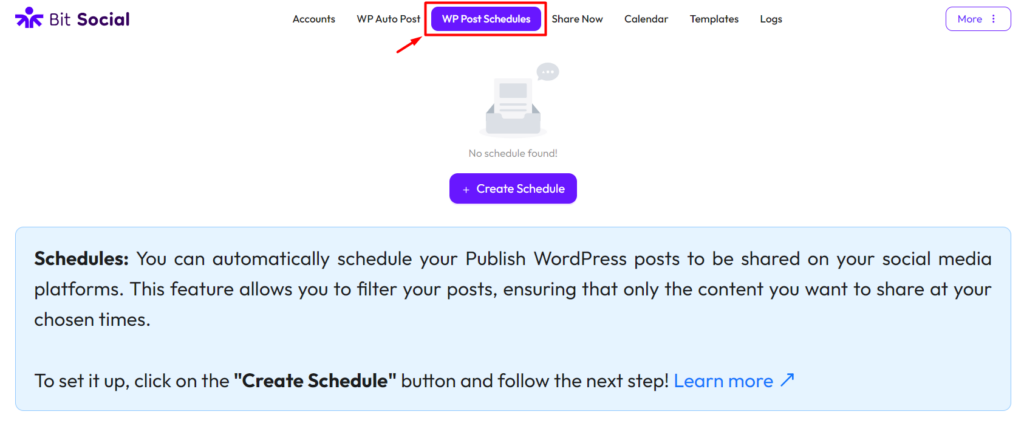
To set up the WP Post Schedules feature in Bit Social, go to Bit Social and click on “WP Post Schedules” from the top menu then “Create Schedule“.
Settings
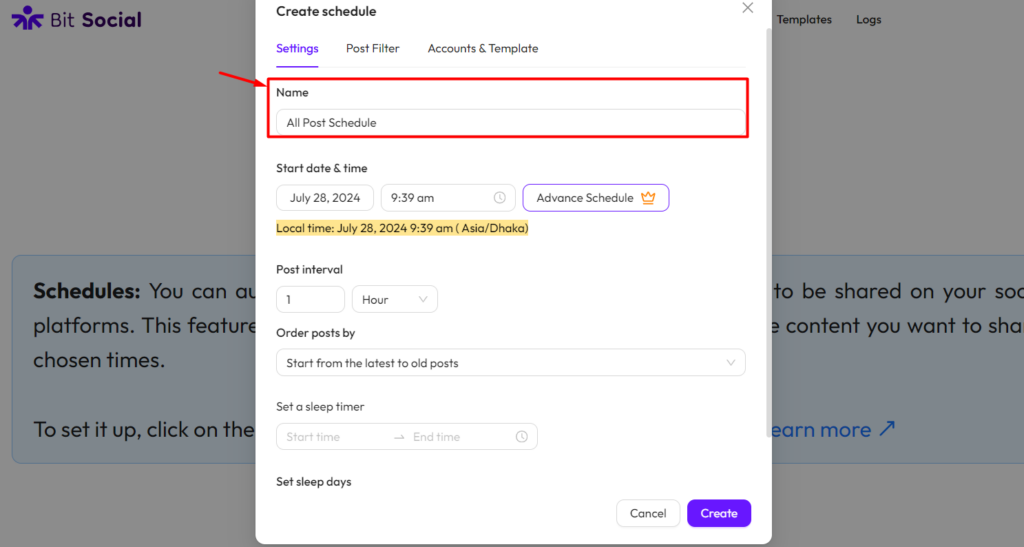
Name: Give a name for your schedule.
Start date & time: Set your start date and time for sharing. Your post will automatically be shared to your selected platforms at the specified date and time. You can also view the local time.
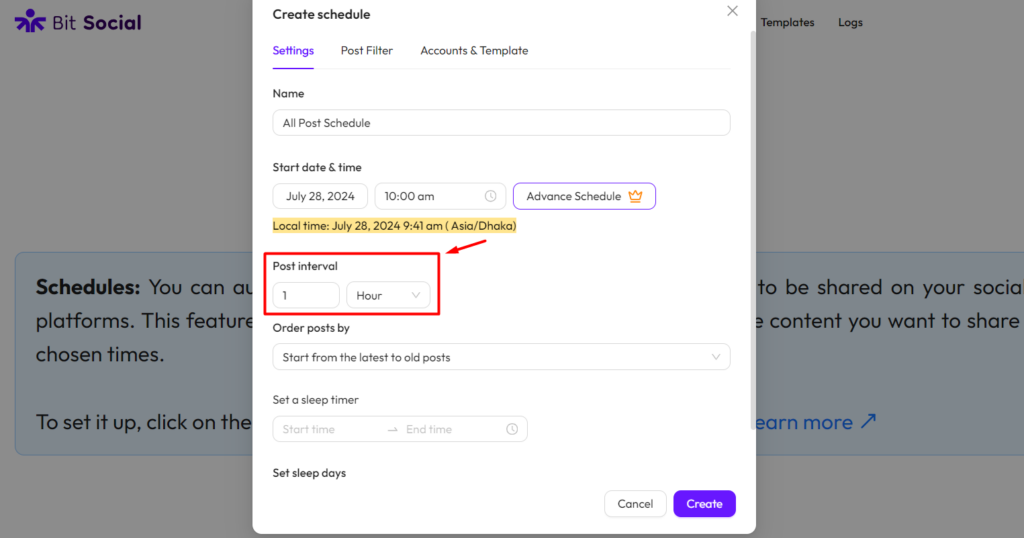
Post interval: The post interval feature lets you set the amount of time between each automatically shared post. This helps you maintain a consistent and well-spaced sharing schedule on your connected platforms.
What if you update your post interval
Let’s break down how your next post time works, especially when you change the interval:
- Let’s say You have a post scheduled to go live at 5:00 PM. You have set the interval for posts to every 1 hour.
- So start time is 5:00 PM and the first post time will publish at 5:00 PM. Next post will publish at 6:00 PM.
- If you decide to change this interval before 5:00 PM, nothing will change for the first post. Your post will still publish at 5:00 PM.
- Now, let’s say the current time is 5:30 PM and one of your post already published at 5:00 PM, and you realize you want to change the interval.
- So, if you change the interval at 5:30 PM from 1 hour to 2 hours, the new post time will be 7:30 PM (current time of 5:30 PM + updated 2-hours interval).
Key Takeaways:
- Before the Start Time: Changing the interval does not affect the next post time.
- After the Start Time: The new interval is added to the current time to determine the next post time.
This way, you can ensure your posts are always scheduled as you prefer, even if you decide to adjust the intervals after the start time has passed.
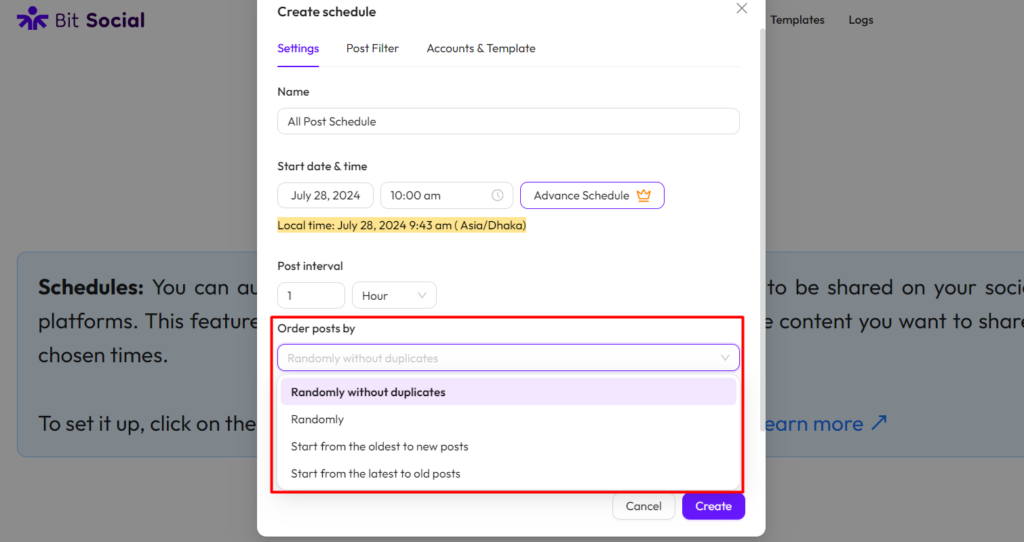
Order posts by: The “Order Posts By” feature in Bit Social lets you decide the sequence of your shared posts. You can choose to share posts in different ways:
- Randomly without repeats to ensure uniqueness,
- Simply randomly for variety,
- From oldest to newest for a chronological order,
- From newest to oldest to highlight the latest updates first.
This helps you customize your content sharing to match your strategy.
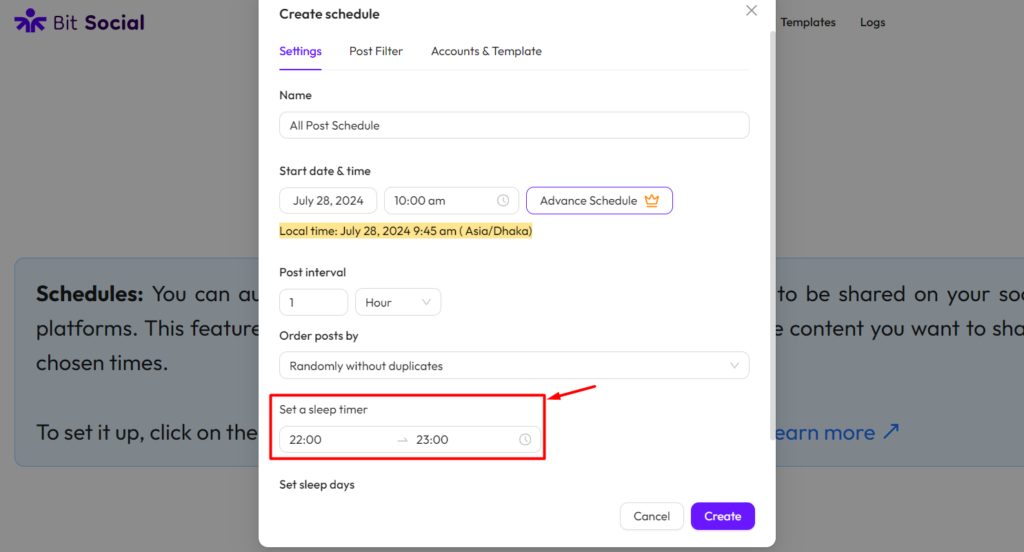
Set a sleep timer: This feature allows you to schedule a specific time duration for the plugin to pause its activity. It’s like setting a timer for the plugin to take a break from its tasks for a while.
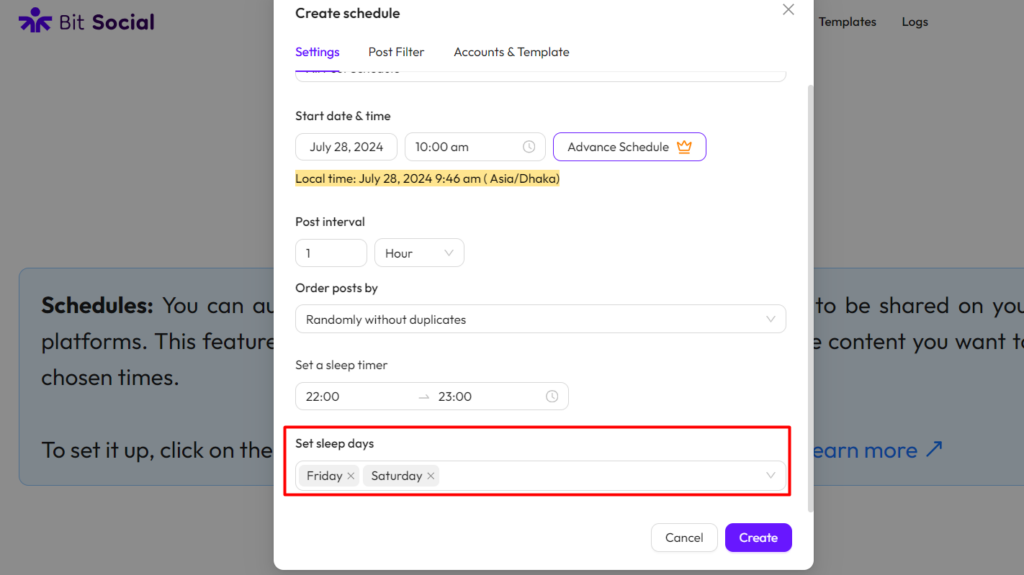
Set sleep days: This feature allows you to choose certain days when the plugin will not be active. It’s like giving the plugin scheduled days off, ensuring it takes a break on those selected days
Post Filter
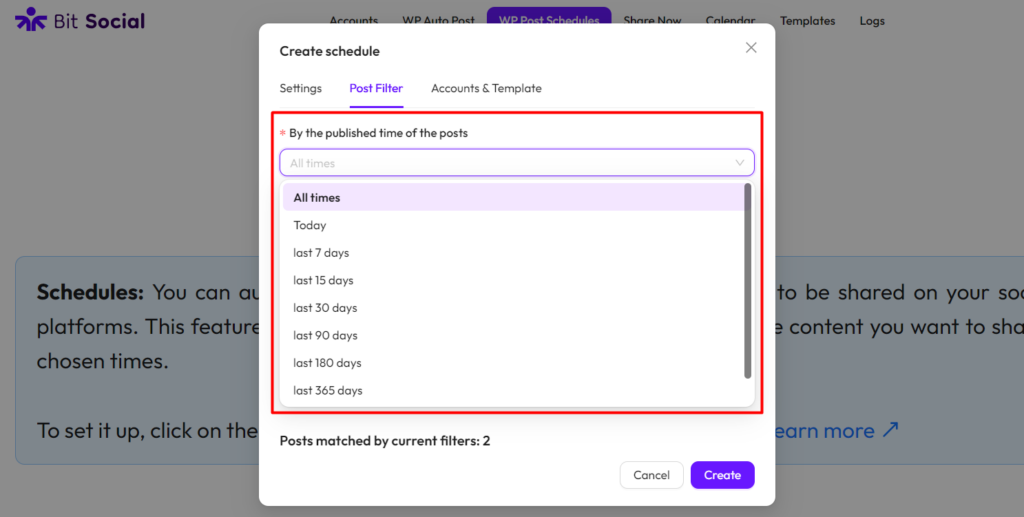
By the published time of the posts: With this feature, you can filter your WordPress posts. If you choose “Last 7 days,” only the posts from the past 7 days on your WordPress site will be shared to your selected social platforms. You can also use a custom date range to specify exactly which posts to share.
By post type: With this feature, you can filter your WordPress content by type. You can choose to share only specific types of content, such as posts, pages, media, custom post types or Bit Form pages, to your selected social platforms.
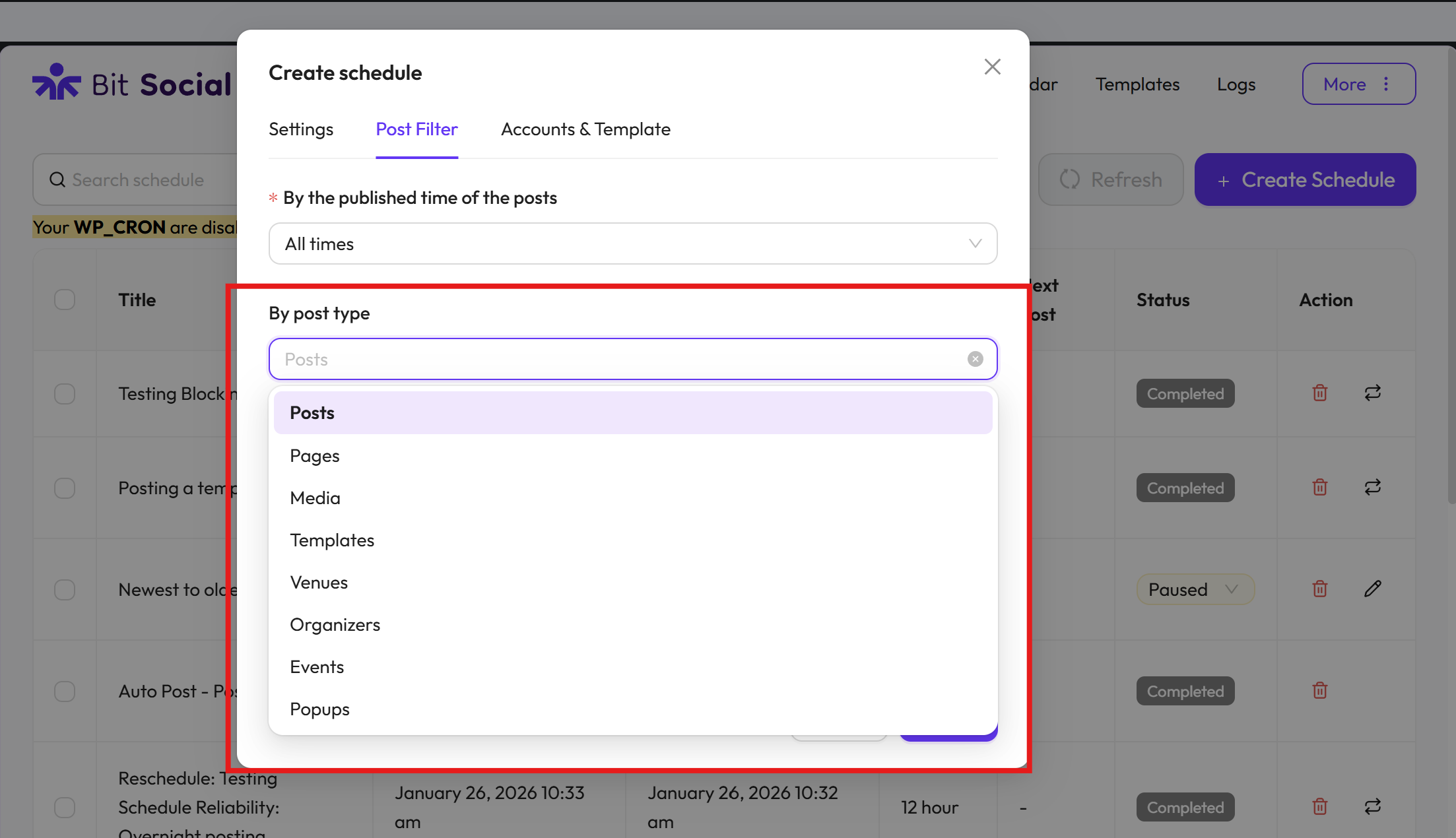
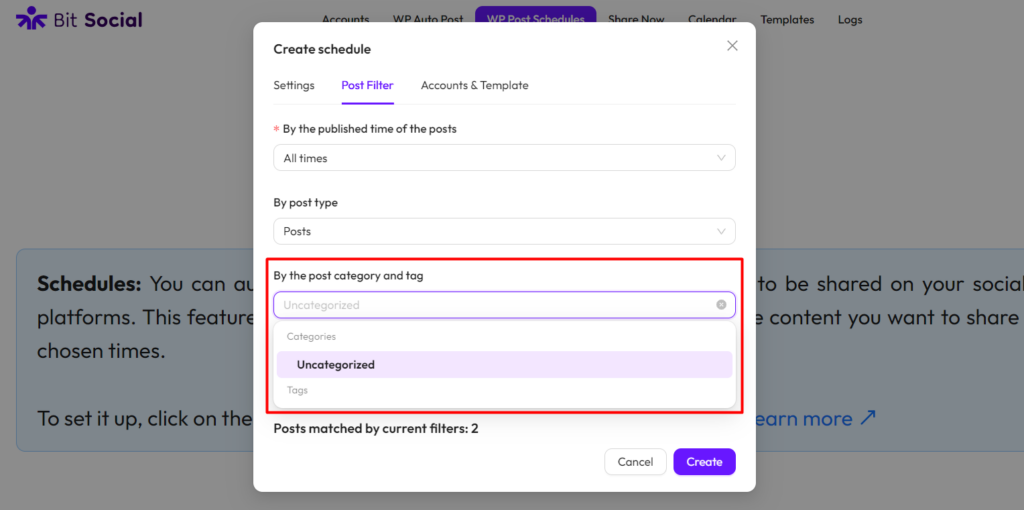
By the post category and tag: With this feature, you can filter your WordPress content by category and tag. This means you can choose to share only posts from specific categories or with certain tags to your selected social platforms.
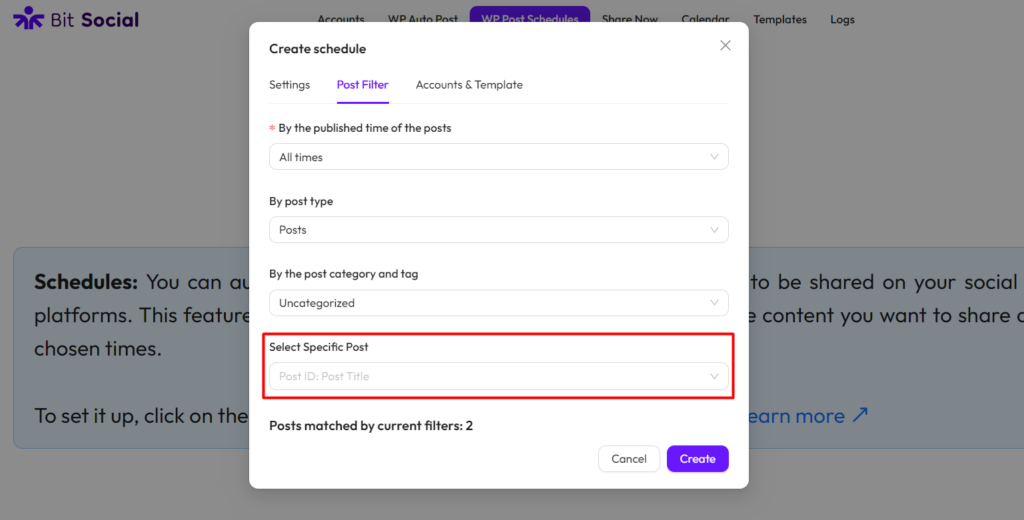
Select Specific Post: With this option, you can choose specific posts to share. Instead of sharing everything, you can select the exact posts you want to publish to your chosen social media platforms.
Accounts & Template
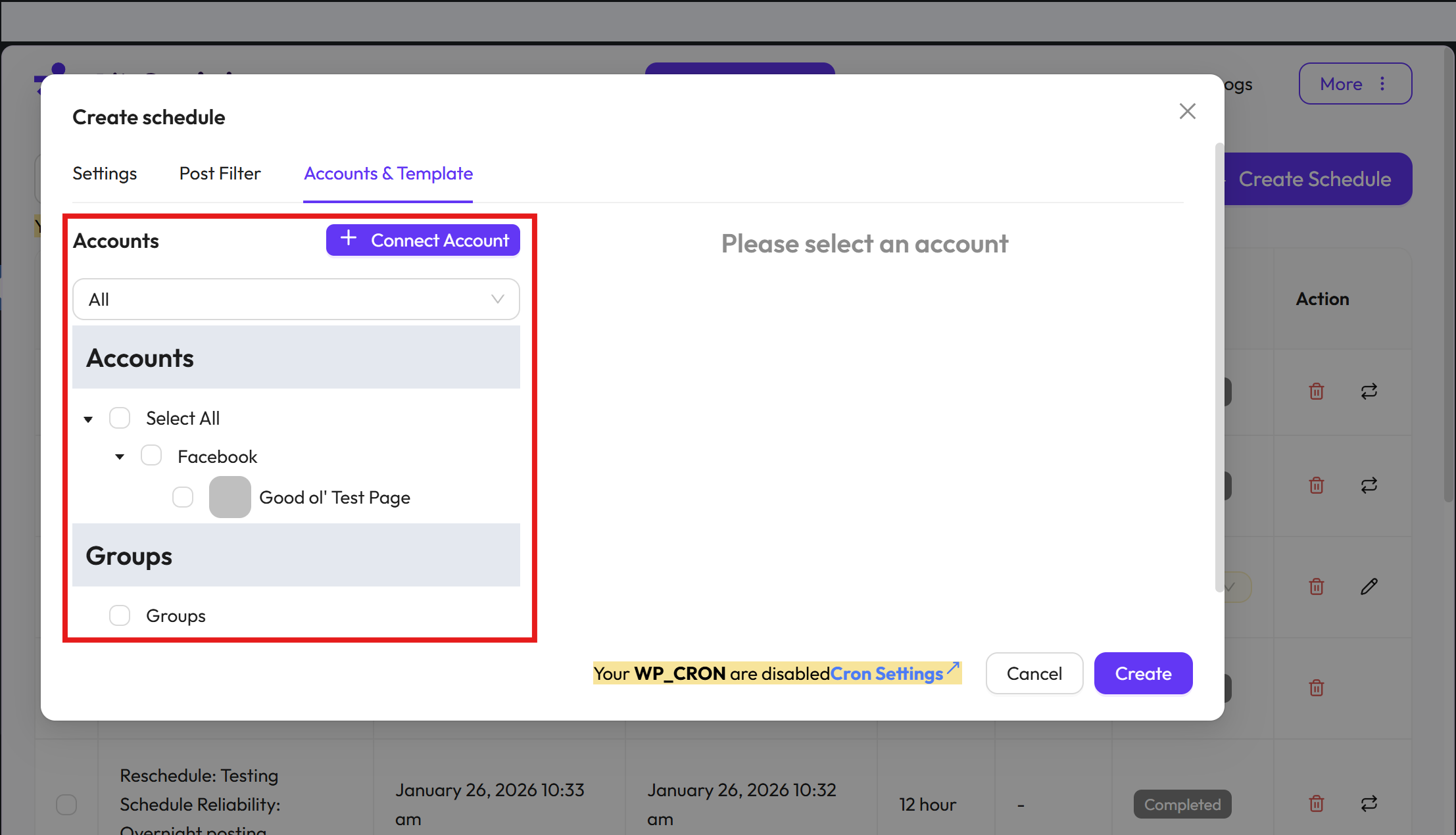
Choose Accounts: Choose the accounts from the left-side where you want to schedule your WordPress posts to be shared. You can also search for your accounts and filter them by platform. Click here to learn how to connect your accounts.
Customize post message: You can customize your post message too. Click “Show Smart Tags” to uncover extra tags. You can also choose to add the Featured Image, Product Image, Link Card and All Images to your posts.
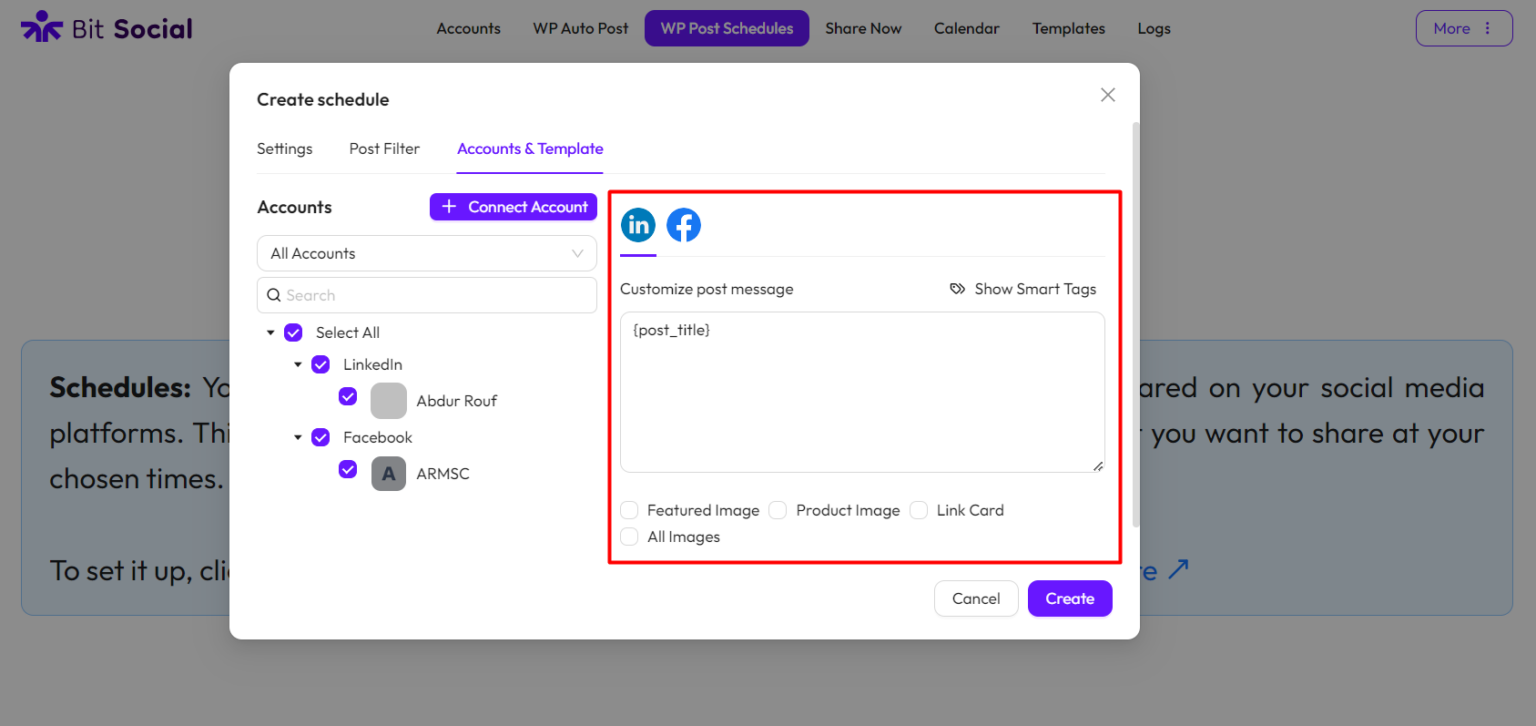
*Note* To customize post messages, you’ll need to customize them separately for each platform. In this case, let’s customize the messages for LinkedIn and Facebook individually.
Customize Template for LinkedIn
To customize template for LinkedIn, simply click on “LinkedIn.”
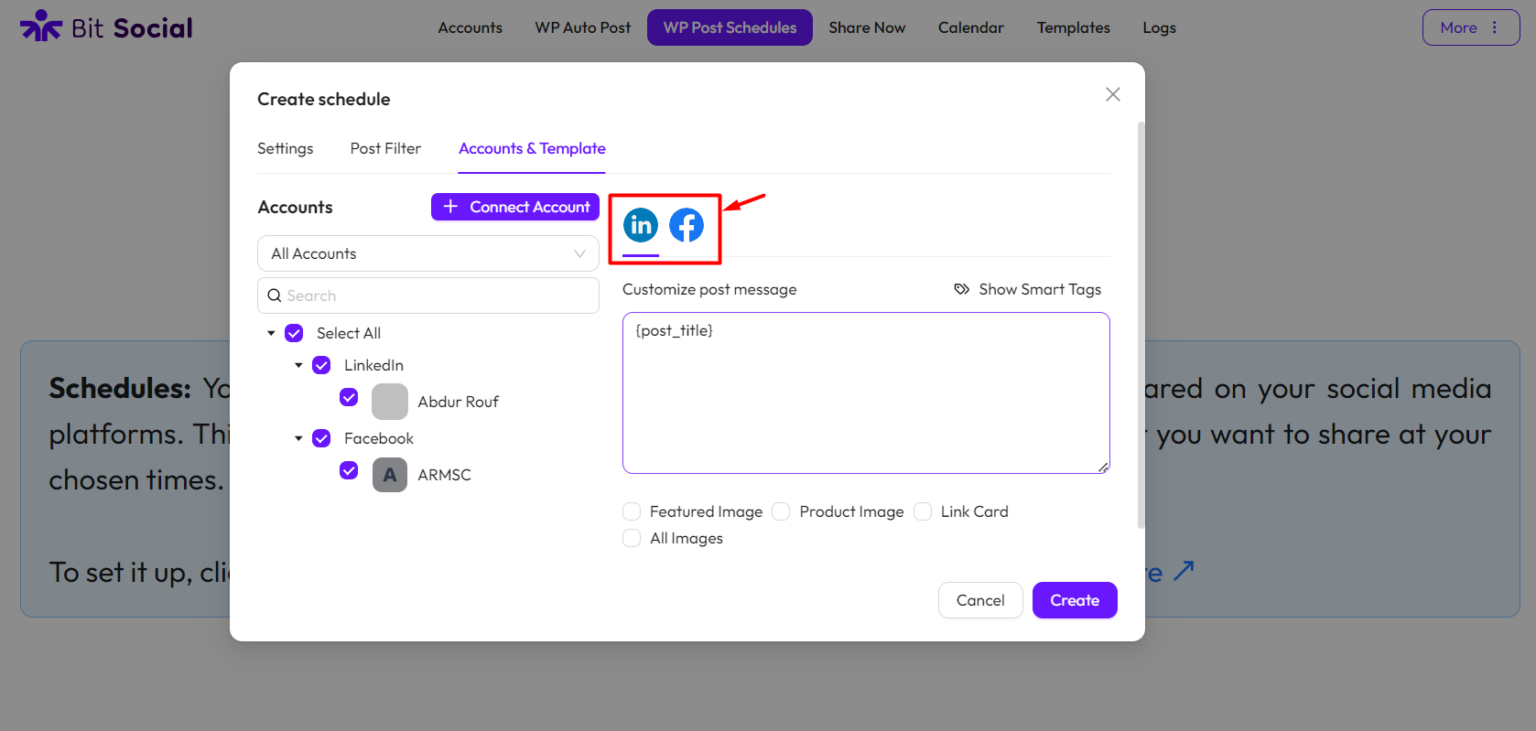
You can type your post and use Smart Tags. You can also add Featured Image, Product Image, Link Card and All Images.
Customize Template for Facebook
To customize template for Facebook, simply click on “Facebook.”
You can type your post and use Smart Tags. You can also add Featured Image, Product Image, Link Card and All Images.
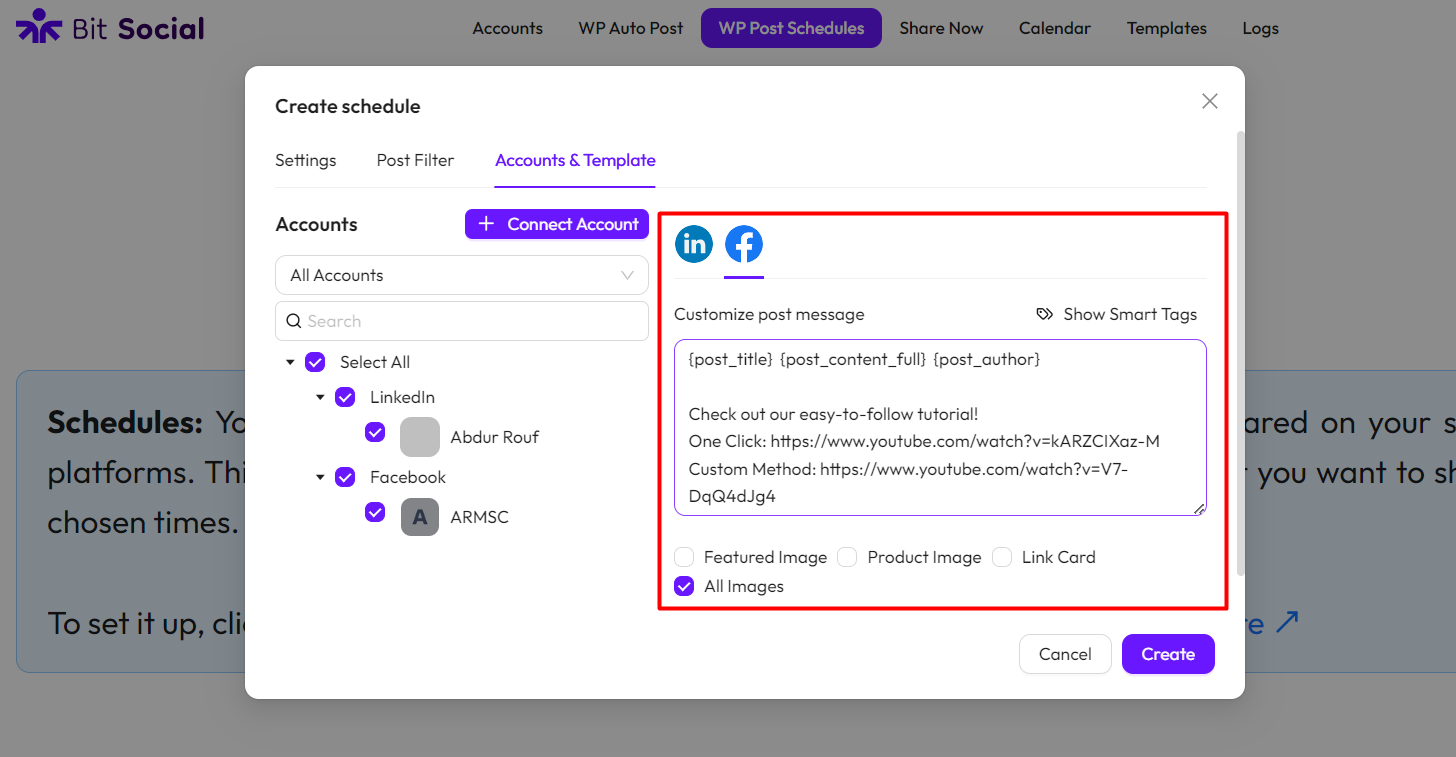
If you want to connect more accounts, click on the “Connect Account” button.
After setting up your schedule, click the “Create” button.
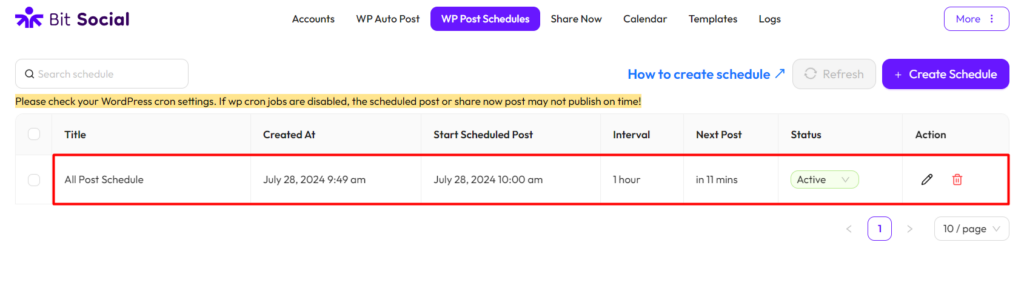
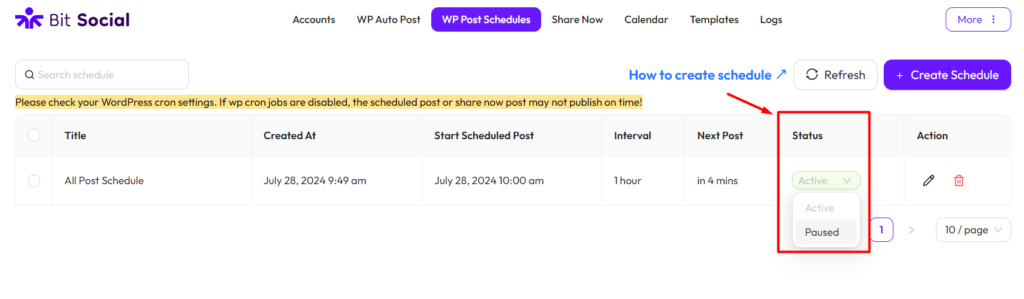
You can pause your schedule too.
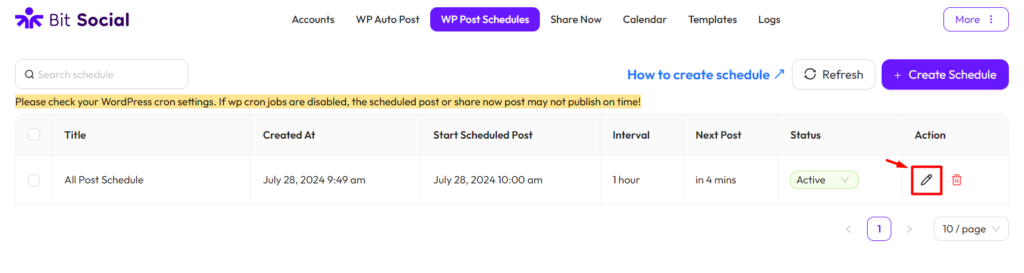
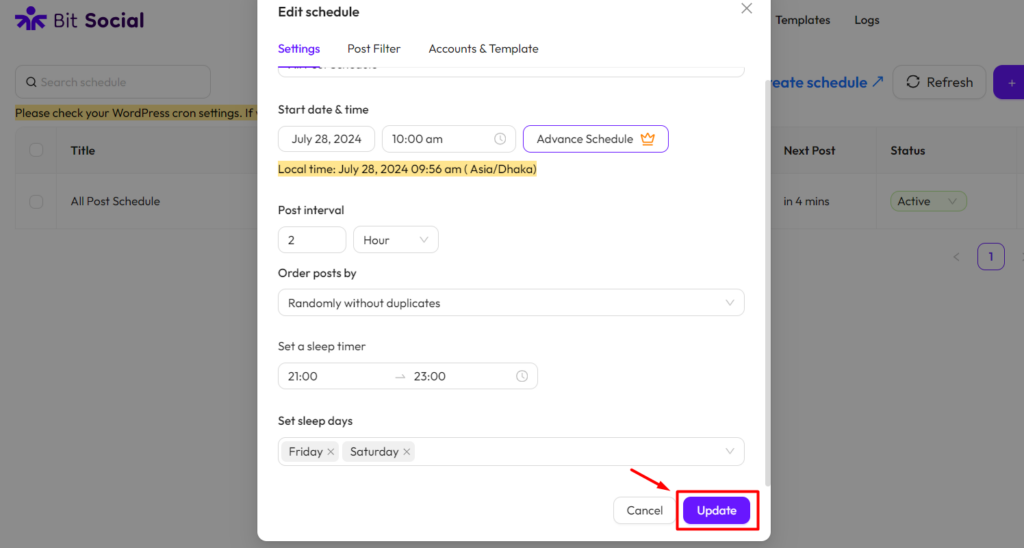
You can also edit your schedule. Just click the Edit icon, make your changes, and then click the Update button.
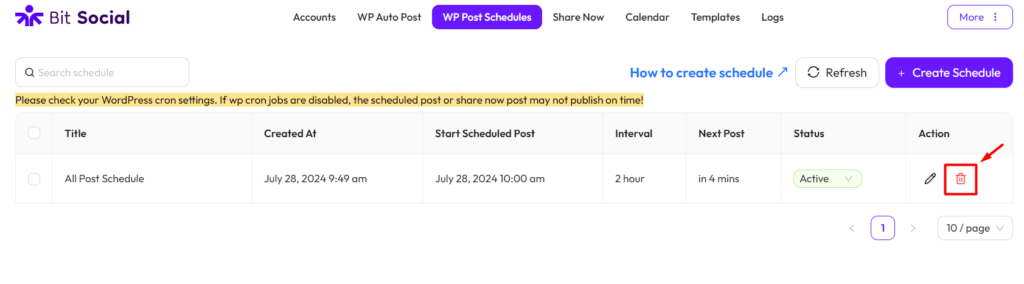
You can also delete your schedule.
Was this article helpful?
That’s Great!
Thank you for your feedback
Sorry! We couldn't be helpful
Thank you for your feedback
Feedback sent
We appreciate your effort and will try to fix the article