There are two options for connecting with Facebook:
One Click Connect Method
Custom App Method
You can only connect your Facebook pages with Bit Social, allowing you to share your WordPress posts, schedule them, and instantly post to your Facebook page. You cannot connect your Facebook profile, groups, or anything else.
With Bit Social, you can create posts, add descriptions, and share images and links directly to your Facebook Pages.
One Click Connect Method
By following this method, you can easily authorize your Facebook accounts to Bit Social. This authorization process allows for quick Facebook integration without the need for any complicated setup. This feature enables you to efficiently manage and post on your Facebook pages directly from Bit Social, making social media management easier and boosting your online presence with minimal hassle.
Please follow the steps below to connect your Facebook pages with Bit Social:
- Navigate to Bit Social Home and go to the Accounts section.
- Click on “Connect Account.”
- Under Facebook, click on the “Connect” button.
- Choose the Business you want Bit Social to access and click continue.
- Choose the pages you want Bit Social to access and click continue.
- Your pages will be displayed.
- Click on the “Save” button for the pages you wish to connect.
Custom App Method
In the Custom App Method, you need to visit Facebook Developers and create a new app. After creating your app, you’ll need to configure its settings to integrate it with Bit Social. This method provides more control and customization over the connection between your Facebook account and Bit Social.
Please follow the steps below to create a Facebook App and add your accounts using this App:
To create an app in Facebook Developer, you need to register as a developer first. Simply go to Facebook Developers and sign up as a developer.
First, go to Facebook Developers and click on “My App“. If you haven’t registered as a developer yet, click “Get Started” in the top right corner to sign up.
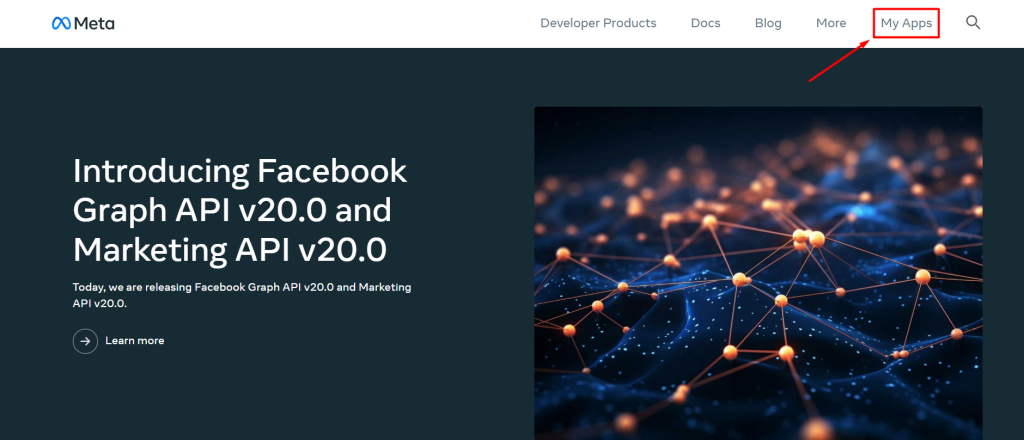
Create App
- Click on “Create App.”
- Under “Looking for something else,” select “Other” and click “Next.”
- Choose the “Business” app type and click “Next” again.
- Enter a name for your app and click “Create App.”
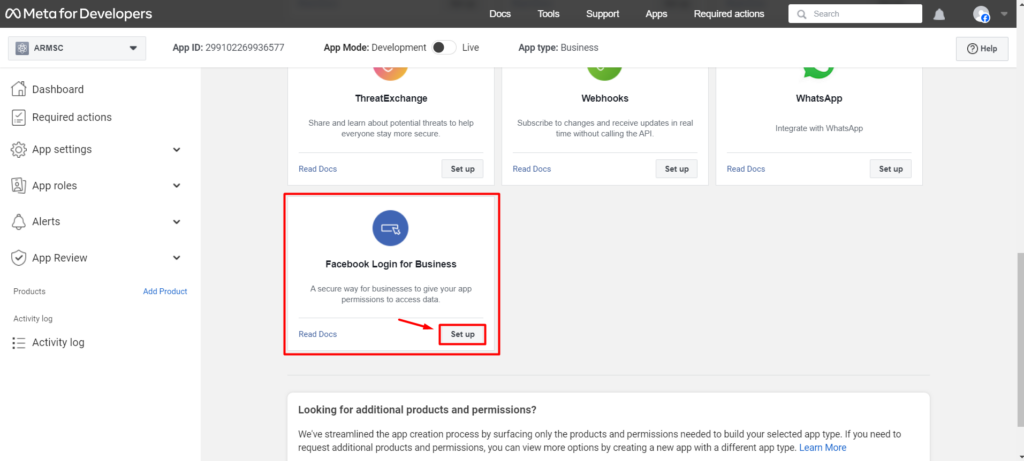
Now, add “Facebook Login for Business” as a product. To do this, scroll down the page until you find “Facebook Login for Business.” Once you see it, click “Set Up.”
Configuring App
On the left side, find Facebook Login for Business. Under Facebook Login for Business, configure the Settings and QuickStart.
Configure Settings:
- Under Facebook Login for Business click on “Settings“.
- Scroll down to find the “Valid OAuth Redirect URIs” section.
- Enter your Redirect URI here and save the changes.
- To get your Redirect URI visit Bit Social Home and navigate to the “Accounts” section.
- Under the Facebook, select the “Custom App” button.
- Your Redirect URI will be displayed.
Configure QuickStart:
- Go to QuickStart.
- Select the web platform option.
- Enter your website homepage URL and save the changes.
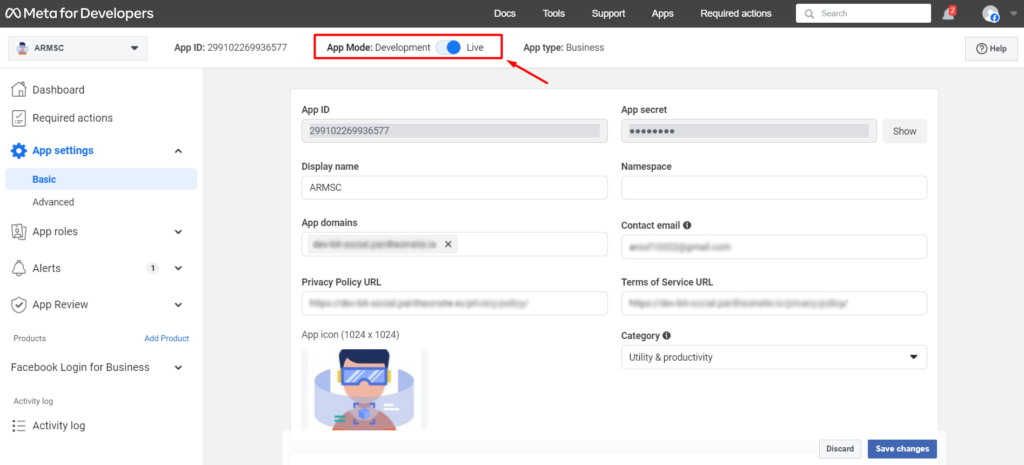
Now, go to the App Settings and click on “Basic.” Fill out the form by entering your website information.
For the App domains, enter the URL of your website’s homepage. For the Privacy Policy, use the URL of your website’s privacy policy page. For the Terms of Service, use the URL of your website’s Terms of Service page.
*Note* You must add the Privacy Policy URL, or you won’t be able to switch the app mode from Development to Live.
After finishing all the setups mentioned above, switch the App mode from Development to Live.
Set Up Your Facebook Custom App in Bit Social:
- In the Basic App Settings, Copy your App ID and App Secret.
- Go to Bit Social Home, navigate to the Accounts section, and click “Connect Account.”
- Under Facebook, click “Custom App,” then paste your App ID and App Secret into the App Key and App Secret fields, and click “Add.”
- In “Connected Apps,” click “Connect.”
- Choose the Business you want Bit Social to access and click continue.
- Choose the pages you want Bit Social to access, click “Continue,” and then click “Save” next to the desired pages.
If you want advanced features and need your app to be approved, follow the provided documentation.
After connecting your account, you can automatically share your WordPress posts, schedule your posts, and share posts instantly.
From Bit Social's documentaion.
Was this article helpful?
That’s Great!
Thank you for your feedback
Sorry! We couldn't be helpful
Thank you for your feedback
Feedback sent
We appreciate your effort and will try to fix the article