With Bit Social’s WP Auto Post feature, whenever you publish a post on WordPress, it will automatically be shared on your connected social media platforms. This makes it easier to distribute your content across multiple channels.
Check out our easy-to-follow tutorial!
Setup WP Auto Post
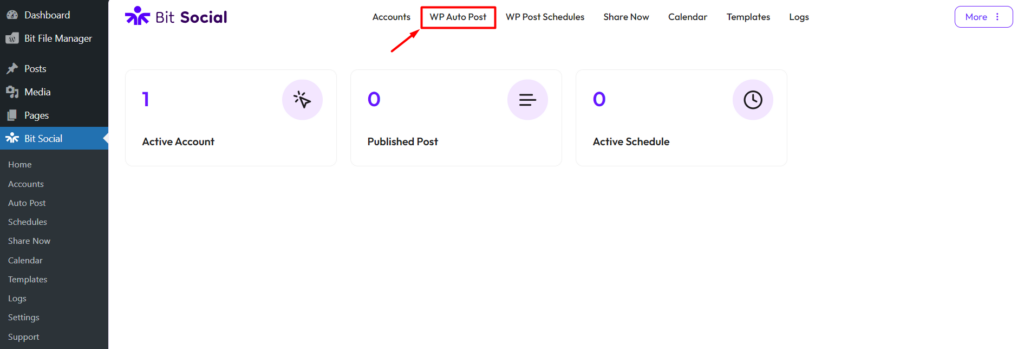
To set up the WP Auto Post feature in Bit Social, go to Bit Social and click on “WP Auto Post” from the top menu.
Choose Accounts
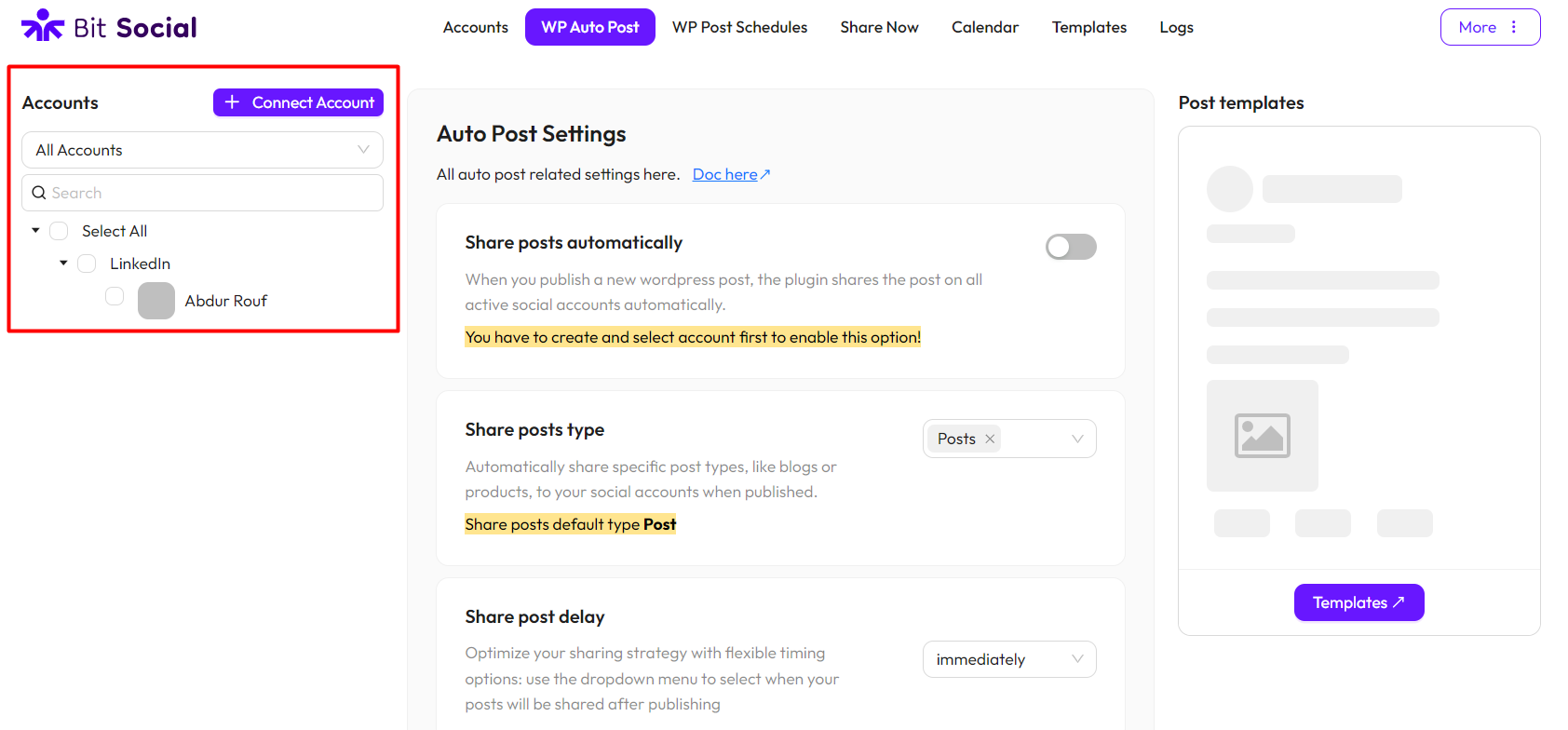
Choose the accounts from the left-side bar where you want your WordPress posts to be shared automatically. You can search for your accounts and filter them based on the platform. Click here to learn how to connect your accounts.
WP Auto Post Settings
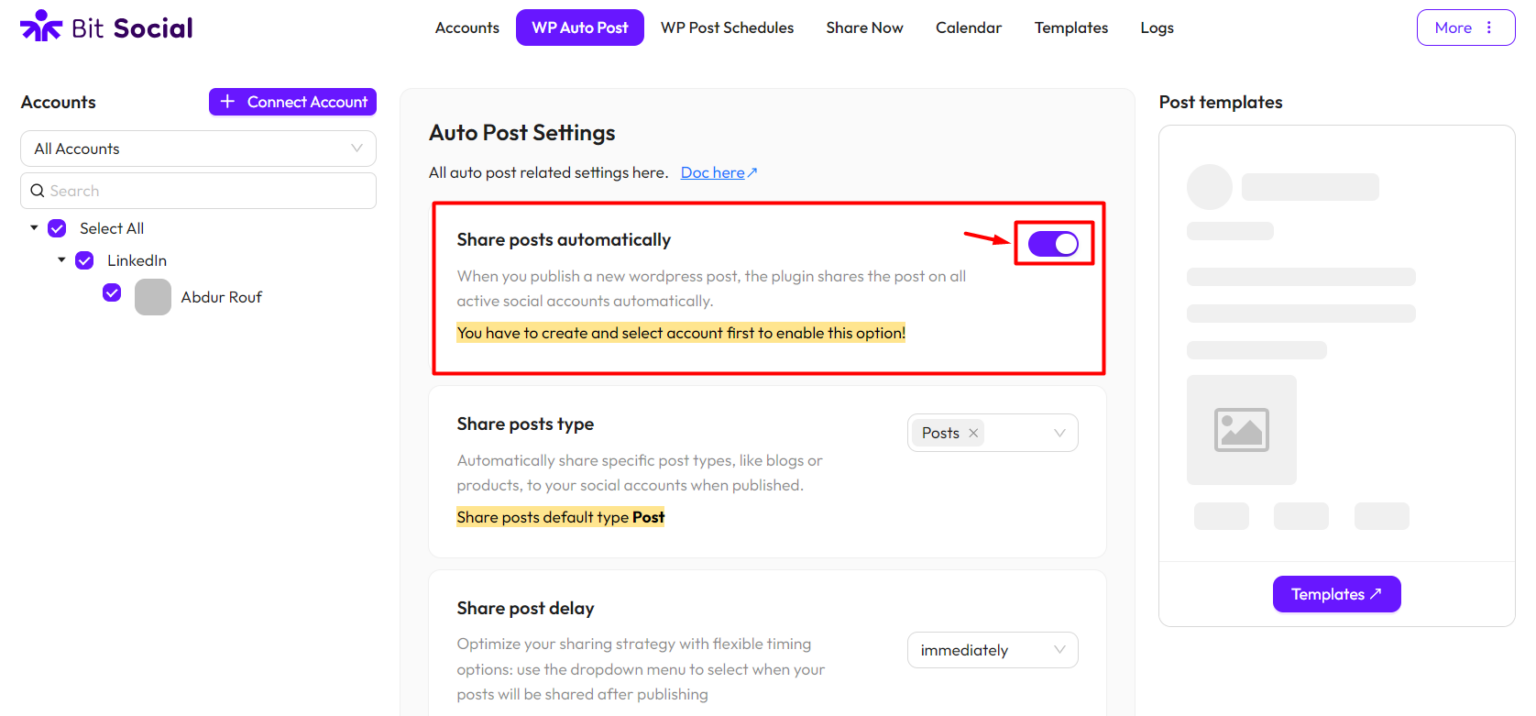
Share posts automatically: You cannot enable this option until you select your accounts from the left-side bar. When this option is enabled, any time you publish a new post in WordPress, the plugin will automatically share it on all your selected social accounts.
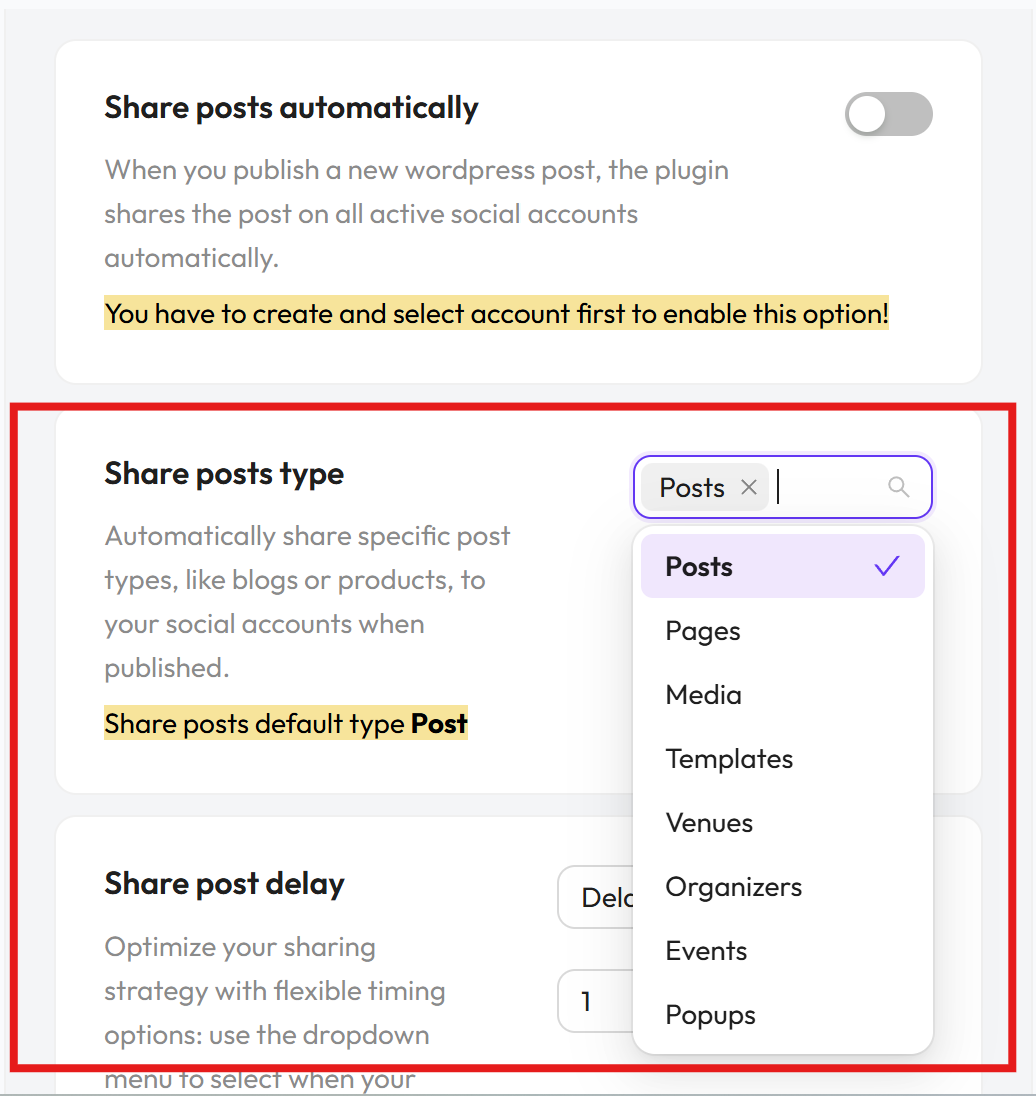
Share posts type: Here, you need to select the type of post you want to share. It automatically shares specific post types, like blogs or products, to your social accounts when they’re published. For WooCommerce products, you can select “Product.” You can use custom post types as well. In the free version of Bit Social, you can only select “POSTS” as the share post type. To share other types of posts, you’ll need to upgrade to the pro version of Bit Social.
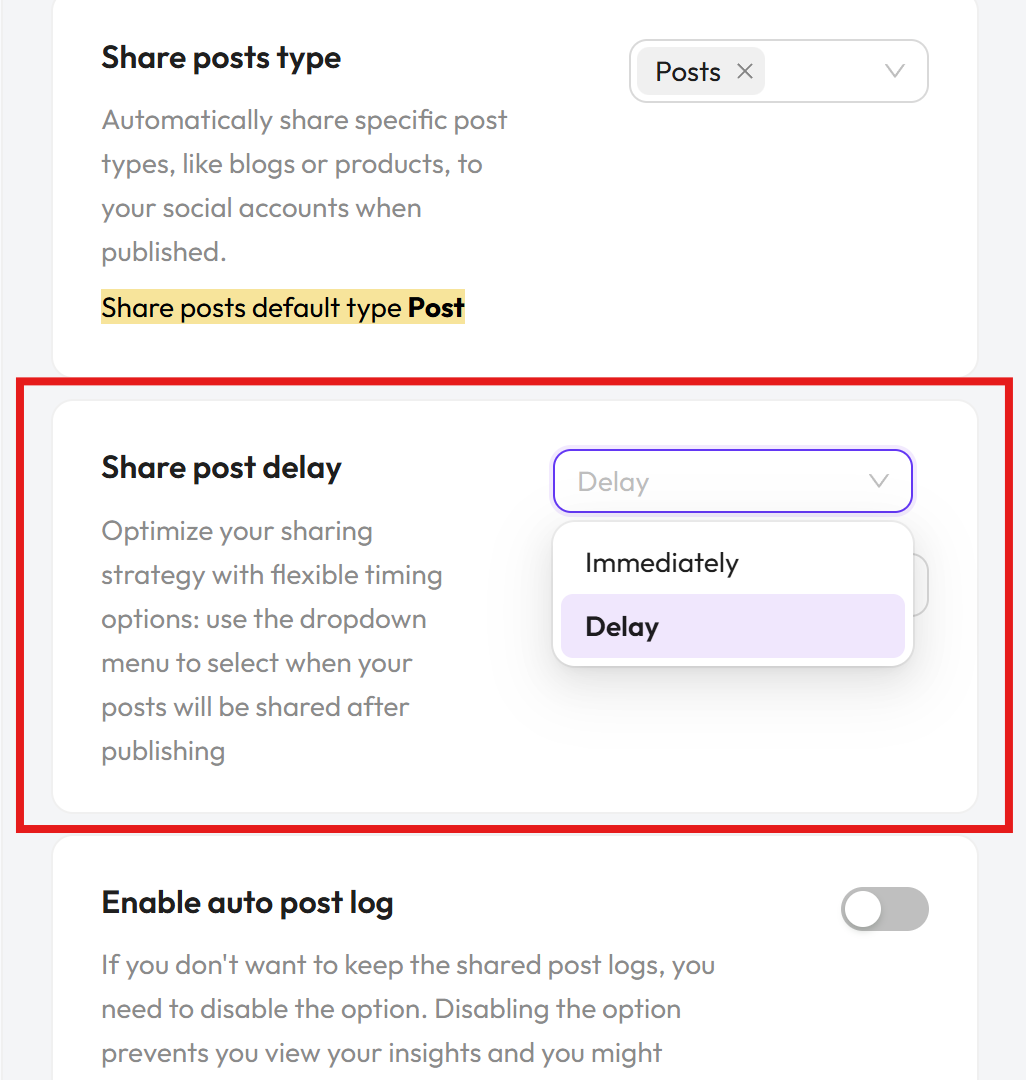
Share post delay: You can control when your WordPress posts are automatically shared. You can either post right away or set a delay time. If you choose the delay option, your posts will be shared to your social platforms after the specified time.
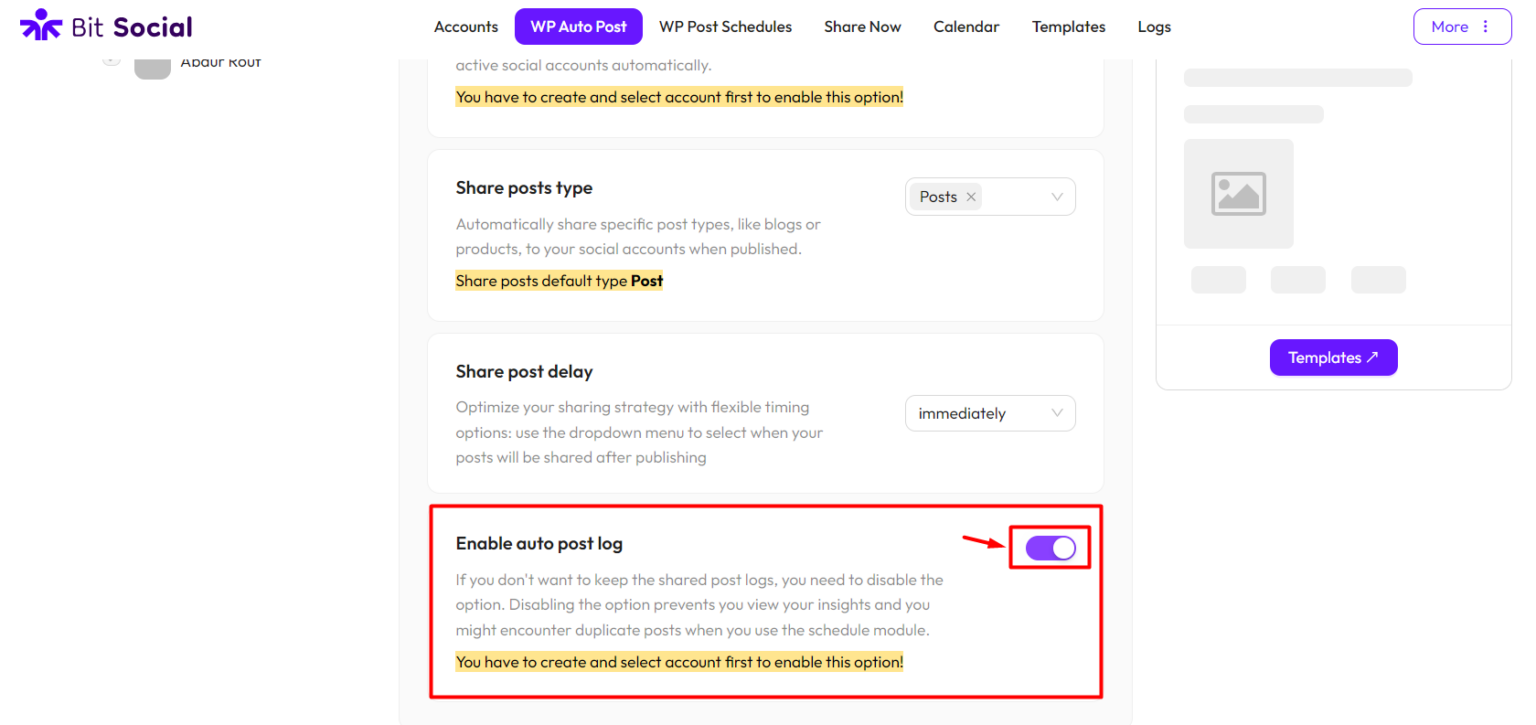
Keep the shared post log: When this option is enabled, all your shared posts will be recorded in the log section, where you can review them. If you prefer not to keep these logs, you can disable the option. However, disabling it will prevent you from viewing insights and may lead to duplicate posts when using the scheduling module. You cannot enable this option until you select your accounts from the left-side bar.
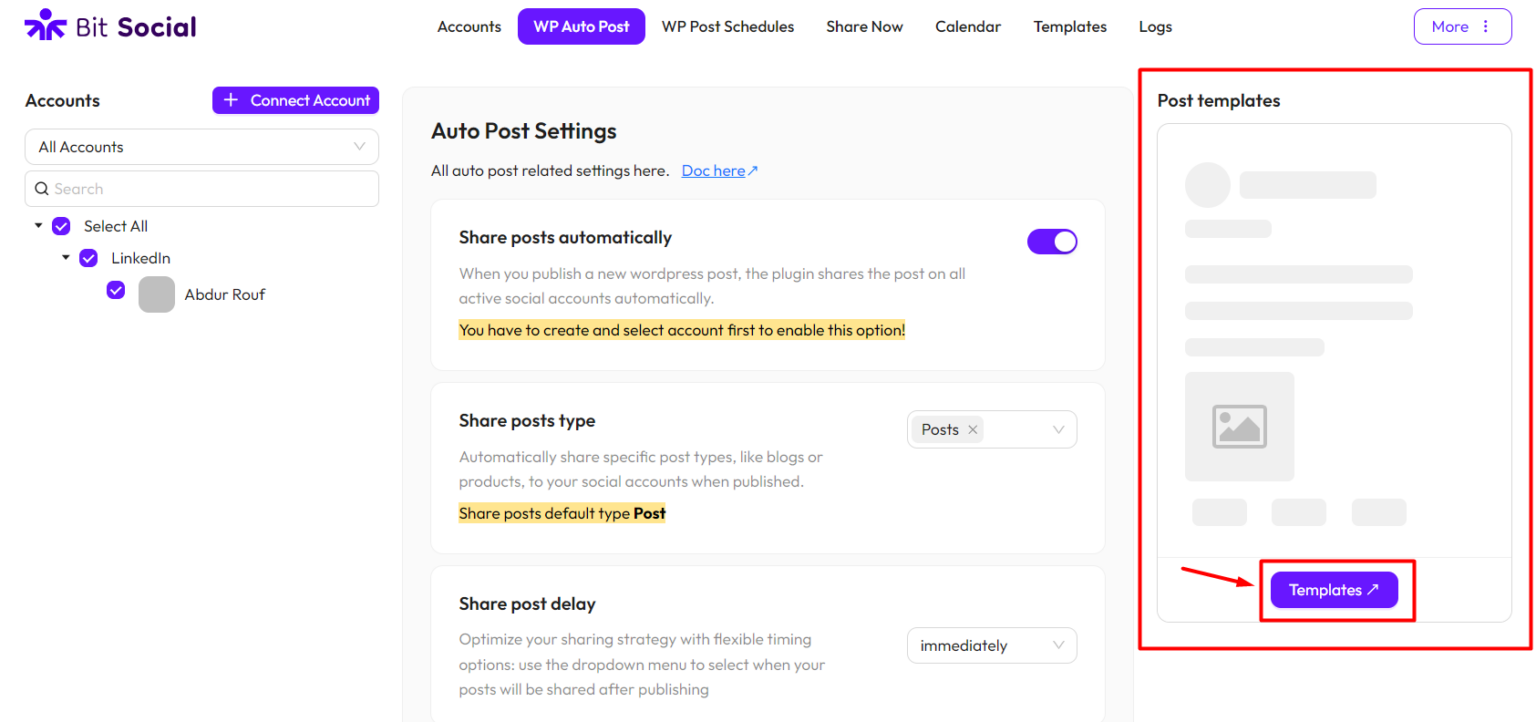
Post templates: Post templates help you create social media posts automatically by arranging variables like title, excerpt, and content in a specific order. Follow this guidance to learn more about post templates.
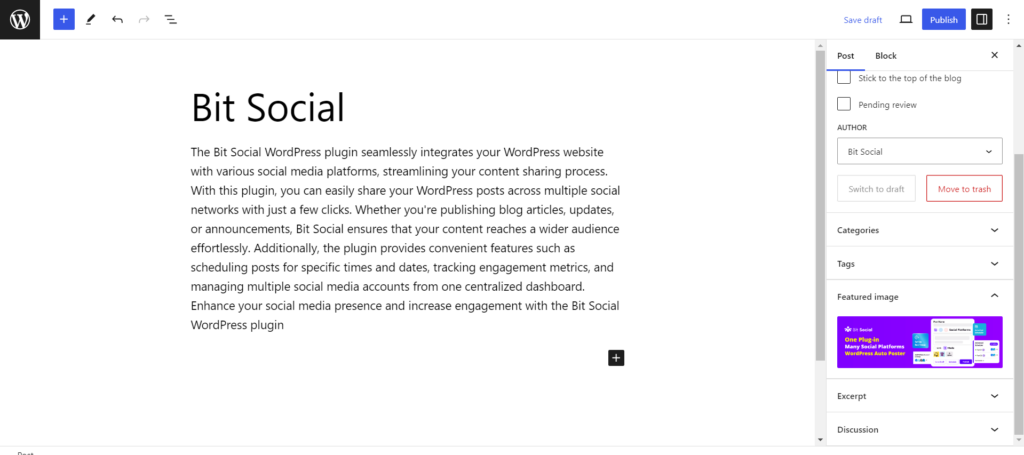
Let’s post something on WordPress, and then we’ll take a look at the logs to see what happened.
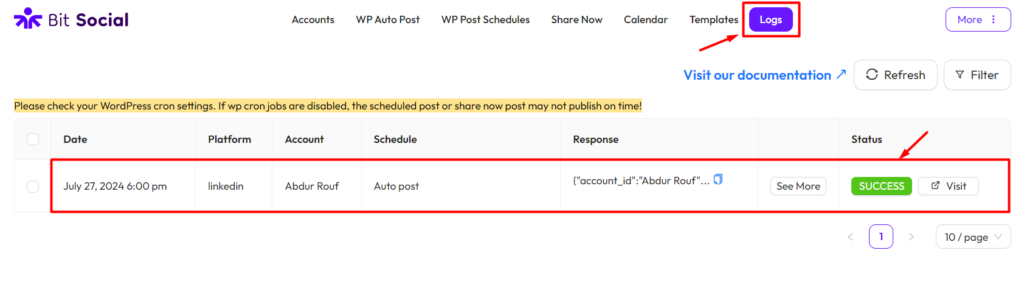
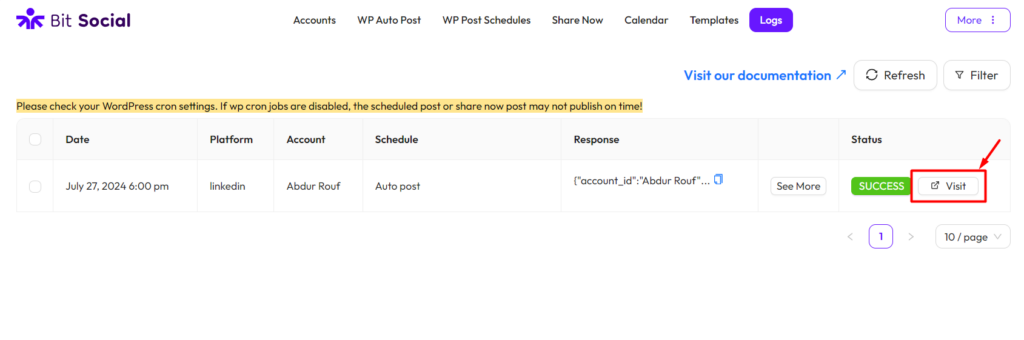
In the logs, clicking the visit button will take you to your social media post.
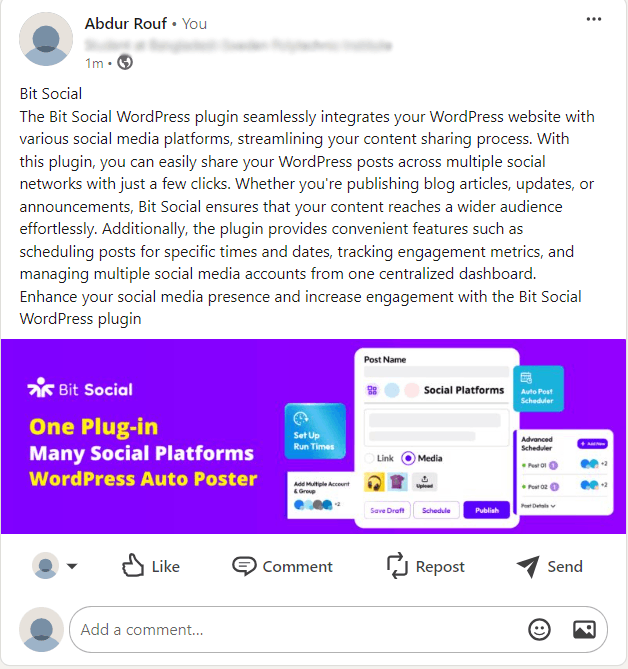
On your social platform, your post will look like this based on the templates you set up.
Was this article helpful?
That’s Great!
Thank you for your feedback
Sorry! We couldn't be helpful
Thank you for your feedback
Feedback sent
We appreciate your effort and will try to fix the article