When you log into your account for the first time, you will be prompted to set up a two-factor authentication method (2FA). 2FA requires you enter a one-time code when you log in to ensure the security of your account and that of the entire network of websites.
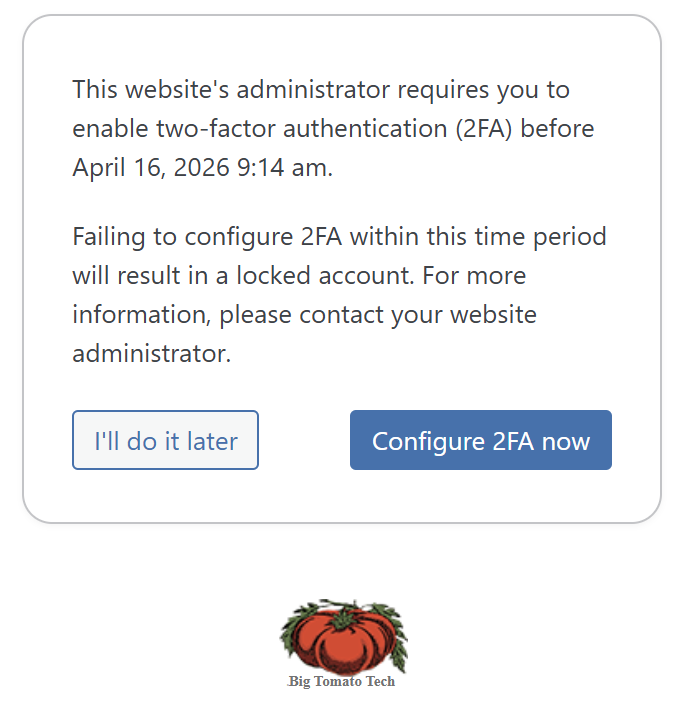
To start, click Configure 2FA now. You'll be given two options. You can choose to get your temporary code by email or use an authenticator app.
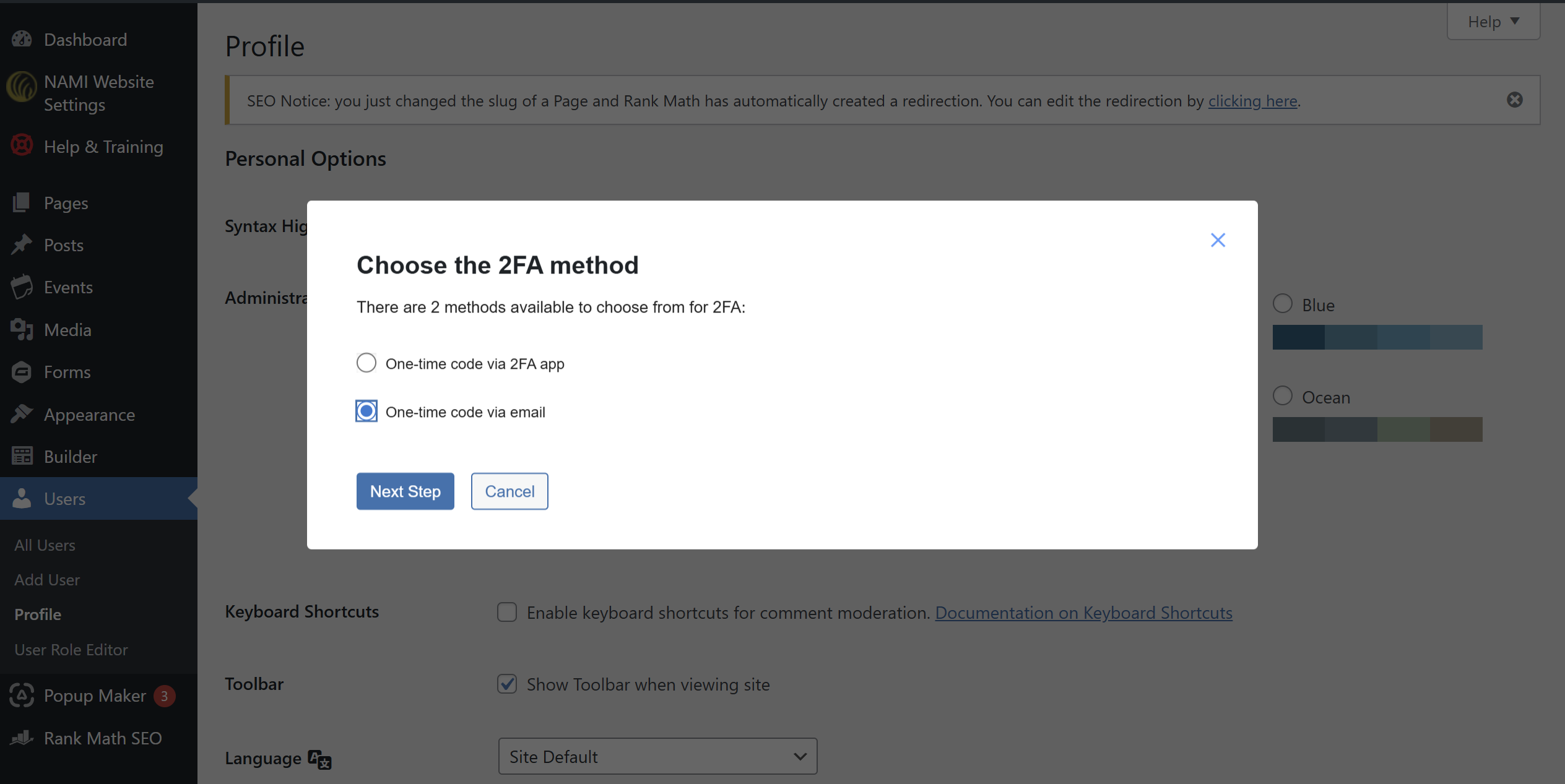
One-time code via email
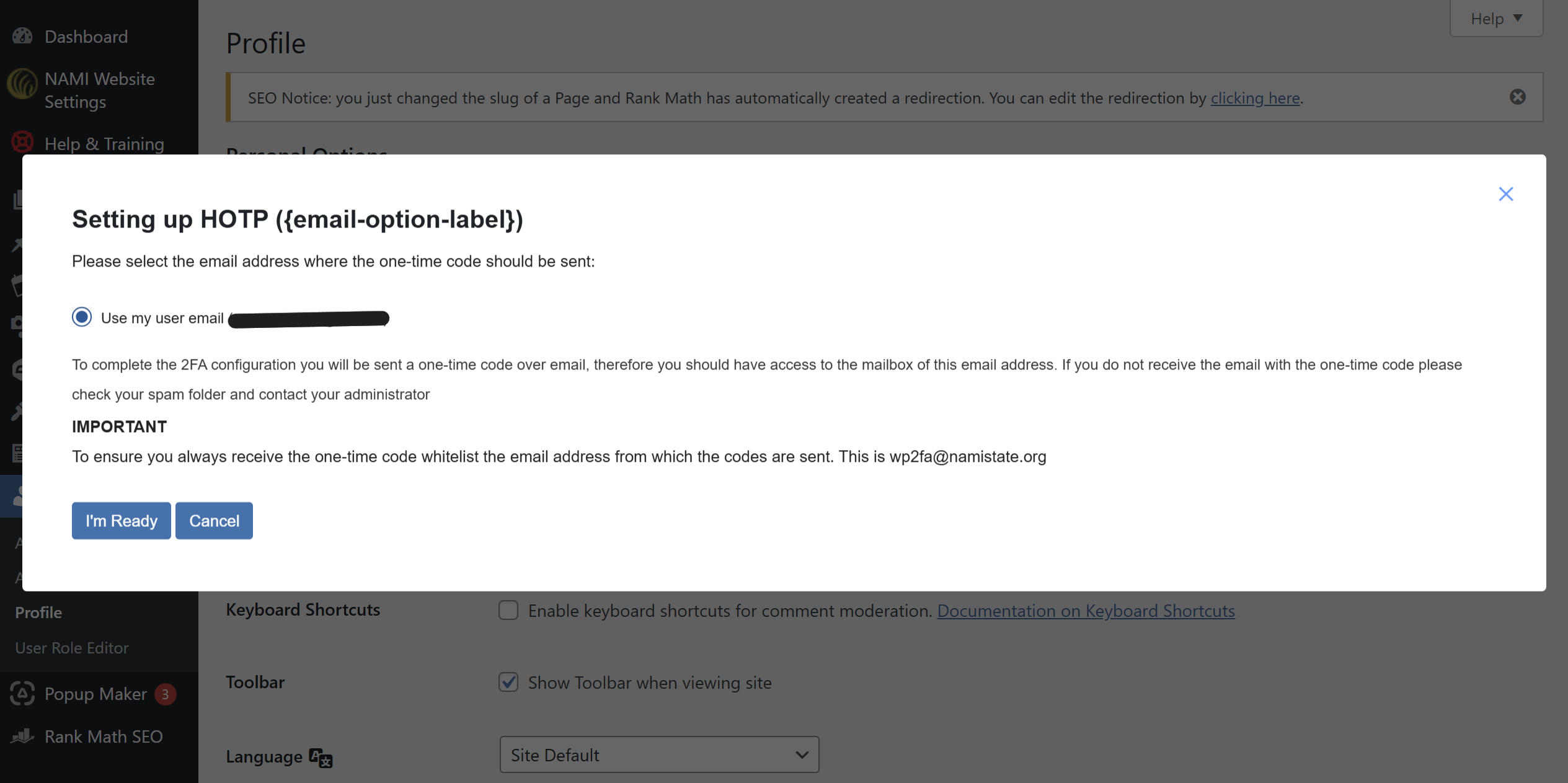
If you chose to receive the code by email, you'll be asked to confirm your email address. You need to have access to the mailbox of the email to use this method. Then click I'm Ready.
You will receive a code you will then enter in the next window. Then click Validate & Save. You will now receive your one-time codes by that email to login to your site.
Troubleshooting
If you don't receive a code, check your spam folder.
If you don't see the code in your spam folder, whitelist the email wp2fa@namistate.org and click Send me another code.
Here is how to whitelist an email address for the most popular email providers:
Outlook: Add recipients to the Safe Senders List in Outlook
Gmail: Create rules to filter your emails
Yahoo: Use filters to organize Yahoo Mail
If you are still having issues, contact us.
One-time code via 2FA app
You can receive the one-time code on an app on your phone. This is more secure, as even if someone hacks your email, they won't be able to enter your website without the code from your phone. Start by downloading an authenticator app, such as Google Authenticator.
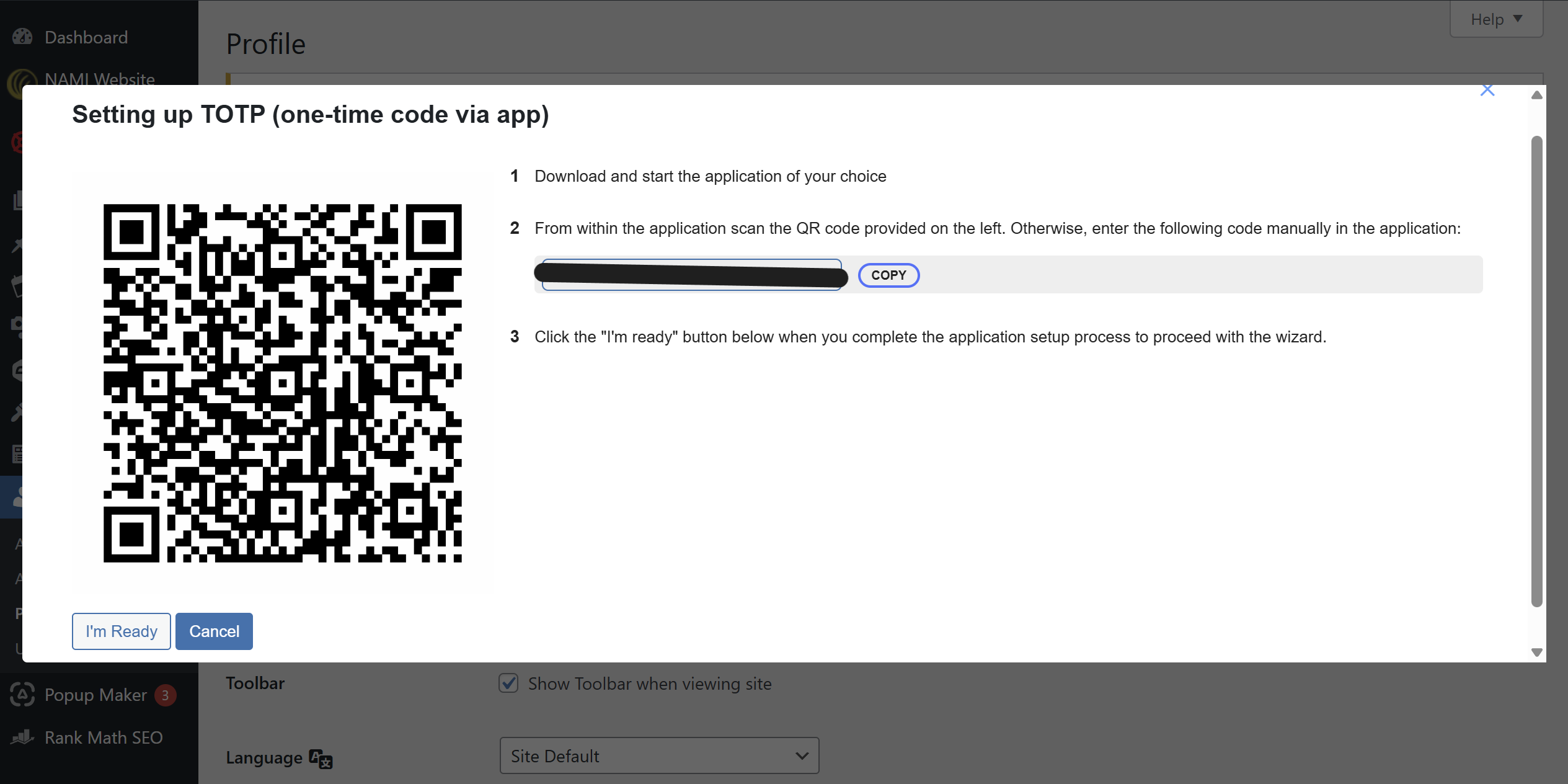
In the app, chose to scan the QR code or manually enter the code provided.
Once done, you should see an entry for your website in your app that generates a new code every minute. Back on your website, click I'm Ready.
Enter the one-time in the next window and click Validate & Save.
Generate a list of backup codes.
Once you are set up, you will have the option to generate a list of backup codes. You should do this as it will allow you to log in to your website if you lose access to your email or your phone with your authenticator app.
Simply click the the option to generate a list of codes. You will have the option to copy the codes and paste them somewhere secure, print them, or to send the codes to your email. Once you've done one of these options, you can close the wizard.
Was this article helpful?
That’s Great!
Thank you for your feedback
Sorry! We couldn't be helpful
Thank you for your feedback
Feedback sent
We appreciate your effort and will try to fix the article