
The social media icons in the footer of your website are actually a kind of menu on your site. To change these, we'll need to access the menus by going to the left side bar in your site's backend, hovering over Appearances, then selecting Menus.
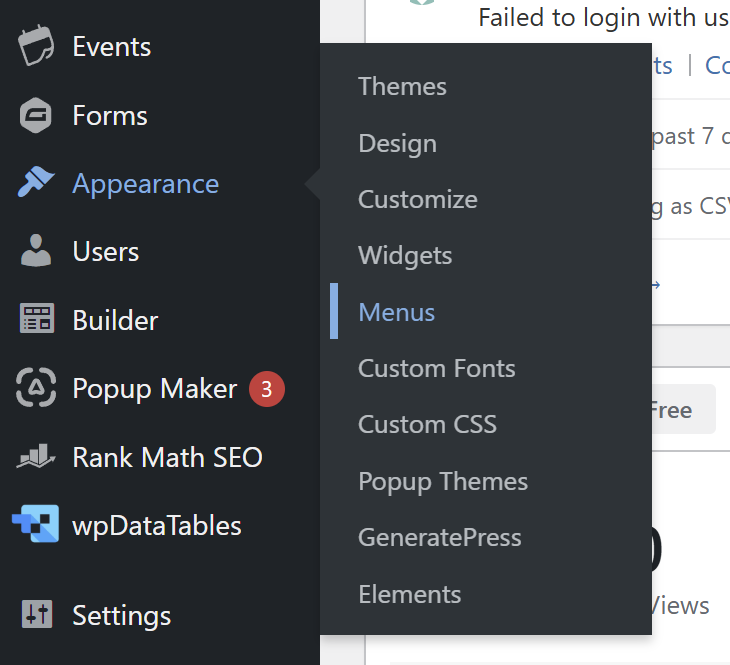
In the dropdown for Select a menu to edit, select Footer Only Social Icons (Max Mega Menu Location 3).
It's very important to click *Select* before making any changes to avoid altering the wrong menu.

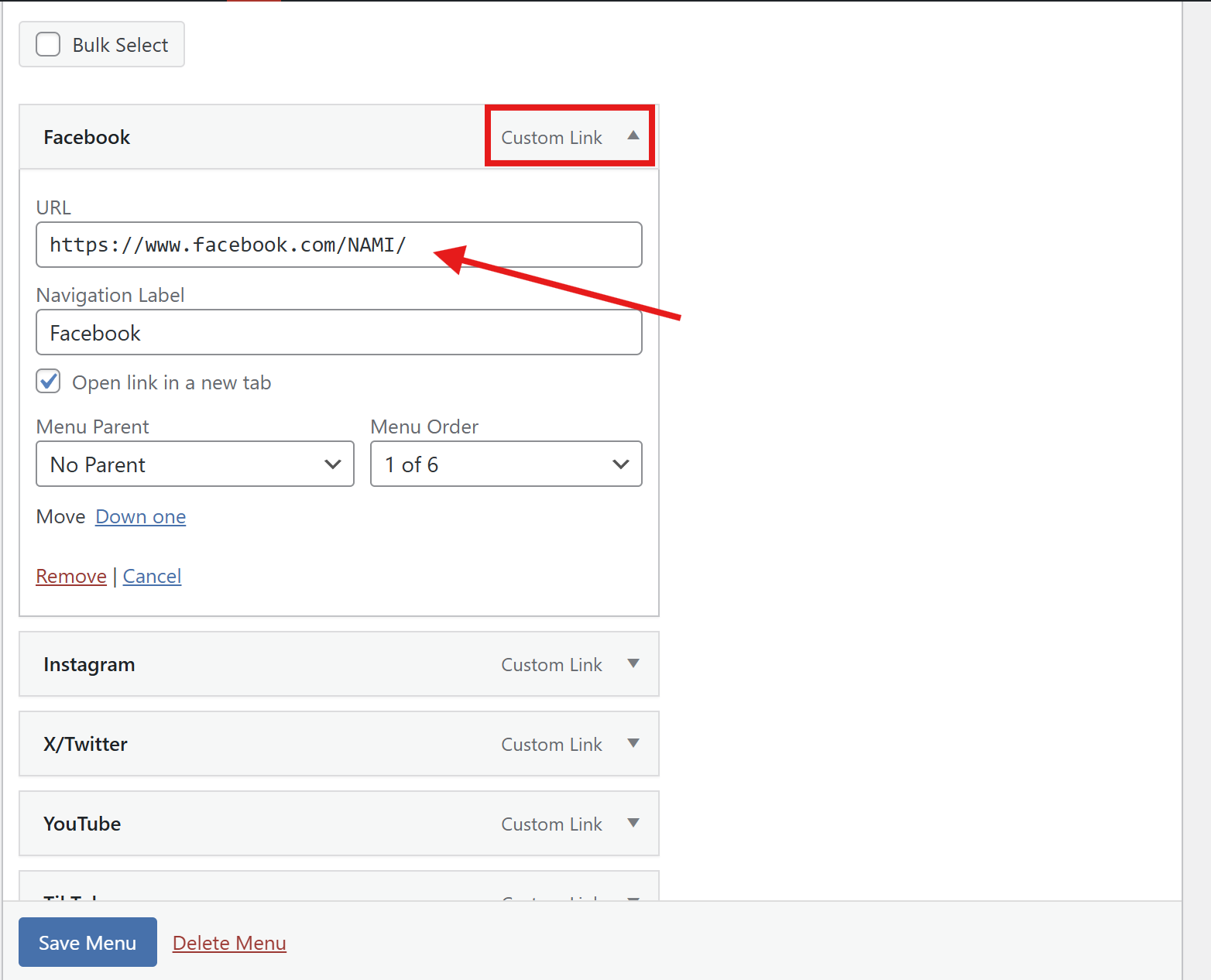
To change a link, select the social media you'd like to update the link for. Replace the old link with the new one under URL.
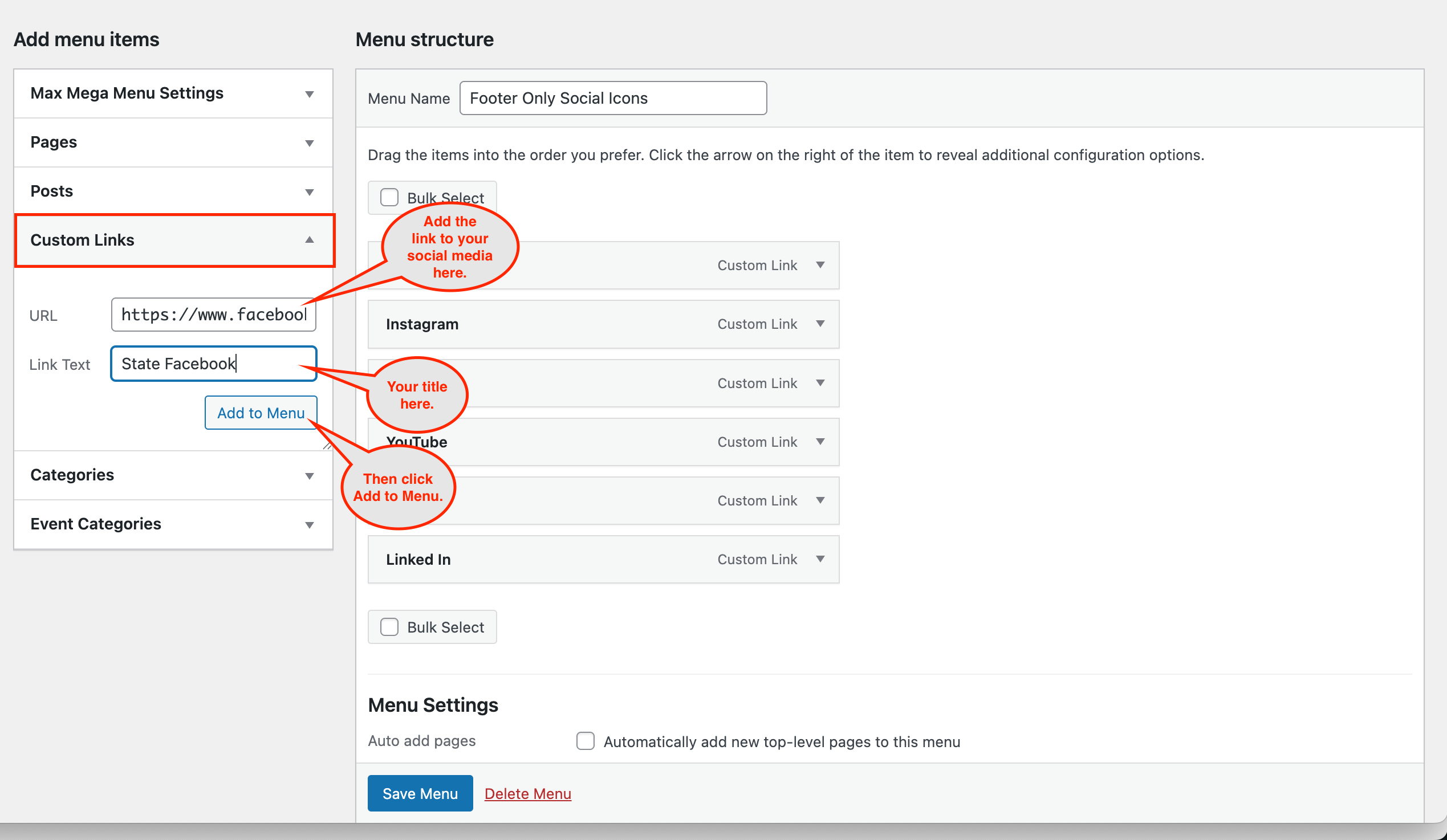
If you need to add a new social media link, click on the Custom Link option under the Add menu items menu on the left. Paste in your social media link into the URL section. You can type any title you will recognize as Link Text. Then click Add to Menu.
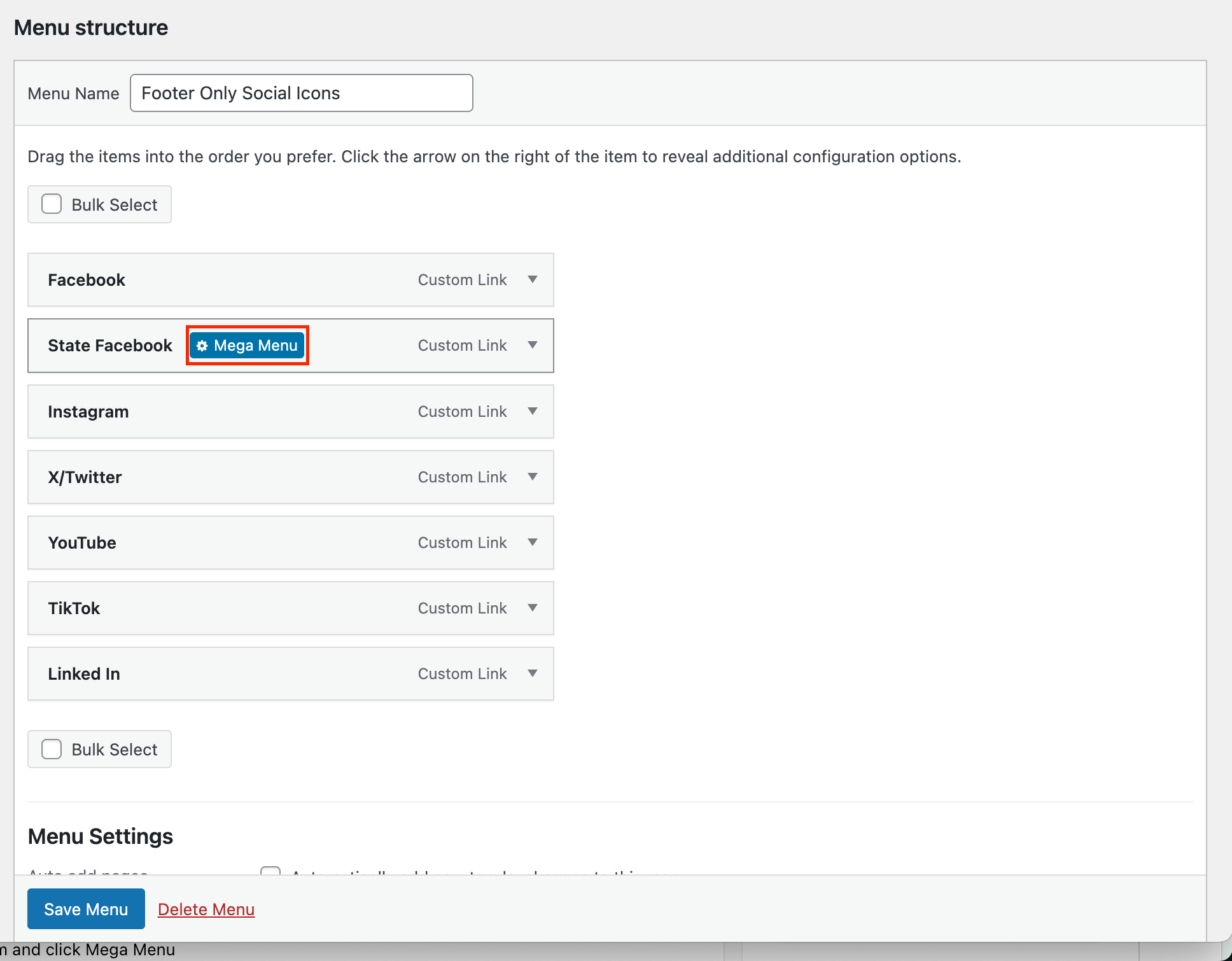
The new menu item will appear at the bottom of the list. You can hover your cursor over the edge of the menu item and drag it to any position you would like. Then hover over the menu item and click Mega Menu.
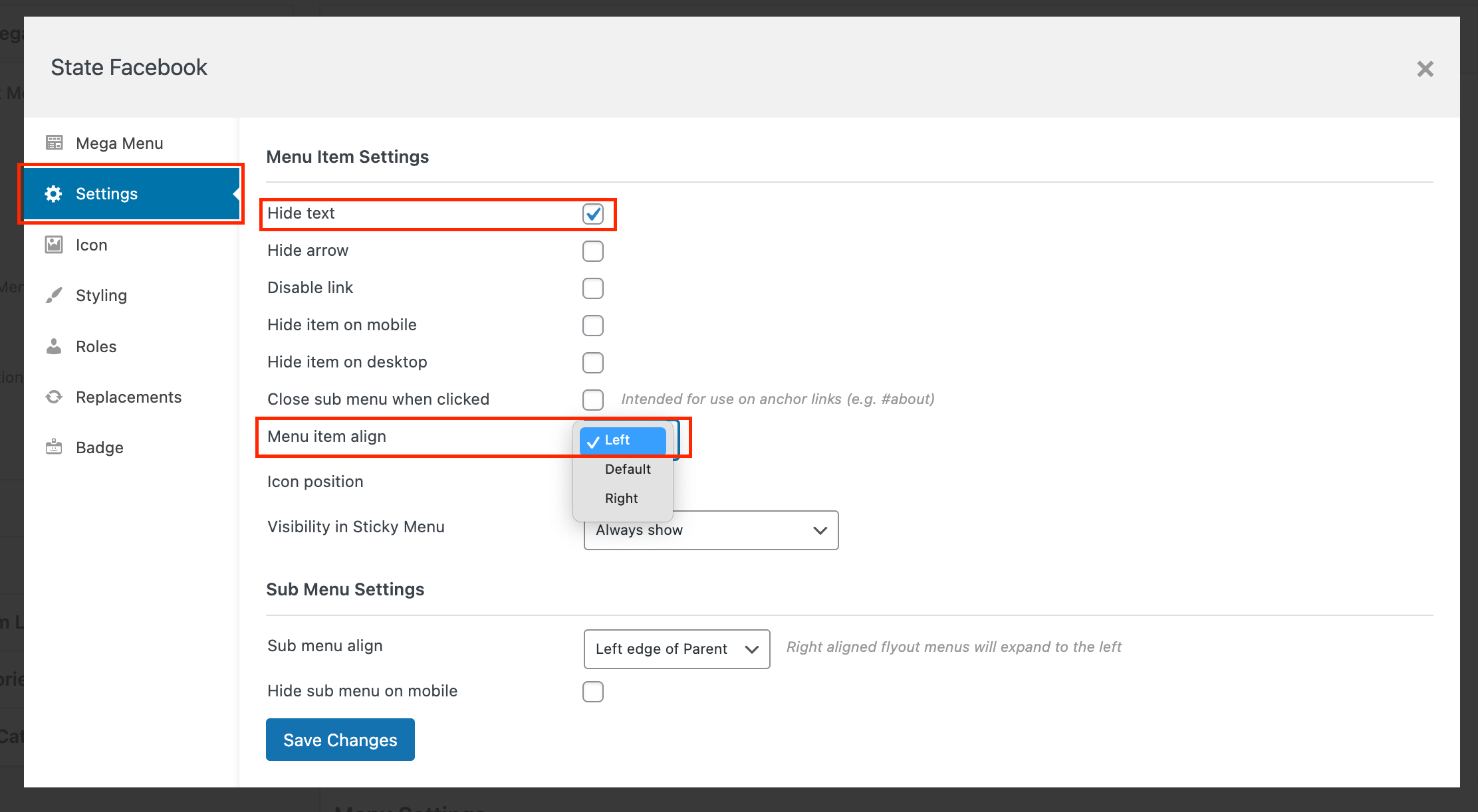
For any new entries, you will want to go to Settings and select Hide Text. This way the item will show only as your selected icon and not your title text. To make sure the icons display in the right order (going from left to right, starting with the first item on the list), set Menu item align to Left on the dropdown menu.
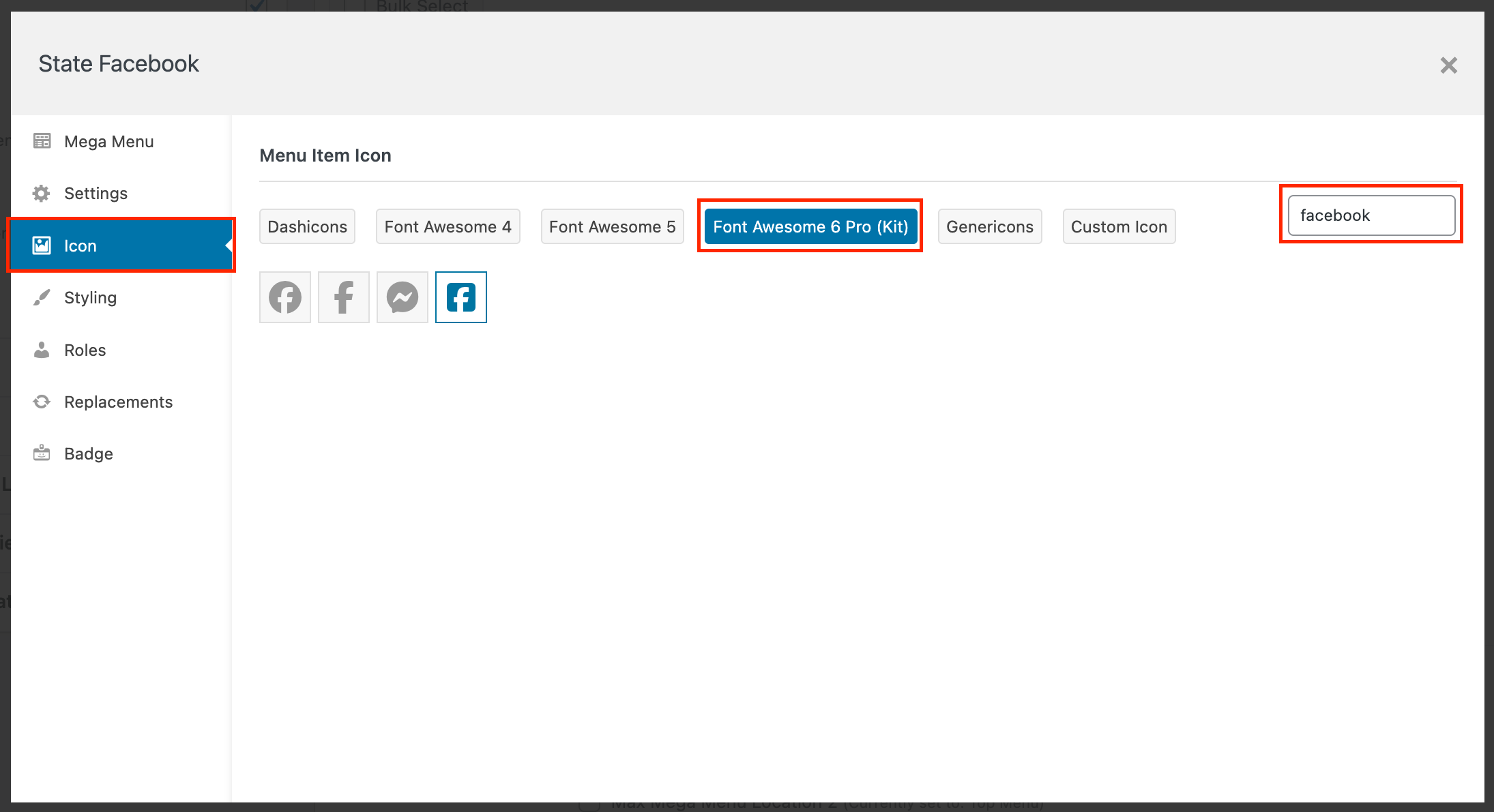
To change the icon, go to the Icon Menu in the Mega Menu. We suggest choosing an icon from Font Awesome 6 Pro (Kit) to ensure all the icons are aligned properly. You can select an icon from the list or search for one using the search bar.
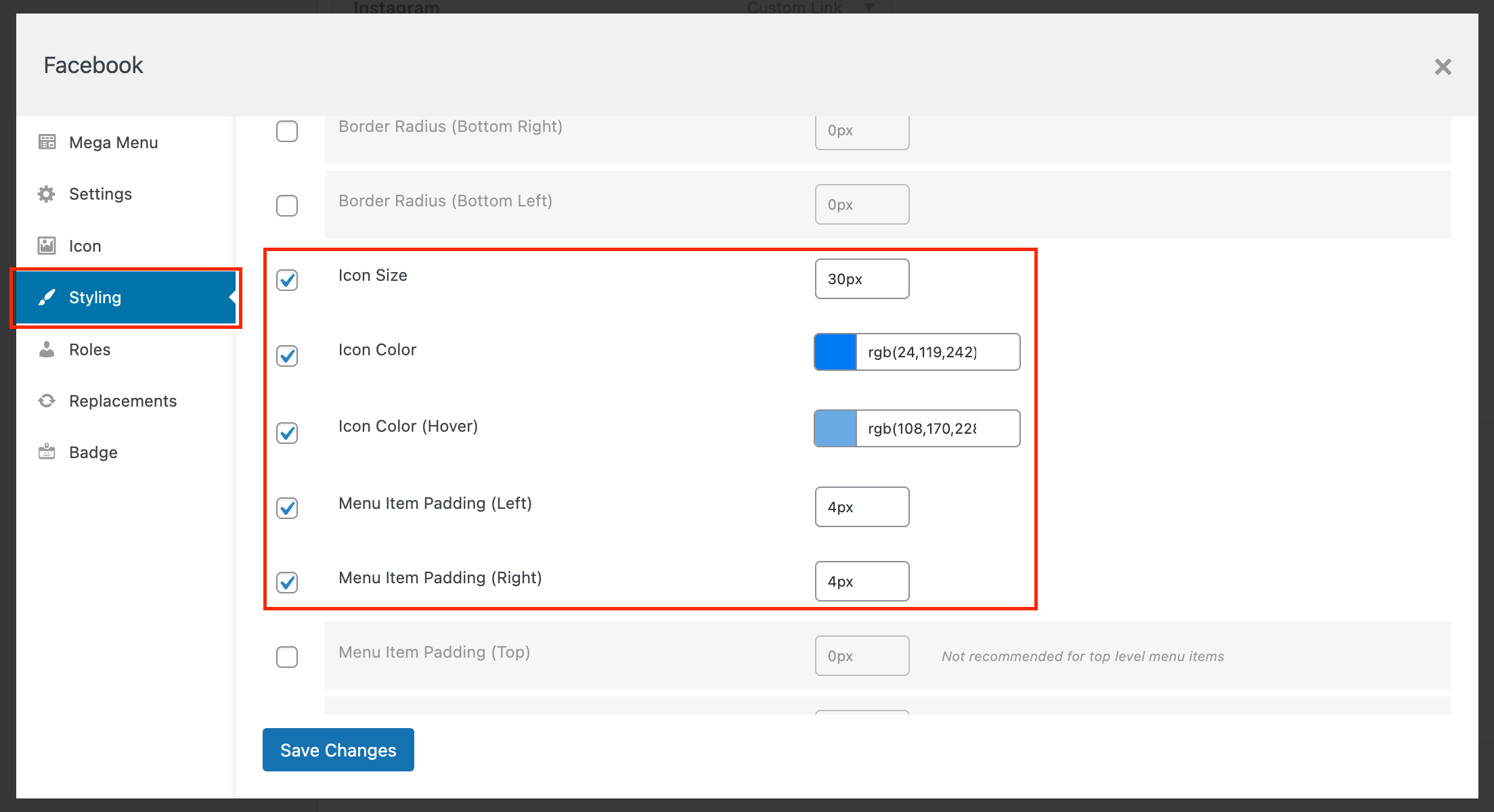
In Styling, scroll down to the options to adjusting the icon size, icon color, icon color (hover), and menu item padding. To match the style of the other items, you will want to have your Icon Size set to 30px and Item Padding set to 4px on the left and right.
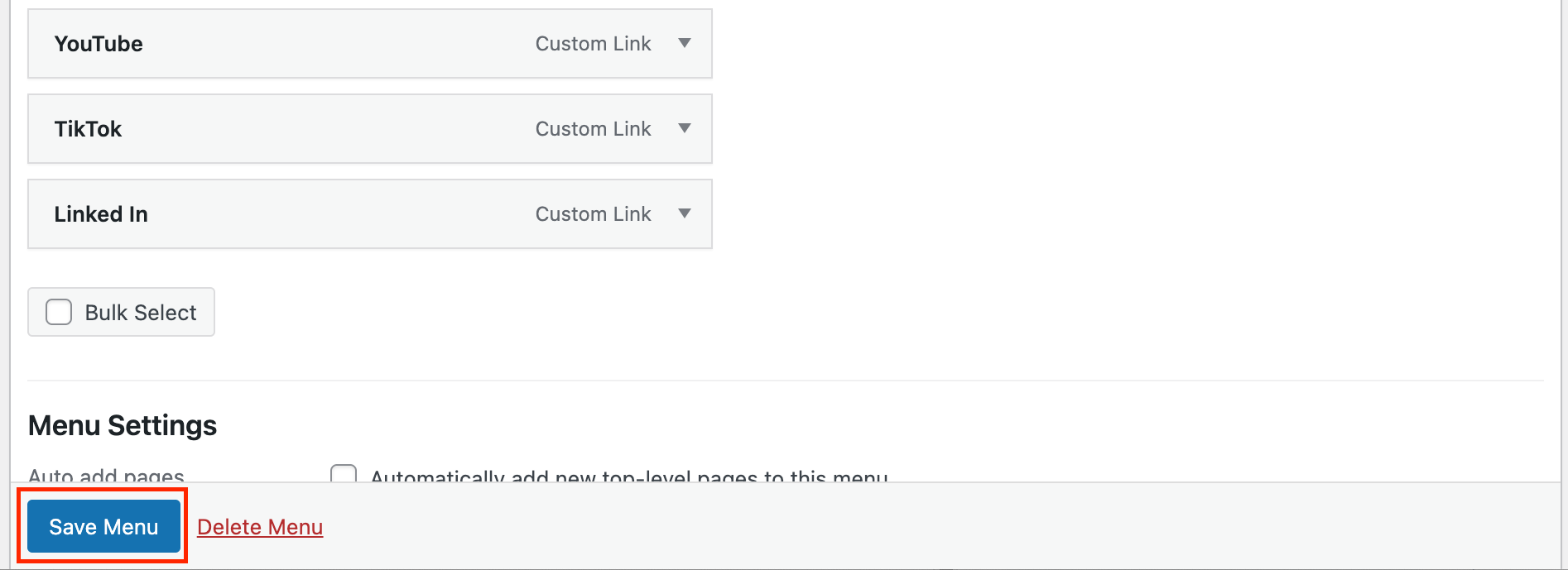
Once you have made all your changes, don't forget to click Save Charges then Save Menu or the changes won't be applied.
Was this article helpful?
That’s Great!
Thank you for your feedback
Sorry! We couldn't be helpful
Thank you for your feedback
Feedback sent
We appreciate your effort and will try to fix the article